
Pricing


AI writer

Taplio
MCP V2
New: Engage tools
Taplio MCP V2 now available, try it out
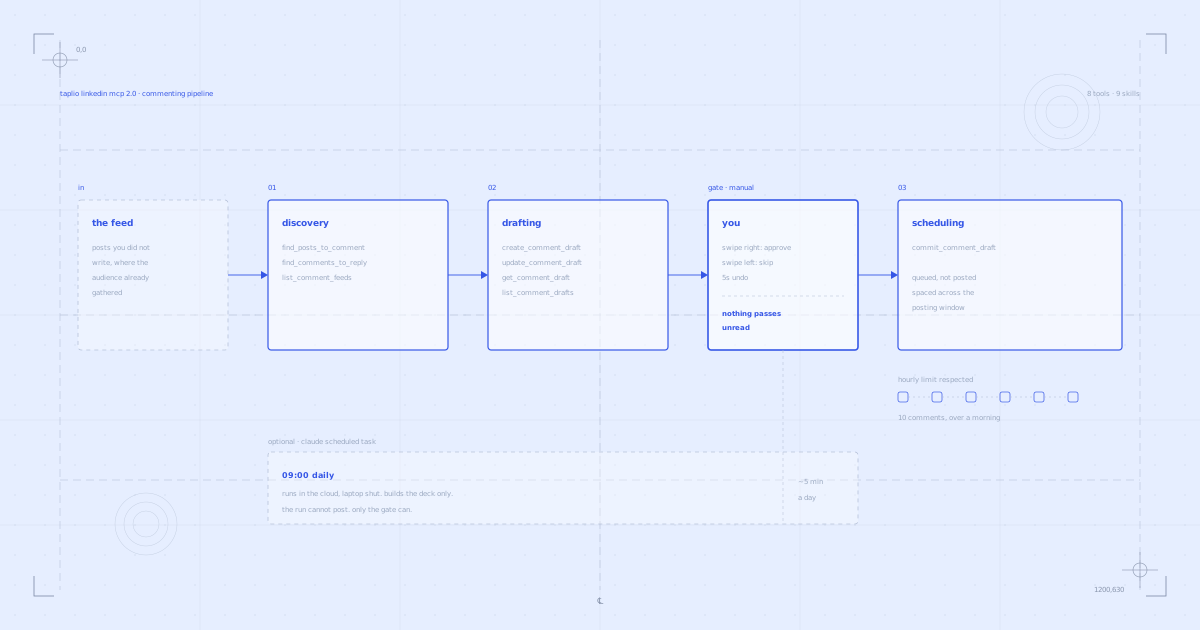
Your AI can now comment and reply for you. It finds the posts worth engaging, drafts in your voice and queues them on your Taplio account. Nothing posts until you confirm.

How to upload a video to LinkedIn (specs and steps)


8
min read

 Open in ChatGPT
 Open in Claude
 Open in Perplexity
Key Takeaways
- LinkedIn video upload: Click the Video icon in the LinkedIn share box, choose Upload from computer or your phone gallery, add a thumbnail and captions, then click Post, with files accepted from 75 KB to 5 GB and 3 seconds to 15 minutes long.
- Exact path, desktop and mobile: Desktop is share box Video icon, Upload from computer or drag and drop, Next, set audience, type caption, Post; mobile is Post, Video icon, trim and add captions, Next, set audience, Post.
- The limits that decide: Per LinkedIn's own help pages, video must fall between 256x144 and 4096x2304 resolution, 1:2.4 to 2.4:1 aspect ratio, 10 to 60 fps and 192 Kbps to 30 Mbps, and only one video is allowed per post.
- Check before exporting: Confirm file size (75 KB to 5 GB), duration (3 seconds to 15 minutes on desktop, 2 seconds minimum on mobile), a supported type such as MP4 or MOV (no animated GIF, no ProRes), aspect ratio, and that the file sits in local storage rather than only iCloud.
- Pick the shape, then the cadence: Choose 16:9 landscape for screen recordings and repurposed clips, 1:1 square for the mobile feed, 9:16 vertical for LinkedIn's full screen video feed, then queue posts with Taplio's scheduler, from $39/month with a 7-day trial and no free plan.
To upload a video to LinkedIn, click the Video icon in the share box on your homepage or app, choose Upload from computer or your phone's gallery, then click Post. LinkedIn accepts files up to 5 GB and 15 minutes long, in a resolution range of 256x144 to 4096x2304. This guide covers the full spec table, the desktop and mobile steps, article and Company Page uploads, formats and aspect ratios, captions, and the most common reasons an upload fails.
Video is one of the four post formats Taplio's LinkedIn Benchmark ranks on reach and engagement, alongside images, documents and text only. The benchmark measures 54,000+ real posts every month, so once your video is up you can check where it lands against real posts in your follower bracket rather than guessing.
LinkedIn video specs
LinkedIn accepts video files from 75 KB to 5 GB, 3 seconds to 15 minutes long, at a resolution between 256x144 and 4096x2304. Every number in the table below is read off LinkedIn's own help pages, not copied from a third-party guide.
| Parameter | Requirement |
|---|---|
| Maximum file size | 5 GB |
| Minimum file size | 75 KB |
| Maximum duration (share box) | 15 minutes |
| Minimum duration | 3 seconds on desktop, 2 seconds on the LinkedIn mobile app |
| Resolution range | 256x144 to 4096x2304 |
| Aspect ratio range | 1:2.4 to 2.4:1 |
| Frame rate | 10 fps to 60 fps |
| Bit rate | 192 Kbps to 30 Mbps |
| Supported file types | MP4, MOV, AVI, WEBM, MKV, WMV, VC1, MPEG, MPEG2, MPEG1VIDEO, DVVIDEO, QTRLE, TSCC2 |
Any video that clears those numbers can be uploaded, whatever it shows: a talking head clip, a screen recording, a product demo, a conference recap. LinkedIn restricts the file, not the genre. The one thing it will not take is an animated GIF, which its video platform does not accept at all.
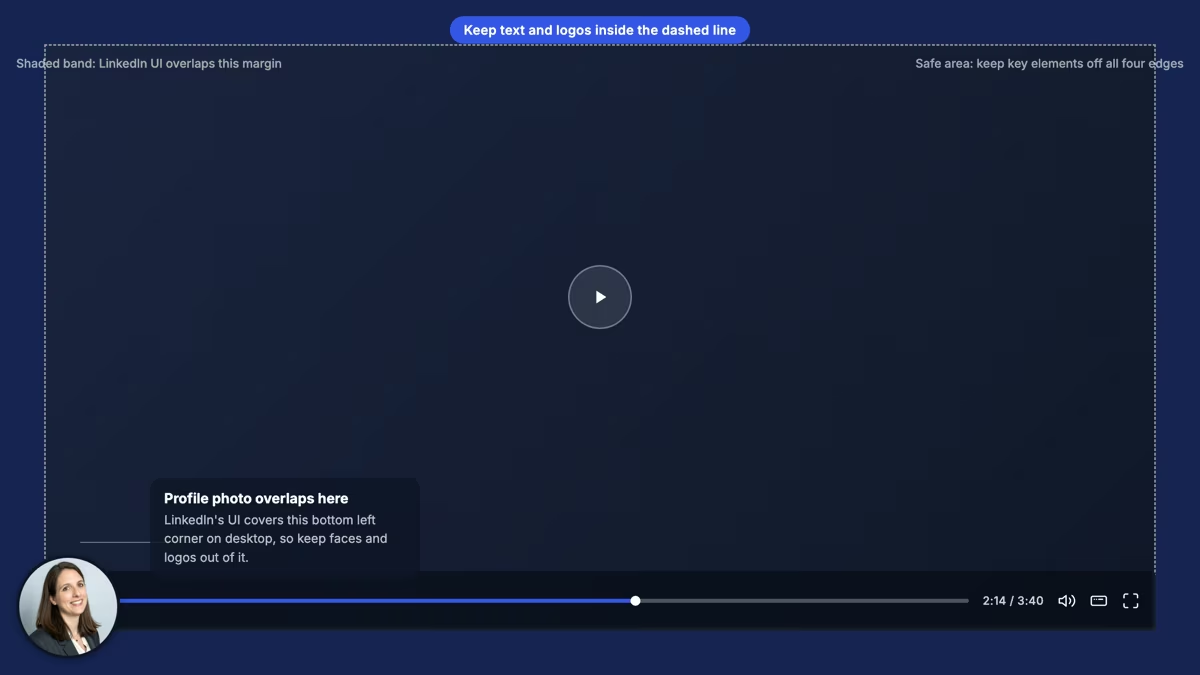
Keep the top, bottom and side edges of your video free of text and logos. That safe zone keeps your content from sitting under LinkedIn's own player controls, name overlay and profile photo circle.
Upload a video (desktop)
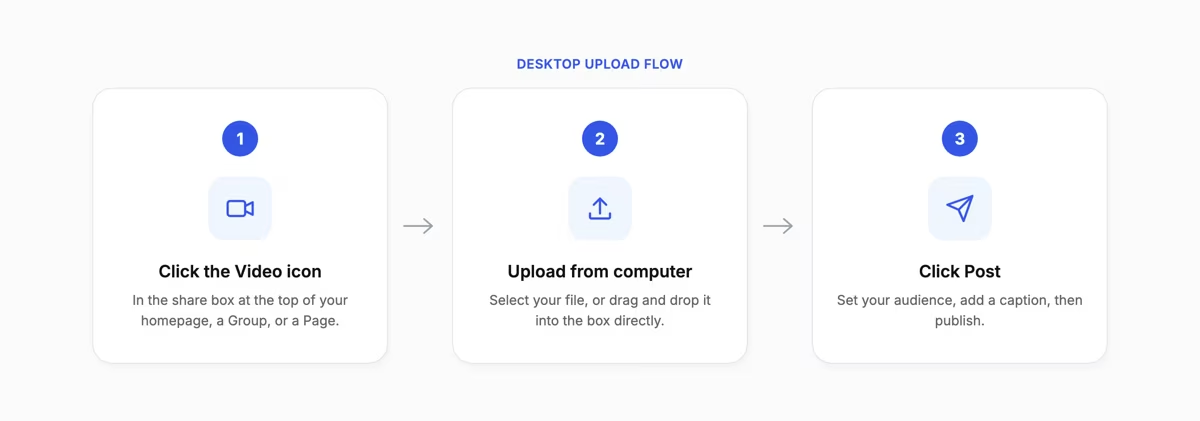
On desktop, you upload a video from the share box at the top of your LinkedIn homepage, a Group, or a Page, in five steps.
- Click the Video icon in the share box at the top of your homepage.
- Click Upload from computer to select your file, or drag and drop the video directly into the box.
- Add a video thumbnail and captions if you want them, then click Next.
- Set who can see the post and who can comment from the dropdown next to your name.
- Type your caption text, then click Post.
Upload a video (mobile app)
On the LinkedIn mobile app, you upload a video from the same Post composer, with a few mobile-only editing tools along the way.
- Tap Post in the upper right of the app.
- Tap the Video icon to record with your camera or choose a video from your gallery.
- Trim the clip, add stickers or text, and turn on captions if you want them.
- Tap Next, then set your audience from the dropdown next to your name.
- Type your caption text and tap Post in the upper right.
One mobile-only limit: a video stored only in iCloud will not upload from the app. Move it to your phone's local storage first, then try again.
To re-upload a clip that already lives on LinkedIn, pull the file down first with the LinkedIn video downloader, then post it like any other file. Ask the original poster first, reposting someone else's video as your own is a copyright problem.
Add a video to an article or a Company Page
You can add a native video to a LinkedIn article or post one from a Company Page, and both use the same file requirements as the share box, with a single exception inside the article editor.
A Company Page admin posts a video from the Page's own share box exactly as a personal profile does. LinkedIn documents three places where that share box accepts a video, your homepage, a Group and a LinkedIn Page, and the requirements are identical in all three.
So there is no separate Page limit to learn: 5 GB, 15 minutes, and the same resolution, aspect ratio, frame rate and bit rate ranges as the table above. Auto captions work the same way on a Page video as on a personal one.
For an article, click Upload from computer under Add cover image or video in the article editor to set a cover video, then add captions and a thumbnail before continuing. To place a video inside the article body, click the Media icon in the article toolbar and drop the file in, then add captions the same way.
The exception sits in the article editor. LinkedIn's article spec table caps a cover or body video at 15 minutes on desktop and 10 minutes on the mobile app, the only place in its documentation where a 10 minute figure appears. File size, resolution, aspect ratio, frame rate and bit rate stay identical to the table above.
Articles cannot embed third-party code snippets, but you can paste a link from YouTube, Vimeo, Spotify, SlideShare, SoundCloud, Megaphone or Omny.fm to embed that provider's player instead of uploading natively.
Formats and aspect ratios: landscape, square, vertical
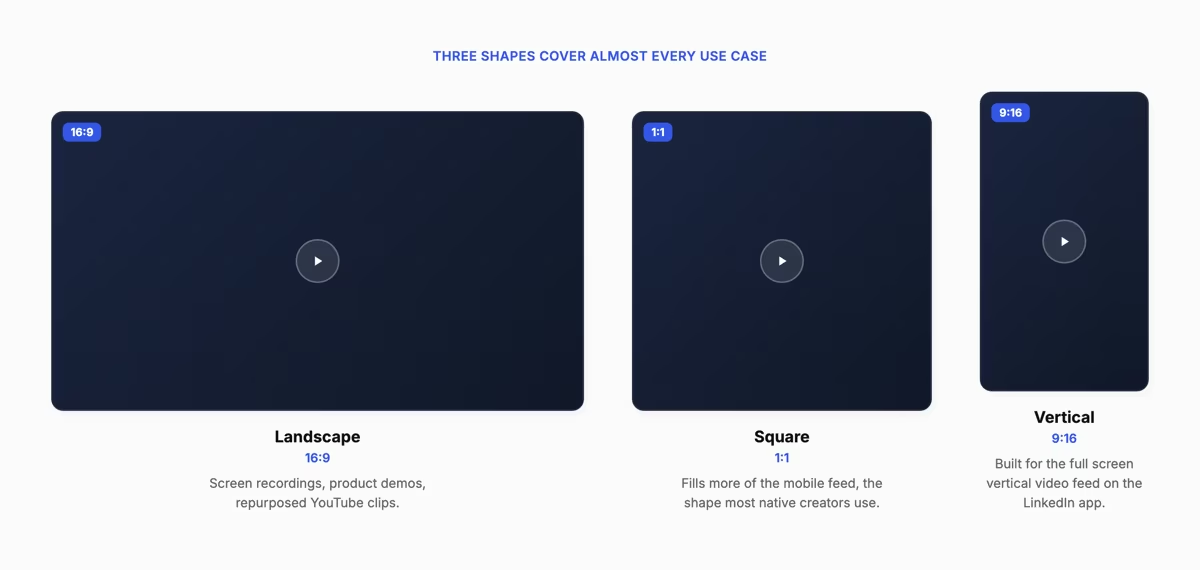
LinkedIn accepts any aspect ratio between 1:2.4 and 2.4:1, but three shapes cover almost every use case: landscape, square and vertical.
- Landscape (16:9): the safest default for a screen recording, product demo or repurposed YouTube clip, and it matches most cameras and editors without any cropping.
- Square (1:1): fills more of the mobile feed without cropping, and it is the shape most native LinkedIn creators use for talking head clips.
- Vertical (9:16): built for LinkedIn's full screen vertical video feed, and it is the shape to use if you want a shot at that placement.
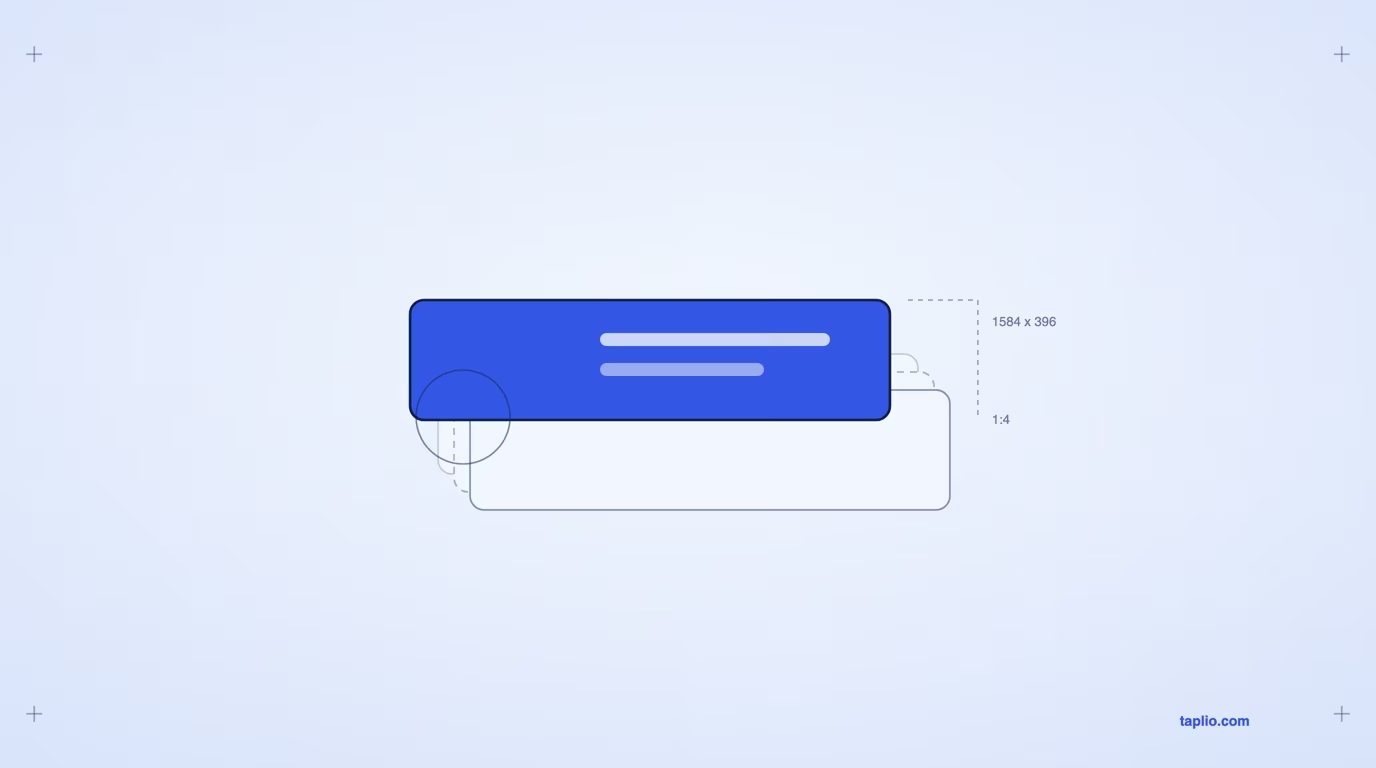
The same sizing discipline applies to the rest of your profile, and our LinkedIn banner size guide gives the exact pixel dimensions there. For a slide based carousel rather than a native video, Taplio's LinkedIn carousel generator works on the same tall canvas, 1080 x 1350, with no video file to export.
Captions: why they are essential and how to add them
LinkedIn generates captions automatically in 10 languages, and they are worth turning on because a viewer who scrolls past with the sound off still gets your message.
On desktop, after selecting your video, toggle Add auto captions on in the editor pop-up, or toggle Review captions before viewers can see them if you want to check them first, then click Done.
On mobile, tap the Captions icon after selecting your video, toggle the same two options, then tap Next.
To edit captions after posting, open the post's More menu, select Edit captions, then edit or remove individual lines from the Edit Captions window. Viewers can turn captions on or off themselves from the Captions icon on the video player.
Why your video fails to upload
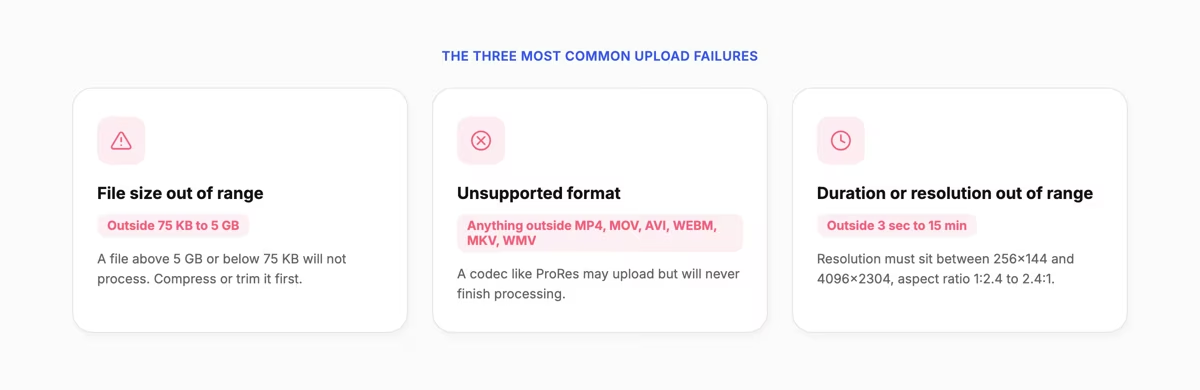
Most LinkedIn video uploads fail for one of three reasons: the file sits outside the size or duration limits, the format is not supported, or the resolution or aspect ratio falls outside LinkedIn's accepted range.
- File size out of range: LinkedIn accepts 75 KB to 5 GB. A file above 5 GB or below 75 KB will not process, so compress or trim it first.
- Unsupported format: LinkedIn supports MP4, MOV, AVI, WEBM, MKV, WMV, VC1, MPEG, MPEG2, MPEG1VIDEO, DVVIDEO, QTRLE and TSCC2 on desktop, iOS and Android. A file in another codec, such as ProRes, may upload but will not finish processing.
- Duration or resolution out of range: a clip must run 3 seconds to 15 minutes on desktop, or 2 seconds minimum on mobile, at a resolution between 256x144 and 4096x2304 and an aspect ratio between 1:2.4 and 2.4:1.
- Stuck in iCloud: on iOS, a video that lives only in iCloud will not upload until you move it to your phone's local storage.
Frequently asked questions
Can I upload a video directly to LinkedIn?
Yes. Click the Video icon in the share box on your homepage, a Group, or a Page, upload from your computer or phone, then post. LinkedIn does not let you post directly into the separate full screen vertical video feed, a video only becomes eligible for that feed after you post it normally.
Can I post a 10 minute video on LinkedIn?
Yes. A share box video can run up to 15 minutes on desktop, so a 10 minute clip is well within range. The one exception is a cover or body video inside a LinkedIn article, which LinkedIn's article spec table caps at 10 minutes on the mobile app.
Can I add more than one video to a single LinkedIn post?
No. LinkedIn only supports one video per post. Combine multiple clips into a single file before you upload, or publish them as separate posts.
Can I post an animated GIF as a video on LinkedIn?
No. LinkedIn's video platform does not accept animated GIFs. Convert the GIF into an MP4 or another supported file type first.
Why won't my video upload to LinkedIn?
The most common causes are a file outside the 75 KB to 5 GB size range, a duration outside 3 seconds to 15 minutes, an unsupported codec, or a resolution or aspect ratio outside LinkedIn's accepted range. Check the spec table above and re-export the file if any number falls outside it.
Once the upload works, the harder part is doing it every week. Queue your next posts ahead of time with Taplio's LinkedIn post scheduler instead of uploading by hand each morning.


Keep reading
All articlesRelated Articles
.avif)
Your Linkedin AI coach is waiting for you
Join 12,000+ creators who let their coach turn the blank page into a plan and watch their audience compound.
7-day free trial · 30 day money back · Cancel anytime
AVG. VIEWS
2,979
-1.5%
ENGAGEMENT
3.2%
+0.8%

Free Monthly Report
How does your LinkedIn compare?
Get free monthly benchmarks on reach, engagement, and content format performance.
Get the Benchmark