
Pricing


AI writer

Taplio
MCP V2
New: Engage tools
Taplio MCP V2 now available, try it out
Your AI can now comment and reply for you. It finds the posts worth engaging, drafts in your voice and queues them on your Taplio account. Nothing posts until you confirm.

LinkedIn Post Inspector: how to preview and fix your link previews

September 16, 2026

11
min read

 Open in ChatGPT
 Open in Claude
 Open in Perplexity
Key Takeaways
- Two separate specs exist for LinkedIn images: a link preview og:image needs a minimum of 1200 x 627 pixels at a 1.91:1 ratio, while a native uploaded post image follows the 1080 x 1080 or 1080 x 1350 convention, which LinkedIn does not publish as a spec.
- Post Inspector reads four required tags: og:title, og:image, og:description, and og:url, and falls back to its own extraction when any of them is missing or fails validation.
- Running an inspection needs a LinkedIn account: the public Post Inspector page loads without signing in, but clicking Inspect on a URL redirects to LinkedIn's sign-in page.
- A cache refresh is not retroactive: LinkedIn's own help documentation confirms a Post Inspector refresh only changes the preview for new posts sharing that URL, not posts already published with the old one.
- Images under 401 pixels wide lose the full card: LinkedIn's sharing guidelines state that anything narrower displays as a small thumbnail instead of a full-width preview.
The LinkedIn Post Inspector is a free tool at linkedin.com/post-inspector that shows how a URL will look when it is shared on LinkedIn, and lets you ask LinkedIn to refresh a stale preview. Paste in a link and it returns the title, image, and description LinkedIn extracted from that page, plus a way to force a re-scrape. This guide covers how to use it, what it cannot tell you, how to fix a broken preview, and how to preview your own post's text before you hit publish.
What is the LinkedIn Post Inspector
The LinkedIn Post Inspector is LinkedIn's own tool for checking and refreshing the preview card that appears when a URL is shared on the platform. It is built by LinkedIn's Content Ingestion team, the same team whose services read a page's metadata every time a member shares a link.
LinkedIn's own framing gives it three jobs: help you optimize a page's content for better engagement, show when LinkedIn last updated its data about that page, and give you a starting point for debugging a broken preview. It works on any public URL, an article, a blog post, a resume page, or a personal site.
Viewing the tool itself needs no LinkedIn account. Running an actual inspection on a URL does, a limit the "what it cannot tell you" section covers in full.
The tool exists because a link's preview card is assembled from data LinkedIn already stores, not generated fresh on every view. Post Inspector is a direct window into that stored data, so it answers what LinkedIn currently has on file rather than what your page looks like right now in a browser.
How LinkedIn builds a link preview
LinkedIn builds a link preview in four steps: a crawler visits the URL, reads its Open Graph tags, stores what it finds in a cache, and renders that cached data as the card readers see in the feed. The Post Inspector is a window into that stored cache, not a live fetch every time someone views a post.
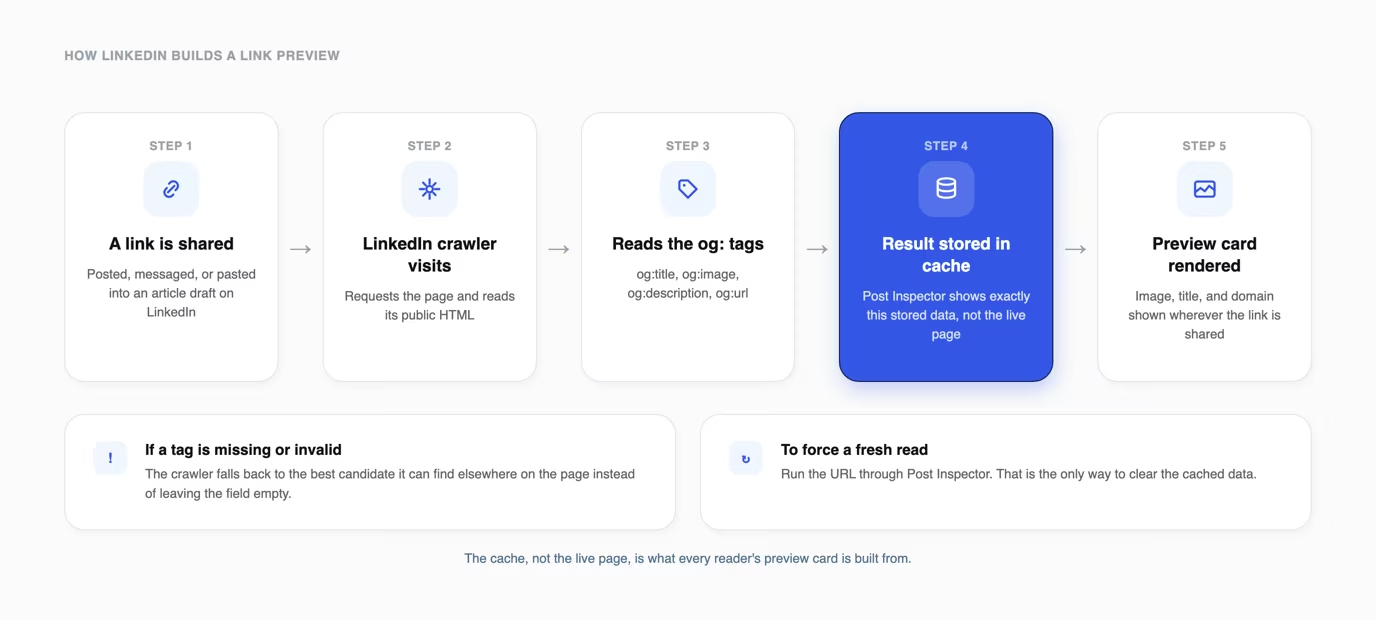
LinkedIn's own developer guidance lists four tags a page needs for a correct preview: og:title, og:image, og:description, and og:url. When a page is missing one, or the value fails LinkedIn's validation, the crawler falls back to whatever else it can find on the page instead.
That fallback behavior explains why a preview sometimes pulls a random paragraph as the description or a stray icon as the image. LinkedIn's own engineering team has described this as picking the best available candidate when the structured metadata does not meet its criteria, rather than leaving the field empty.
That cache is also the reason a page can look right in a browser but wrong on LinkedIn. If the page changed after LinkedIn last crawled it, the old data stays in the card until something forces a refresh.
This is different from how most sites handle previews internally. A browser tab, a CMS preview, or a design tool reads the live page every time, while LinkedIn reads a stored snapshot until you specifically ask it not to.
How to use the LinkedIn Post Inspector
To use the LinkedIn Post Inspector, go to linkedin.com/post-inspector, paste the full URL into the input field, and click Inspect. LinkedIn returns the title, image, and description it has stored for that page, along with when it last updated that data, and lets you request a re-scrape.
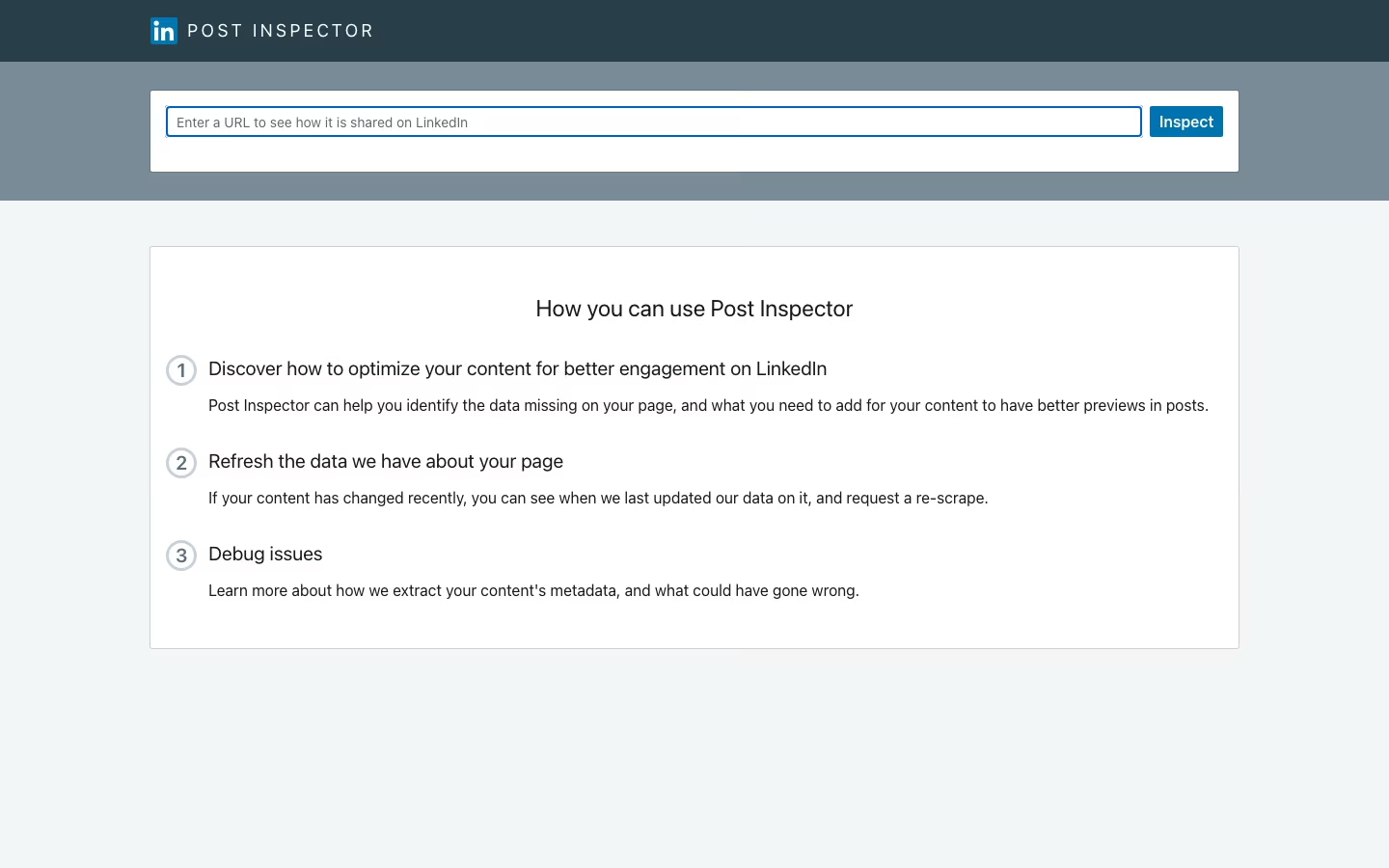
If the preview looks wrong, correct the underlying og: tags on the page first. Then run the same URL through Post Inspector again to request a re-scrape, which is what actually clears the stale data from the cache.
The re-scrape only changes the preview for new posts sharing that URL going forward. It does not update posts that already went out with the old preview attached.
The result also shows when LinkedIn last updated its data on the page, so you can tell a stale cache from a page it has never crawled. LinkedIn's engineering team built the tool to annotate every value it extracted with the criterion it failed, an image too small or a title too long for example, so read that feedback before you touch the page.
What the Post Inspector cannot tell you
The Post Inspector shows you what LinkedIn extracted from a page, not why a post underperformed or whether members clicked it. It is a metadata tool, not an analytics tool.
Testing the tool directly turns up a limit that none of the official documentation states plainly: entering a URL and clicking Inspect requires a LinkedIn account. Viewing the public landing page does not, but running an actual inspection redirects to a sign-in page.
It also will not validate your copy, your hook, or your line breaks. It reads Open Graph tags on an external page, so it has nothing to say about a native LinkedIn post that carries no link at all, and a clean preview is no guarantee the LinkedIn algorithm will show it to many people.
And a re-scrape is not instant relief for posts already shared. The fix only reaches posts published after the refresh, so a broken preview already sitting on your profile stays broken.
It reports, it does not repair. The tool tells you which criterion a value failed, but every fix happens on your own page, and the tool only confirms the fix once you run the URL through it a second time.
Finally, it only inspects one URL at a time. There is no bulk mode for checking a whole site's worth of pages, which matters if a template change affects every article on a domain rather than a single page.
Fix broken LinkedIn link previews
A broken LinkedIn link preview comes down to one of five causes: a missing tag, a stale cache, an oversized or undersized image, a blocked crawler, or a redirect chain. The table below maps each symptom to its likely cause and the fix.
Work through the table top to bottom rather than guessing. Most of these fixes require changing something on your own page first, then returning to Post Inspector to confirm the change actually took effect.
| Symptom | Likely cause | Fix |
|---|---|---|
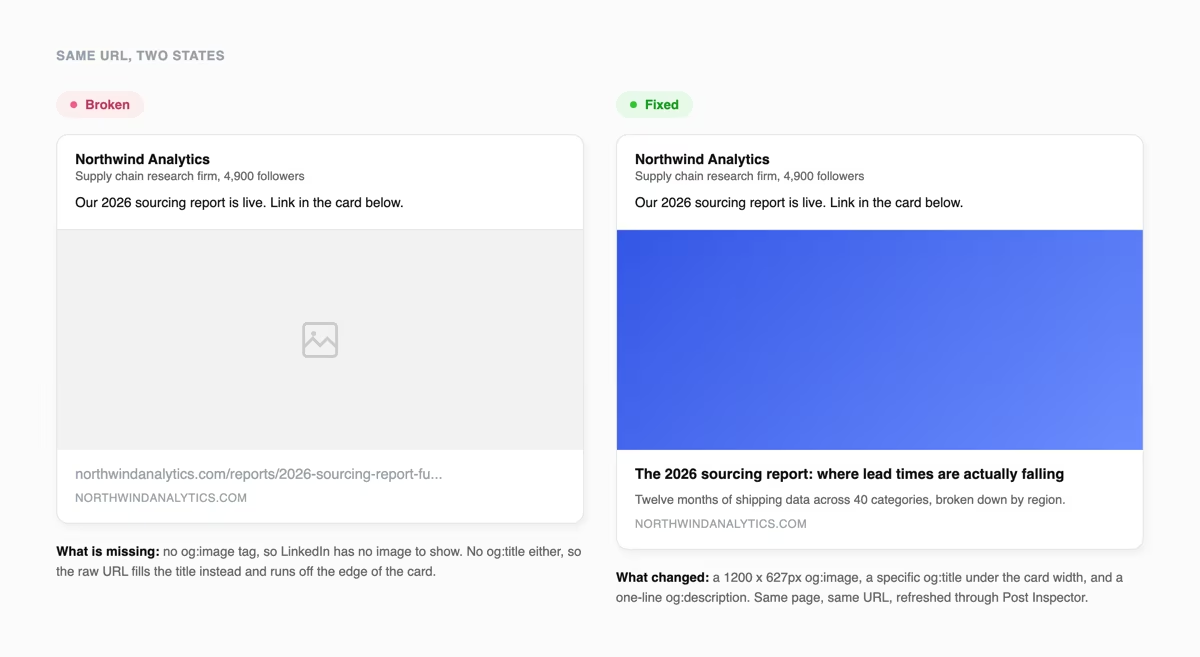
| No image shows at all | Missing og:image tag, or the image is smaller than the 1200 x 627px minimum | Add a valid og:image tag pointing at an image at least 1200 x 627px, then run the URL through Post Inspector |
| Wrong or outdated image shows | LinkedIn cached an older version of the page before the image changed | Update the og:image tag, then re-run Post Inspector to force a fresh scrape |
| Title or description looks cut off or generic | The og:title or og:description tag is missing or duplicated across pages | Write a specific og:title and og:description for that exact page |
| Preview shows a small thumbnail instead of a full card | The image is narrower than 401 pixels wide | Swap in an image at least 1200 pixels wide, ideally at the 1.91:1 ratio |
| Preview still will not update | The crawler cannot reach the page, often a login wall, a robots block, or a redirect chain | Confirm the page is public and returns a single response, then re-run Post Inspector |
Redirect chains deserve extra attention since they are easy to miss. If your link goes through a link shortener, a tracking redirect, and then the final page, LinkedIn's crawler has to follow every hop, and a broken or slow link in that chain can stop the metadata extraction before it reaches your actual content.
The right image size for a LinkedIn link preview
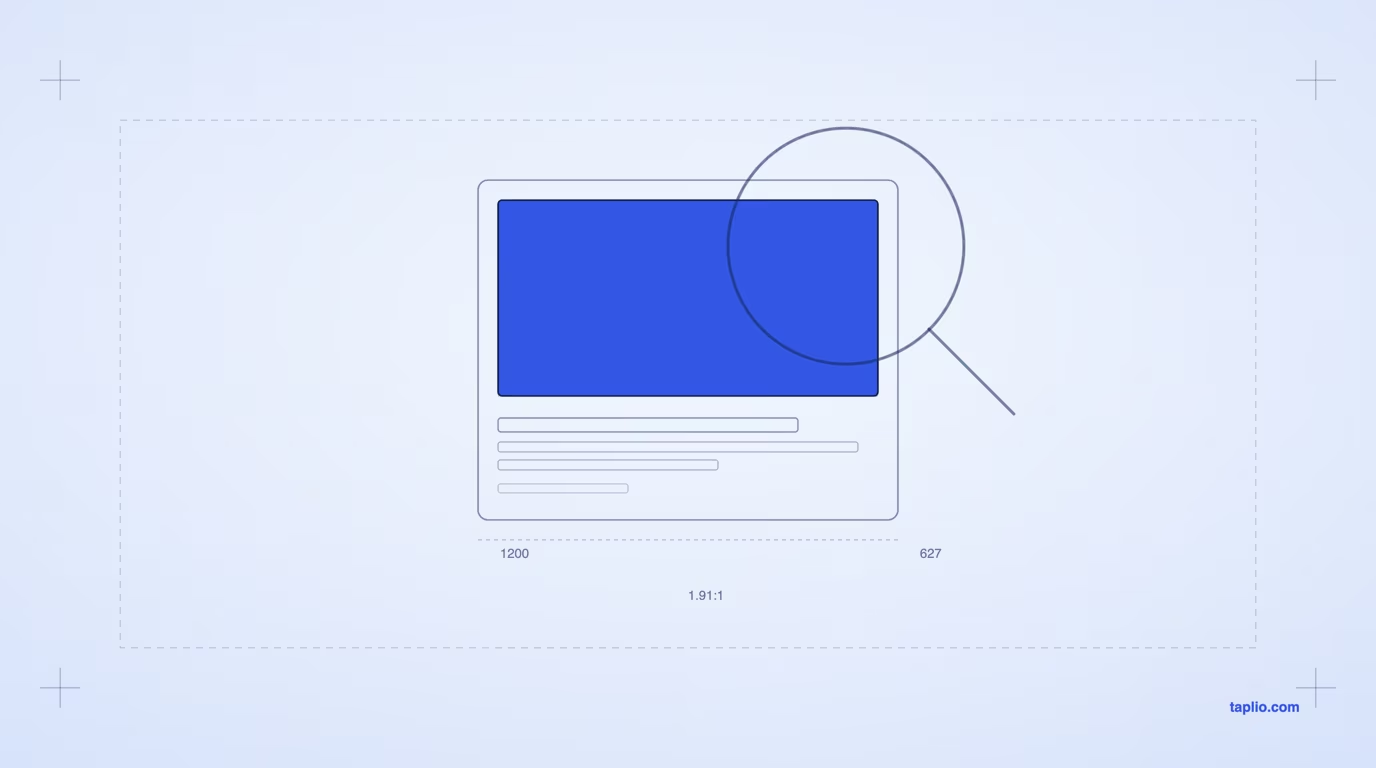
LinkedIn's own sharing guidelines set a minimum og:image size of 1200 x 627 pixels, at a recommended ratio of 1.91:1, with a maximum file size of 5 MB. Anything narrower than 401 pixels displays as a small thumbnail rather than a full-width card.
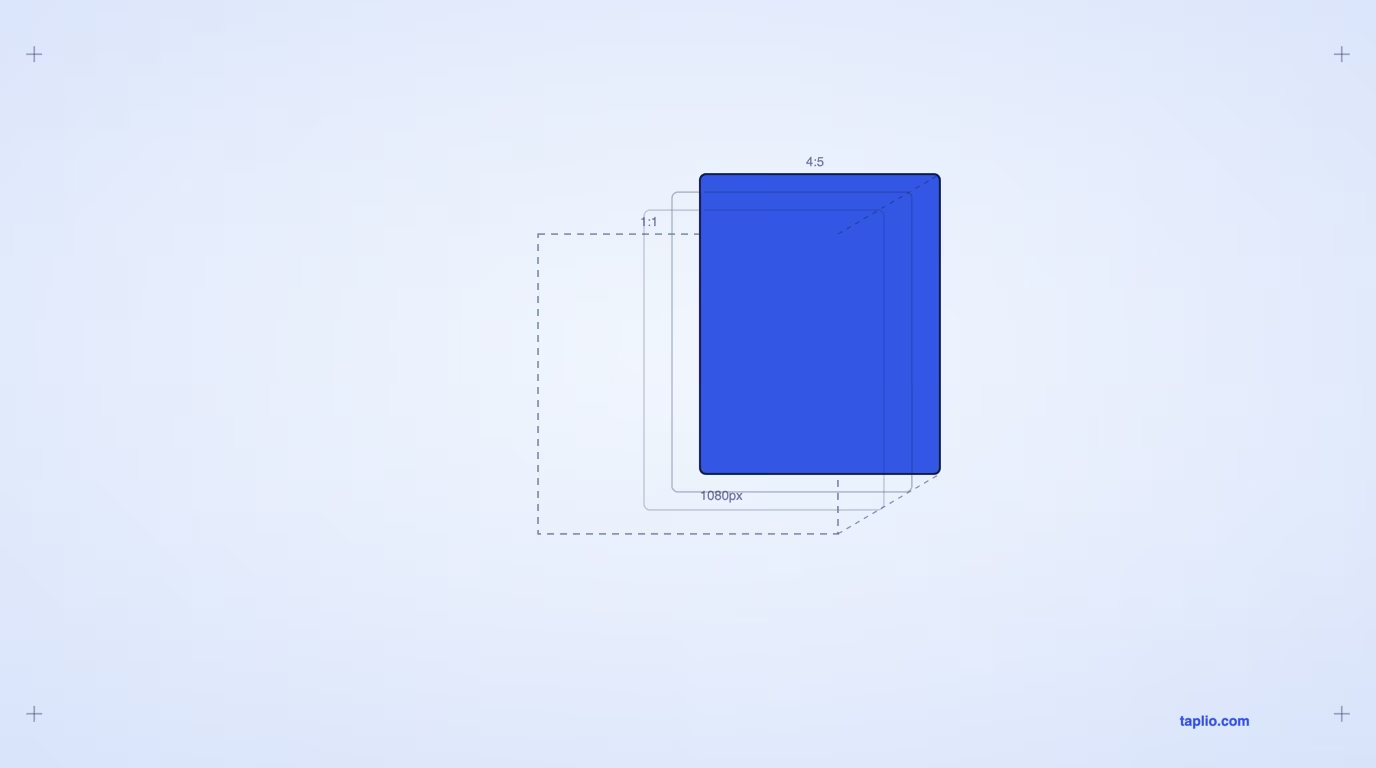
That 1200 x 627 figure is specific to link previews. A native LinkedIn post image that you upload directly follows a different convention, 1080 x 1080 for square or 1080 x 1350 for portrait, sizes LinkedIn does not publish as a spec, so keep the two assets separate.
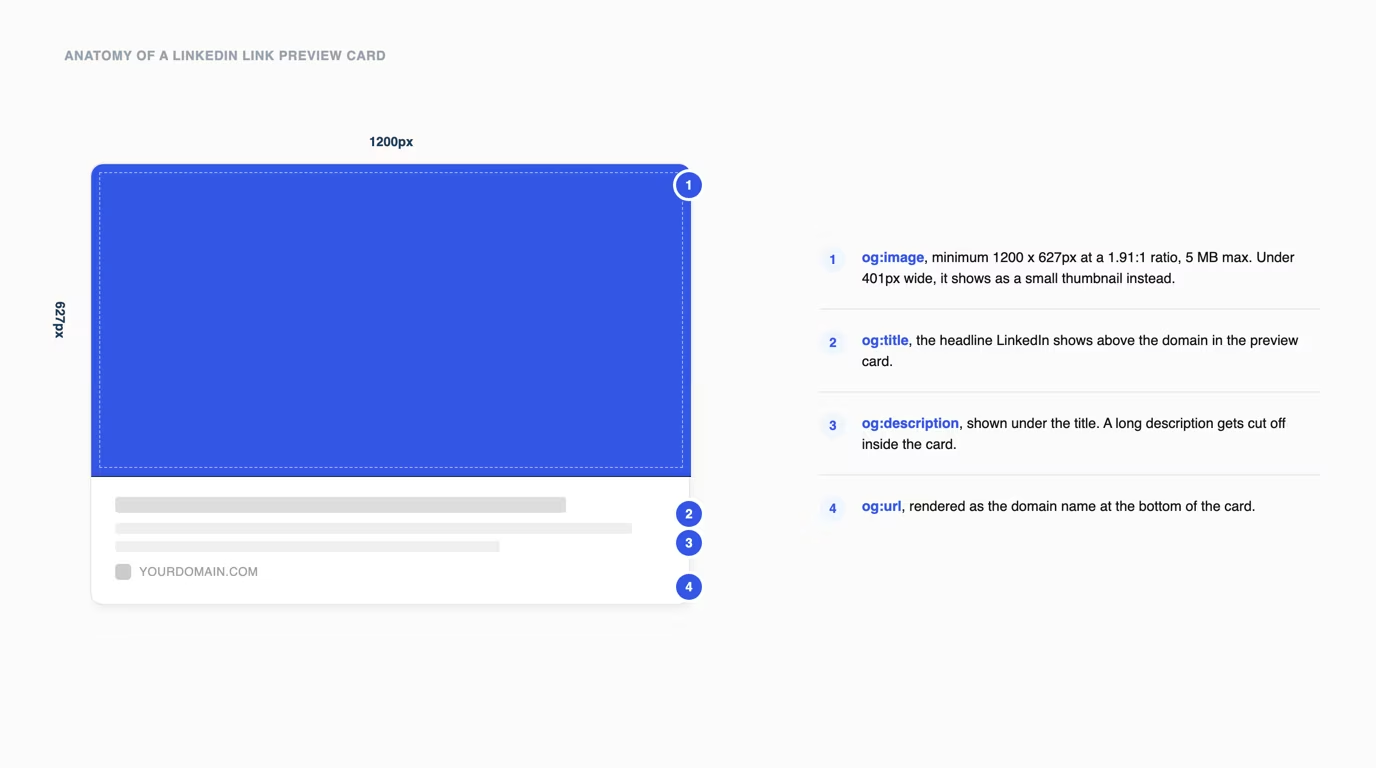
Export the image at 1.91:1 rather than reusing a square or vertical asset. LinkedIn's help page states that square and vertical images may be cropped when shared, so a landscape file is the one shape that reaches the card as designed.
File size matters too, since LinkedIn's own limit for the sharing module is 5 MB. A large, uncompressed export can fail to load even when the dimensions and ratio are both correct, which looks identical to a missing og:image tag until you check the file itself.
How to preview a LinkedIn post before you publish it
Previewing a post before you publish it is a different job from the Post Inspector, since it checks your own draft's text and layout rather than a shared link's metadata. Taplio's free post preview tool does that, with no signup required.
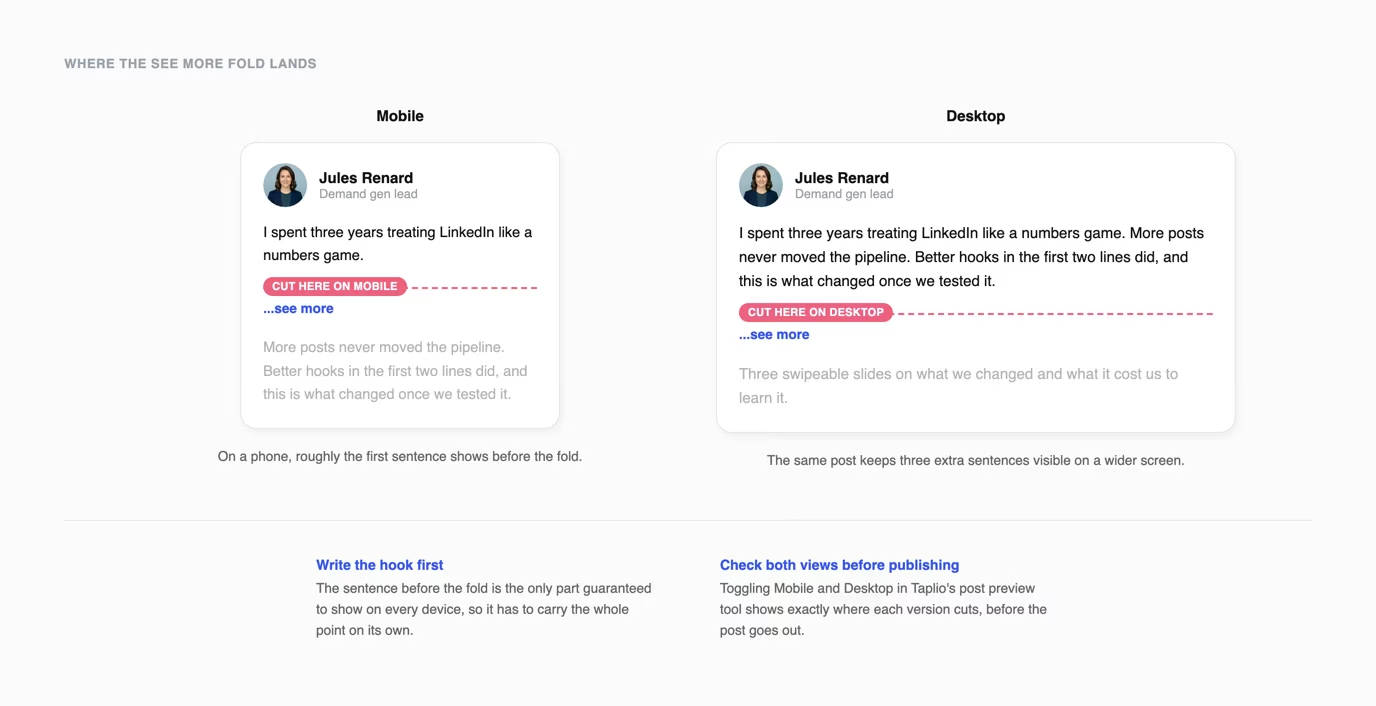
Paste your draft in, then toggle between the Mobile and Desktop tabs to see exactly where LinkedIn cuts the post behind the See more link. Keep the sentence that earns the click above that line, since Taplio's own tool page notes that more than 60 percent of readers see a post on a phone first.
The tool also carries your exact line breaks and emoji into the preview, so what you paste is what you see rather than an approximation. That matters because a paragraph break that looks intentional in a text editor can collapse or shift once it renders inside LinkedIn's feed layout.
Pair it with the LinkedIn post formatter to check bold and italic styling renders correctly before you post, and with the LinkedIn post generator if you are starting from a blank page rather than a rough draft. Neither tool touches link metadata, so use the Post Inspector separately for any post that carries a URL.
Used together, the two tools cover both halves of the same phrase. Post Inspector checks how a link looks when someone else shares it, and the preview tool checks how your own post reads before anyone sees it at all.
Frequently asked questions
Why is the LinkedIn Post Inspector not working?
The usual reasons are a page LinkedIn's crawler cannot reach, a missing og:image or og:title tag, or a URL that redirects through several hops before landing on the final page. Confirm the page loads publicly, returns a single response, and carries all four required og: tags, then try the inspection again.
If the tool itself will not load, or the Inspect button does nothing, sign out and back in first. The sign-in step is the first thing to rule out, since the inspection request only runs once you are authenticated.
Do you need to log in to use the LinkedIn Post Inspector?
You can view the public Post Inspector page without an account. Entering a URL and clicking Inspect to run an actual check requires you to be signed in to LinkedIn, which redirects you to a sign-in page if you are not.
How do you clear LinkedIn's cache for a link preview?
Enter the URL into the Post Inspector and click Inspect. That request tells LinkedIn to re-scrape the page and replace whatever title, image, and description it had cached, according to LinkedIn's own help documentation on refreshing a URL.
Remember that this only affects future shares of that URL. Anyone who already posted the link before you refreshed it keeps the old preview on their published post.
How long does LinkedIn cache a link preview?
LinkedIn does not publish an exact cache duration. Its own help documentation only confirms that a preview stays cached until something requests a refresh, which is why the Post Inspector's re-scrape exists as a manual override rather than something you wait out.
Is there a Post Inspector for other platforms like Facebook or X?
Yes for Facebook, which runs a comparable tool called the Sharing Debugger at developers.facebook.com/tools/debug. X's Card Validator now sits behind an X login, so for X you check the twitter:card tags in the page source by hand. Each platform caches and validates its tags separately, so fixing a preview on LinkedIn does not fix it anywhere else.


Keep reading
All articlesRelated Articles

.avif)
Your Linkedin AI coach is waiting for you
Join 12,000+ creators who let their coach turn the blank page into a plan and watch their audience compound.
7-day free trial · 30 day money back · Cancel anytime
AVG. VIEWS
2,979
-1.5%
ENGAGEMENT
3.2%
+0.8%

Free Monthly Report
How does your LinkedIn compare?
Get free monthly benchmarks on reach, engagement, and content format performance.
Get the Benchmark