
Pricing


AI writer

Taplio
MCP V2
New: Engage tools
Taplio MCP V2 now available, try it out
Your AI can now comment and reply for you. It finds the posts worth engaging, drafts in your voice and queues them on your Taplio account. Nothing posts until you confirm.

LinkedIn QR code: how to find, share and generate yours

September 15, 2026

11
min read

 Open in ChatGPT
 Open in Claude
 Open in Perplexity
Key Takeaways
- The native QR code needs no generator. Every LinkedIn member gets a personal QR code automatically, found by tapping the QR icon in the search bar, then the My code tab, on iOS and Android alike.
- Desktop has no built in QR code feature. LinkedIn's QR code only lives inside the mobile app, so a profile URL and a generator are the only route to a QR code from a laptop.
- Static and dynamic codes behave differently. LinkedIn's native code and most free generators encode your profile URL directly, while some paid generator plans issue a dynamic code that encodes a redirect and can be repointed without reprinting.
- A business card needs a quiet zone. Cards run from 85 by 55 millimeters in Western Europe to 88.9 by 50.8 in the US, and the QR code needs a clear white margin on every side to stay scannable at that size.
- Scanning always lands on the profile. Whether the code came from LinkedIn's Share my code option or a third party generator, a successful scan opens the exact profile it was made for, per LinkedIn's own help documentation.
Your LinkedIn QR code is already built into the app. Open LinkedIn on your phone, tap the QR icon in the search bar, and your personal code sits under the My code tab, ready to share or scan. You only need a separate generator if you want that code on a desktop, printed on a business card, or dropped into a slide.
What is a LinkedIn QR code
A LinkedIn QR code is a scannable square that opens a specific LinkedIn profile the moment someone's camera reads it. Every LinkedIn member gets a unique one, generated automatically by LinkedIn itself, no setup required.
Scan it and the person is taken straight to that profile, ready to send a connection request. It replaces the slower routine of typing a name into search, scrolling through results, and hoping you picked the right person out of a dozen with the same name.
LinkedIn Help describes it as the way to meet someone offline and stay in touch on LinkedIn. There is nothing to design and nothing to switch on in your settings: the moment you have a profile, the code exists inside the app.
Why use a QR code instead of just sharing your link
A LinkedIn profile URL is long, often ending in a string of random characters, and typing it out loud or reading it from a card is slow and error-prone. A QR code removes that step: point a camera at it and the link opens itself, with nothing to mistype.
It also works when spelling a name would not. Two people can share a name, a company can have several similarly named employees, and a misspelled search sends someone to the wrong profile entirely. A QR code sidesteps all of that by encoding the exact profile, not a name someone has to search for.
The trade-off is that a QR code needs a camera and a moment of attention. It fits best in person, on a printed page, or on a screen someone is already looking at. In the middle of a written message, a plain link is faster to tap.
How to find your LinkedIn QR code in the app
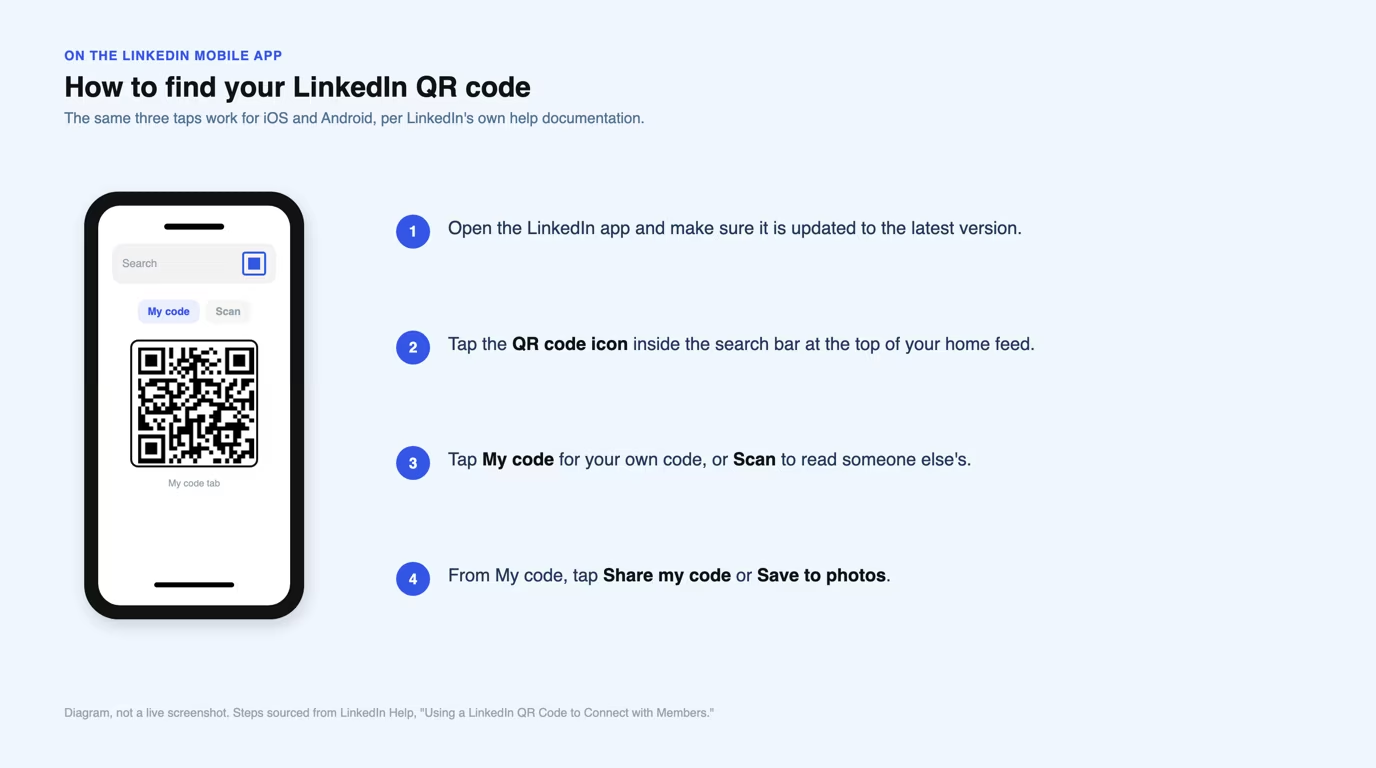
Your QR code lives inside the LinkedIn mobile app, under the search bar. LinkedIn's own help documentation lays out the same three taps for both iOS and Android.
- Open the LinkedIn app on your phone and make sure it is updated to the latest version.
- Tap the QR code icon inside the search bar at the top of your LinkedIn home feed.
- Tap the My code tab to see your own QR code, or the Scan tab to read someone else's.
From the My code tab you can tap Share my code to send it by message or email, or Save to photos to keep a copy on your phone. On Android the tab shows Save to gallery, and LinkedIn Help lists sharing by message or email as coming soon, so save the image and share it from your gallery if the option is missing on your device.
From the Scan tab, hold your camera over someone else's code, or tap Scan from photos (iOS) or Add code from gallery (Android) to read a code you already saved. A successful scan drops you straight onto that person's profile.
Desktop vs mobile: what is available where
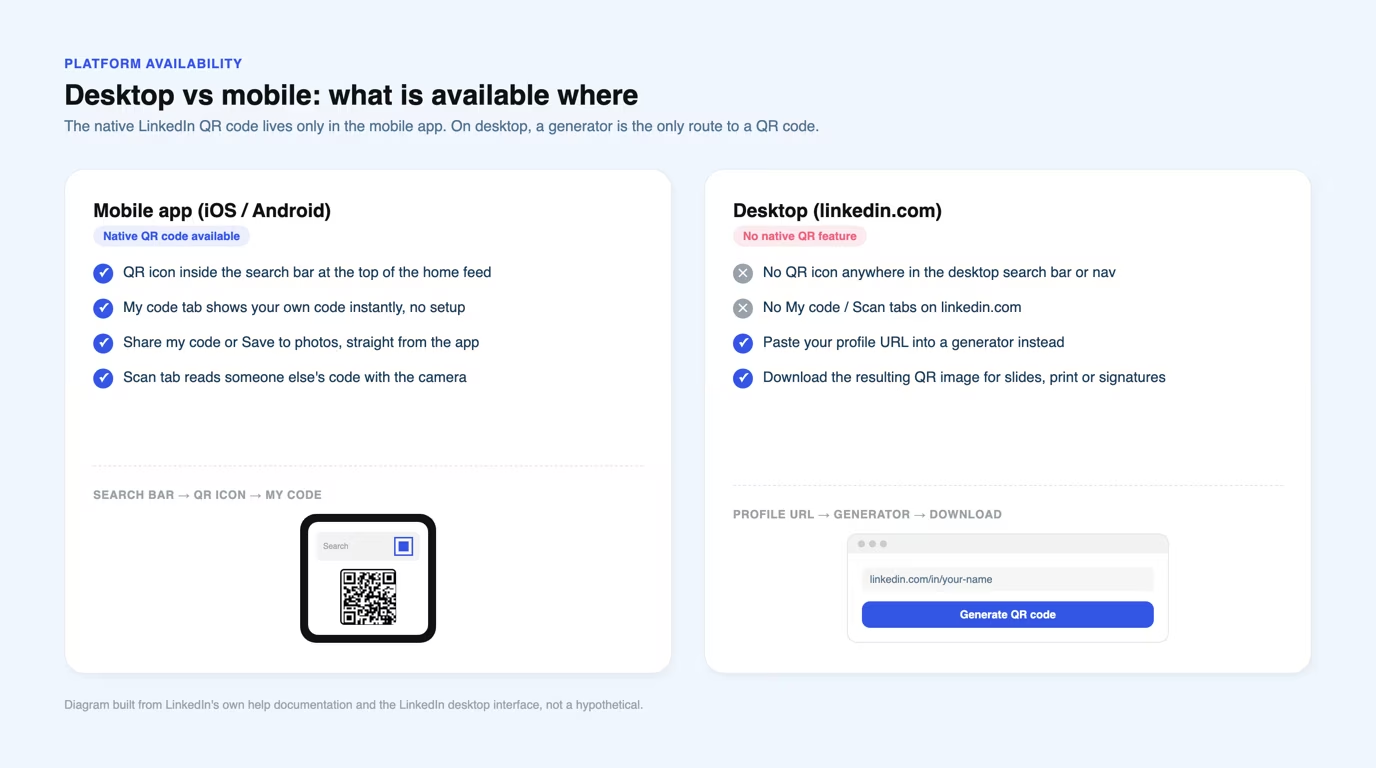
The native LinkedIn QR code only exists inside the mobile app. LinkedIn Help documents the feature for iOS and Android alone, and the search bar on linkedin.com carries no QR icon, so at a laptop there is nothing built in to tap.
That gap is exactly why third-party generators exist for this query. They read your public profile URL, the one that starts with linkedin.com/in/, and turn it into a QR code image you can download from any device, phone or desktop, no app required.
In practice, use the native code from your phone when you meet someone in person and want the fastest option. Use a generator from your desktop when you need a QR code to paste into a slide deck, a printed card, or an email signature you are editing on a computer.
How to create a LinkedIn QR code with a generator
A LinkedIn QR code generator does one job: it takes your profile link and encodes it as a QR image you can download. You do not need your phone or the LinkedIn app for this, only your profile URL.
Paste your LinkedIn profile URL into the generator below and it renders a scannable QR code in your browser. Download PNG then saves a 220 by 220 pixel image of the bare code, with no white margin, so add one yourself when you place it on a card or a slide. It works the same way as Taplio's other free LinkedIn tools, including the LinkedIn post date extractor: nothing you paste in ever leaves your browser.
LinkedIn QR code generator
Works entirely in your browser. Nothing is sent anywhere.
The tool above works the same way other LinkedIn QR code generators do under the hood: it reads the text of your profile link and encodes it into the black-and-white pattern a camera can decode. The difference between tools is what happens around that core function, covered next.
Most generators add three things on top of the raw code: a color or logo you can drop into the middle without breaking the scan, a downloadable file in a print-ready format, and on some paid plans, a count of how many times the code has been scanned. None of that changes what the code points to, only how it looks and what you can measure afterward.
Native QR code vs third-party generators
The native LinkedIn code and a generator both point to the same destination, your profile, but they trade off differently on cost, tracking, design and durability.
| Feature | Native LinkedIn QR code | Third-party generator |
|---|---|---|
| Cost | Free, built into the app | Usually free for a basic PNG, paid tiers add logo and color |
| Scan tracking | None, LinkedIn does not report who scanned it | Some generators log scan counts on paid or dynamic plans |
| Custom design | Fixed LinkedIn style, cannot be changed | Color, logo and frame are usually editable |
| Expiry or breakage | Tied to your account, keeps working as long as your profile exists | A static code breaks only if your profile URL changes; a dynamic code can be redirected without reprinting |
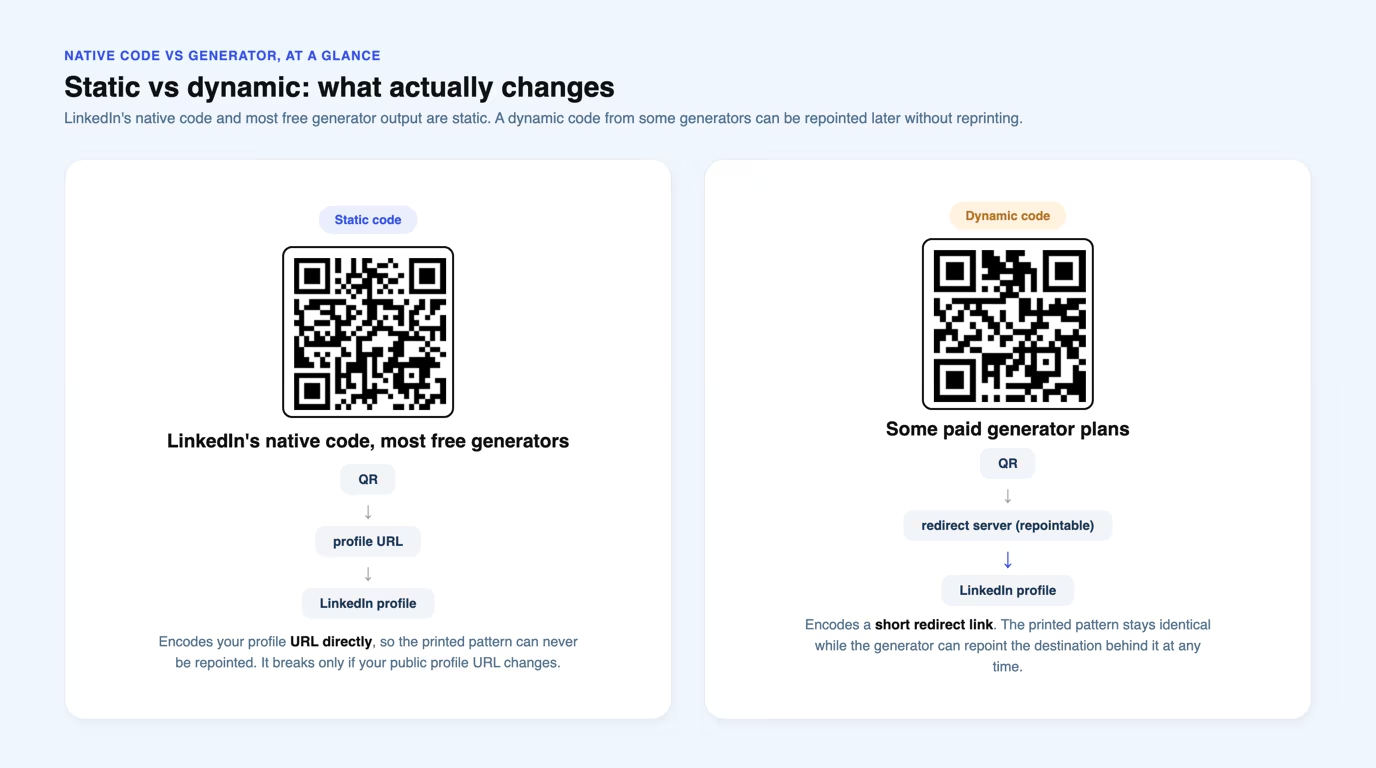
The static versus dynamic distinction matters most if you plan to print the code. A static QR code, including LinkedIn's native one and most free generator output, encodes your profile URL directly, so the code itself never changes.
A dynamic QR code encodes a short redirect link instead, one that a generator's server can repoint later. That lets you update where a printed code sends people without reprinting the card, at the cost of relying on that generator's redirect service staying online.
Three real-world places to put your LinkedIn QR code
A LinkedIn QR code only pays off once it sits somewhere a real person will scan it. Treat it as one more piece of personal branding alongside your profile itself, not a one-off trick, and these three placements cover the situations that come up most.
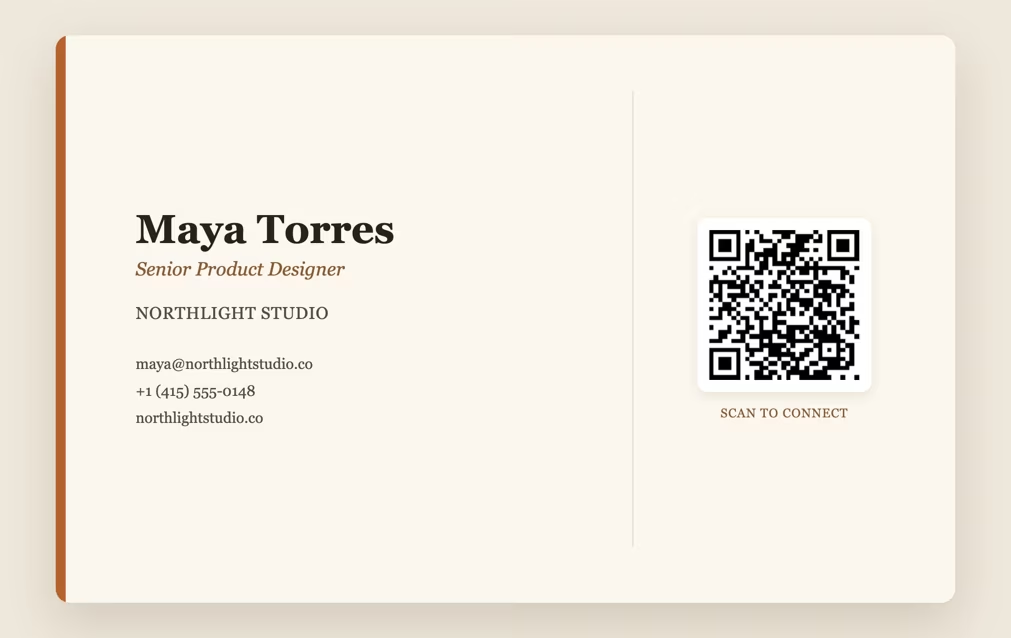
On a business card
Business cards have no single standard size: 88.9 by 50.8 millimeters in the US and Canada, 85 by 55 in most of Western Europe, and the 85.6 by 54 credit card format in Australia. All of them are small, so the QR code needs a clean quiet zone around it to stay scannable. Give it its own half of the card, or the back, away from text.
Export the code at a higher resolution than you think you need. The 220 pixel PNG from the tool above looks sharp on a screen but can turn blurry once a print shop scales it up, so start from the largest file a generator offers when you print.
On a closing slide
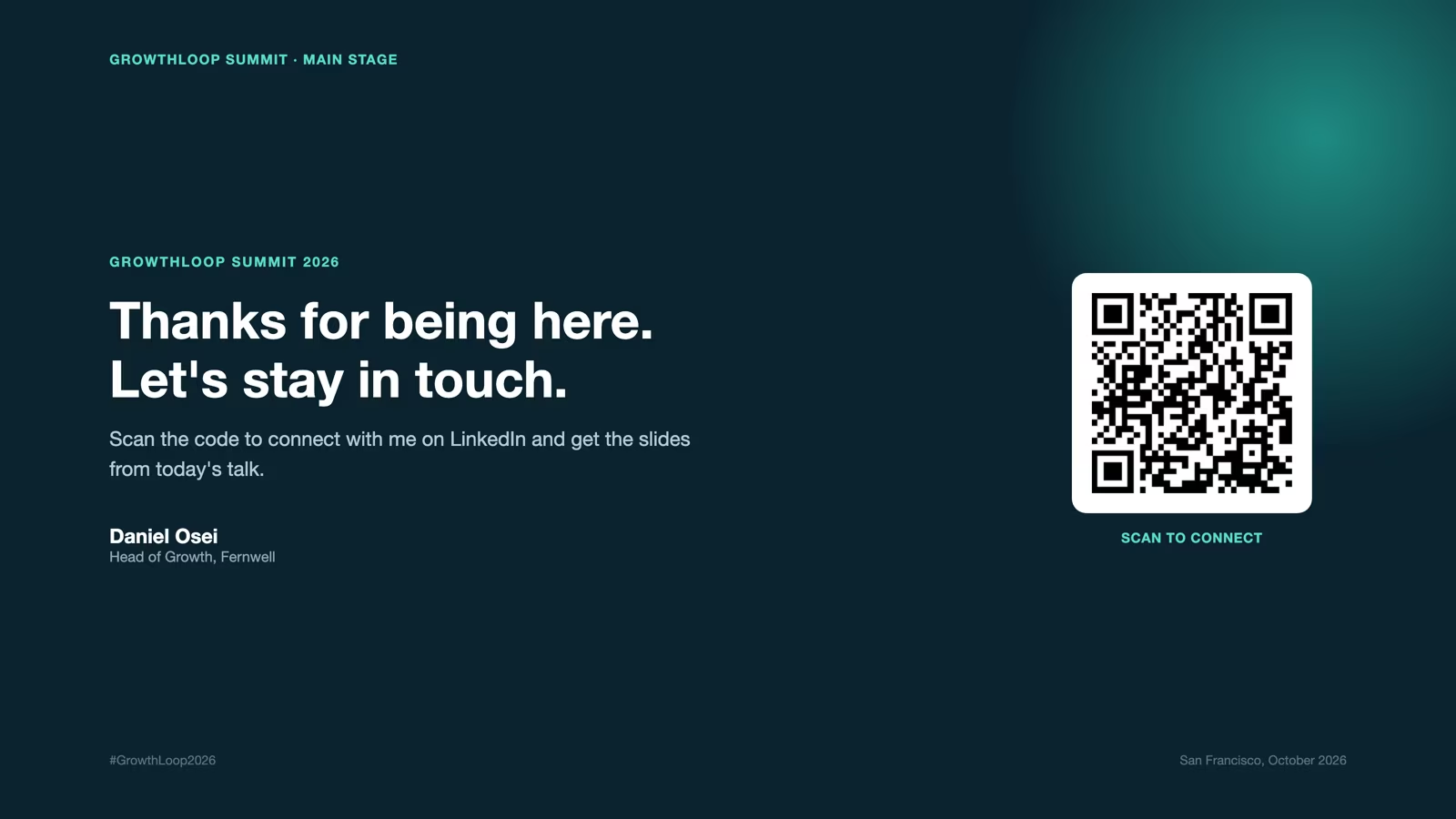
A conference or webinar closing slide is one of the few moments a room is looking at a screen with nothing else to do. A QR code there converts attention into a connection before people pick their phones back up for something else.
Size the code for the back of the room, not the front. If the back row cannot scan it from their seats, it only works for the handful of people near the stage, so bigger is safer than styled.
In an email signature
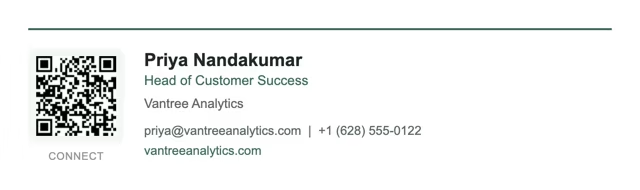
An email signature lands in front of people who already know your name, every time you write. A small QR code next to your title turns that into a one-tap connection request, without adding a link they have to click and then search for you anyway.
Keep it modest here. A signature is read at arm's length on a screen, so a small code next to your name and title is enough, and a large one starts to look like clutter in every email you send.
LinkedIn QR code best practices
A few habits keep any LinkedIn QR code, native or generated, usable once it leaves your screen.
- Test it before you print it. Scan the code yourself with a second phone to confirm it opens the right profile, not a broken or outdated link.
- Leave a quiet zone. Keep a clear white margin around the code on every side. Cropping too tight is a common reason a printed code fails to scan.
- Size it for the distance it will be scanned from. A business card code can be small since it is read up close, a slide needs to be large enough to scan from several rows back.
- Keep your profile URL stable. A static code breaks if your public profile URL changes, so avoid editing your LinkedIn URL slug after you have printed a code.
- Pair it with a reason to scan. Write "Scan to connect" next to the code, so people know what pointing their camera at it will do.
- Make the profile behind it worth landing on. A scan only converts if the profile it opens is finished, so run through LinkedIn profile optimization basics, headline, photo, about section, before you print the code anywhere.
Frequently asked questions
Can I generate a QR code for my LinkedIn?
Yes, in two ways. Open the LinkedIn app on your phone for the native code under the QR icon in the search bar, or paste your profile URL into a generator like the one above if you need the code on a desktop or in print. Both point to the same profile, they just come from a different source.
How do I get my LinkedIn QR code on desktop?
LinkedIn's desktop site has no built-in QR code feature, since the native code only exists in the mobile app. Paste your public profile URL, the one starting with linkedin.com/in/, into a QR code generator to get a downloadable image from your computer, ready to drop into a slide or document.
How do I create a QR code for my profile?
On mobile, tap the QR icon in the LinkedIn search bar, then the My code tab, and your profile's QR code is already there, no creation step needed. On desktop, use a generator and your profile URL instead, since the app-only code is not available there.
Can I use a LinkedIn QR code on my business card?
Yes. Save your native QR code to your photos from the My code tab, or generate one from your profile URL, then place it on the back of the card, or on its own half, with clear space around it so it stays scannable at card size. Export at the highest resolution the tool offers so a print shop can scale it up without blurring.
How do I scan a LinkedIn QR code?
Open the LinkedIn app, tap the QR icon in the search bar, then tap the Scan tab and hold your camera over the other person's code. A successful scan takes you straight to their profile, ready to connect, the same way it works in reverse when someone scans yours.


Keep reading
All articlesRelated Articles
.avif)
Your Linkedin AI coach is waiting for you
Join 12,000+ creators who let their coach turn the blank page into a plan and watch their audience compound.
7-day free trial · 30 day money back · Cancel anytime
AVG. VIEWS
2,979
-1.5%
ENGAGEMENT
3.2%
+0.8%

Free Monthly Report
How does your LinkedIn compare?
Get free monthly benchmarks on reach, engagement, and content format performance.
Get the Benchmark