
Pricing


AI writer

Taplio
MCP V2
New: Engage tools
Taplio MCP V2 now available, try it out
Your AI can now comment and reply for you. It finds the posts worth engaging, drafts in your voice and queues them on your Taplio account. Nothing posts until you confirm.

How to remove Open to Work on LinkedIn (desktop and mobile)


7
min read

 Open in ChatGPT
 Open in Claude
 Open in Perplexity
Key Takeaways
- Remove Open to Work in 5 clicks: On desktop, click the Me icon, click View profile, click the pencil icon on the Open to Work card, scroll to the bottom of the pop-up, then click Delete from profile and confirm.
- Mobile app path takes 4 taps: Tap your profile photo, tap it again to open your profile, tap the Edit icon on the Open to Work card, then tap Delete and confirm, one tap deeper than the desktop route.
- 4 visibility options, 1 real delete: LinkedIn's edit screen offers All LinkedIn members, Recruiters only, Visible only to you, and Delete from profile, and only Delete drops you out of Open to Work searches and erases saved job preferences.
- Check 3 things if it still shows: Verify you pressed Delete and not Save, refresh the browser or fully close and reopen the app to clear a cached profile, and allow a minute for desktop and mobile to sync.
- Decision rule: Choose Delete from profile if the search is over and re-entering job titles, location and start date later is acceptable, or Recruiters only if recruiters should still find you without the public green #OpenToWork frame.
To remove Open to Work from LinkedIn, go to your profile, click the pencil icon on the Open to Work card, scroll to the bottom of the window that opens, and click Delete from profile. That removes the feature entirely: the green #OpenToWork photo frame goes, and you drop out of Open to Work searches. If you only want to hide the green frame while staying visible to recruiters, switch the visibility setting to Recruiters only instead of deleting, and the steps below cover both routes on desktop, on mobile, and when the setting will not go away.
What Open to Work does and why people turn it off
Open to Work is a LinkedIn setting that flags your profile to recruiters searching for candidates and, if you choose, adds a green #OpenToWork ring to your profile photo. You switch it on from the Open to button on your own profile, though LinkedIn shows some members "Choose what you need in your next job" where others see "Open to Opportunities." People turn it off once they land a role, decide to job hunt more quietly, or would rather their current employer never noticed the public signal at all.
If you want the opposite instruction, taplio's guide on how to turn Open to Work back on covers the full setup and the visibility choices it offers.
How to remove Open to Work on LinkedIn desktop
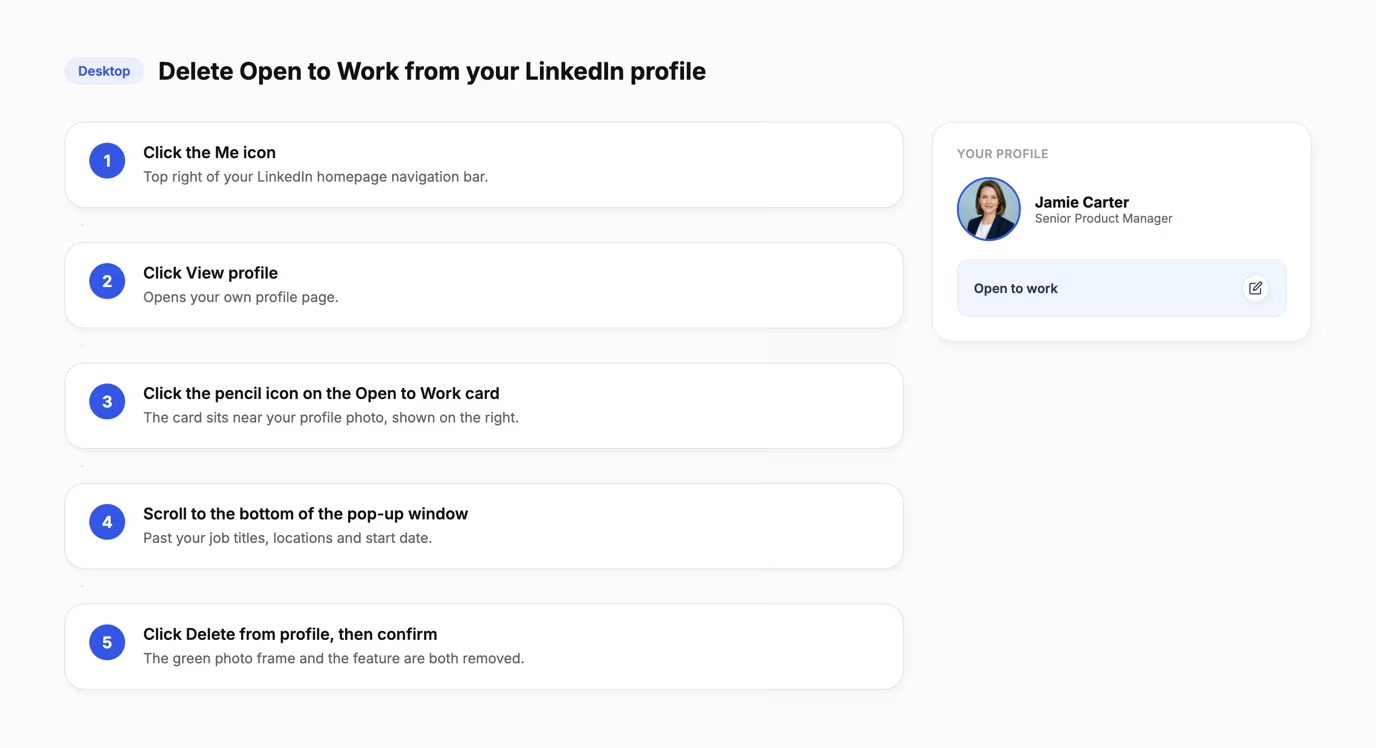
On a desktop browser, deleting Open to Work takes five clicks from your homepage.
- Click the Me icon at the top of your LinkedIn homepage.
- Click View profile.
- Click the pencil (edit) icon on the Open to Work card near the top of your profile.
- Scroll to the bottom of the pop-up window.
- Click Delete from profile, then confirm.
You can also reach the same settings from the Jobs tab: click Jobs, then Preferences, then the arrow next to Open to work. Either path deletes the feature and removes the green photo frame, though your browser may need a refresh before the change shows. LinkedIn does not keep your saved job preferences after a delete, so turning Open to Work back on later means re-entering job titles, location, and start date from scratch.
How to remove Open to Work in the LinkedIn mobile app
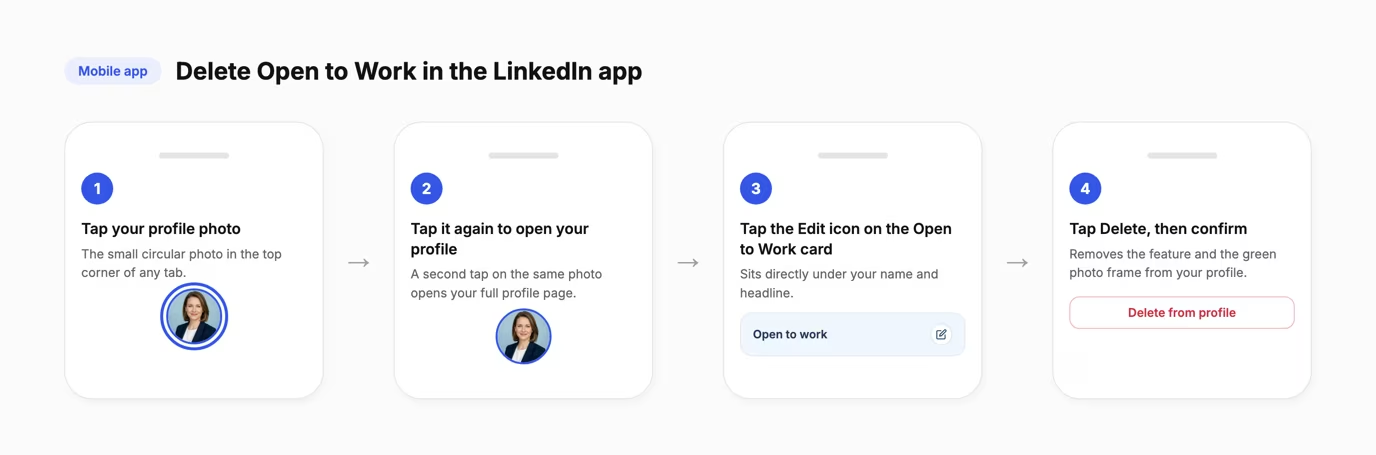
On the LinkedIn mobile app, the same delete lives one tap deeper because opening your own profile takes two taps on your photo.
- Tap your profile photo.
- Tap your profile photo again to open your profile.
- Tap the Edit icon on the Open to Work card.
- Tap Delete, then confirm.
Changes made in the app can take a minute to reflect on desktop, and the reverse, so give it a moment before assuming the setting did not save.
Delete it completely or hide just the green photo frame
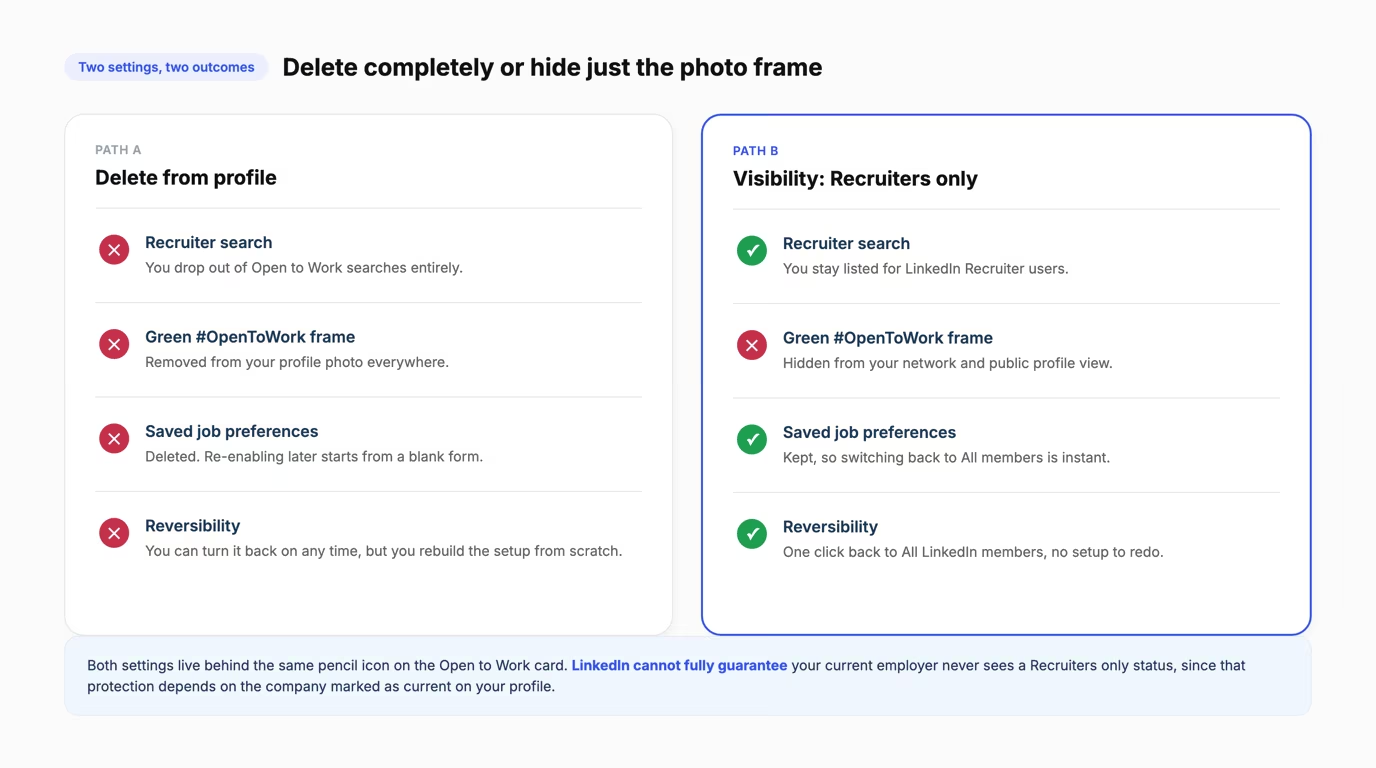
These are two different settings with two different results, and mixing them up is why some people say Open to Work "will not turn off." Deleting Open to Work removes you from Open to Work searches entirely: recruiters browsing that pool will not find you, and your job preferences are gone. Changing its visibility only controls who sees the public green photo frame, while the underlying feature and your saved preferences stay in place.
| Setting | Who sees you're open | Green photo frame | Best for |
|---|---|---|---|
| Delete from profile | No one, you drop out of Open to Work searches | Removed | You are no longer job hunting at all |
| Visibility: All LinkedIn members | Recruiters, your network, and colleagues at your current company | Shown | Maximum visibility, and you do not mind your employer knowing |
| Visibility: Recruiters only | Only people using LinkedIn Recruiter | Hidden | You want recruiters to find you without a public signal |
| Visibility: Visible only to you | No one, LinkedIn uses it only for your own job recommendations | Hidden | You want personalized job suggestions with total privacy |
To switch visibility instead of deleting, open the same edit screen as above, click the arrow next to the audience selector, and pick Recruiters only or Visible only to you. LinkedIn cannot fully guarantee your current employer will never see a Recruiters only status, since that protection relies on the company you have marked as current on your profile, so a stale employer field can quietly undo the privacy you thought you had.
Why Open to Work might still show after you turn it off
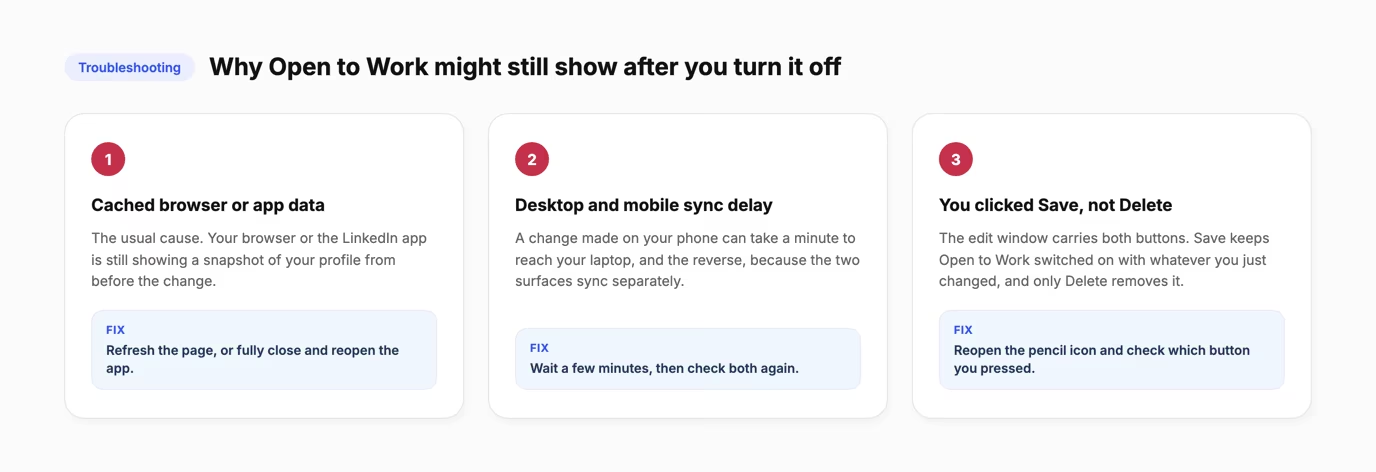
If Open to Work still shows after you delete it or change its visibility, three causes explain almost every case.
Your browser or the LinkedIn app cached the older version of your profile. This is the usual cause: refresh the page, or fully close and reopen the app, before assuming the change failed.
Desktop and mobile can take a minute to sync, so a change made on your phone might not appear on your laptop right away, and the reverse. Give it a few minutes and check both again.
You clicked Save instead of Delete. The edit window carries both buttons, and Save keeps Open to Work switched on with whatever you just changed, while only Delete removes it. Reopen the pencil icon and check which one you pressed.
The reverse case catches people out too. If you stop replying to recruiter InMails while Open to Work is active, LinkedIn emails you to confirm you are still looking, and removes the #OpenToWork feature on its own if you never reply, until you switch it back on yourself.
Updating your LinkedIn presence after your job search ends
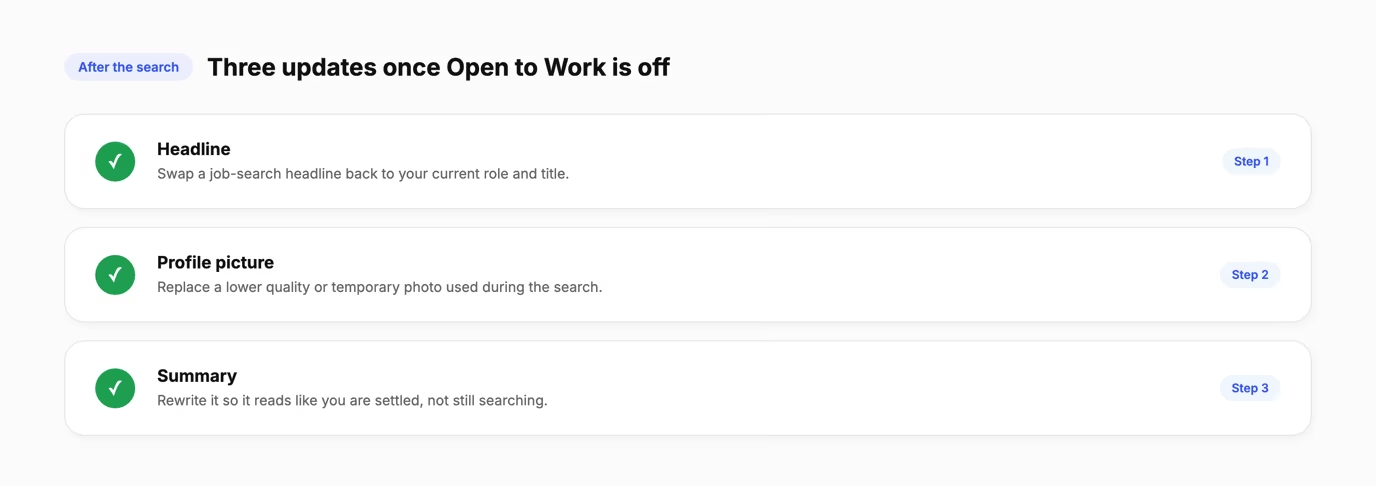
Once Open to Work is off, three small updates stop the rest of your profile from reading like a job hunt months after the search ended. Swap a job search headline back to your current role, then rewrite your summary so it sounds settled rather than searching. Taplio's guide on your LinkedIn summary walks through that rewrite step by step.
Refresh your LinkedIn profile picture if you used a lower quality or temporary photo during the search. Then run it through a free LinkedIn profile optimization review to catch whatever else is left over, from an outdated headline to a line that still says you are looking.
Frequently asked questions
How do I turn off open to work?
Go to your LinkedIn profile, click the pencil icon on the Open to Work card, scroll to the bottom of the pop-up, and click Delete from profile. On mobile, tap your profile photo twice to open your profile, tap the Edit icon on the Open to Work card, then tap Delete.
How do I turn off that I'm looking for work on LinkedIn?
Deleting Open to Work removes the public signal that you are looking, including the green photo frame and your listing in recruiter search. If you would rather keep recruiters able to find you privately, switch its visibility to Recruiters only instead of deleting the feature outright, so the public side of the signal goes away but the private one does not.
How do I say I am not open to work on LinkedIn?
Delete the Open to Work feature from your profile using the pencil icon on the Open to Work card, then Delete from profile. If you want to announce your new role publicly rather than just removing the setting, taplio's guide on writing an Open to Work post shows how to phrase that update.
Can I hide open to work on LinkedIn?
Yes. Change the Open to Work visibility setting from All LinkedIn members to Recruiters only to hide the public green photo frame while staying visible to recruiters, or to Visible only to you to hide it from everyone, including recruiters.


Keep reading
All articlesRelated Articles
.avif)
Your Linkedin AI coach is waiting for you
Join 12,000+ creators who let their coach turn the blank page into a plan and watch their audience compound.
7-day free trial · 30 day money back · Cancel anytime
AVG. VIEWS
2,979
-1.5%
ENGAGEMENT
3.2%
+0.8%

Free Monthly Report
How does your LinkedIn compare?
Get free monthly benchmarks on reach, engagement, and content format performance.
Get the Benchmark