
Pricing


AI writer
Taplio
MCP V2
New: Engage tools
Taplio MCP V2 now available, try it out
Your AI can now comment and reply for you. It finds the posts worth engaging, drafts in your voice and queues them on your Taplio account. Nothing posts until you confirm.

LinkedIn featured section: what to put in it

November 17, 2026

10
min read

 Open in ChatGPT
 Open in Claude
 Open in Perplexity
Key Takeaways
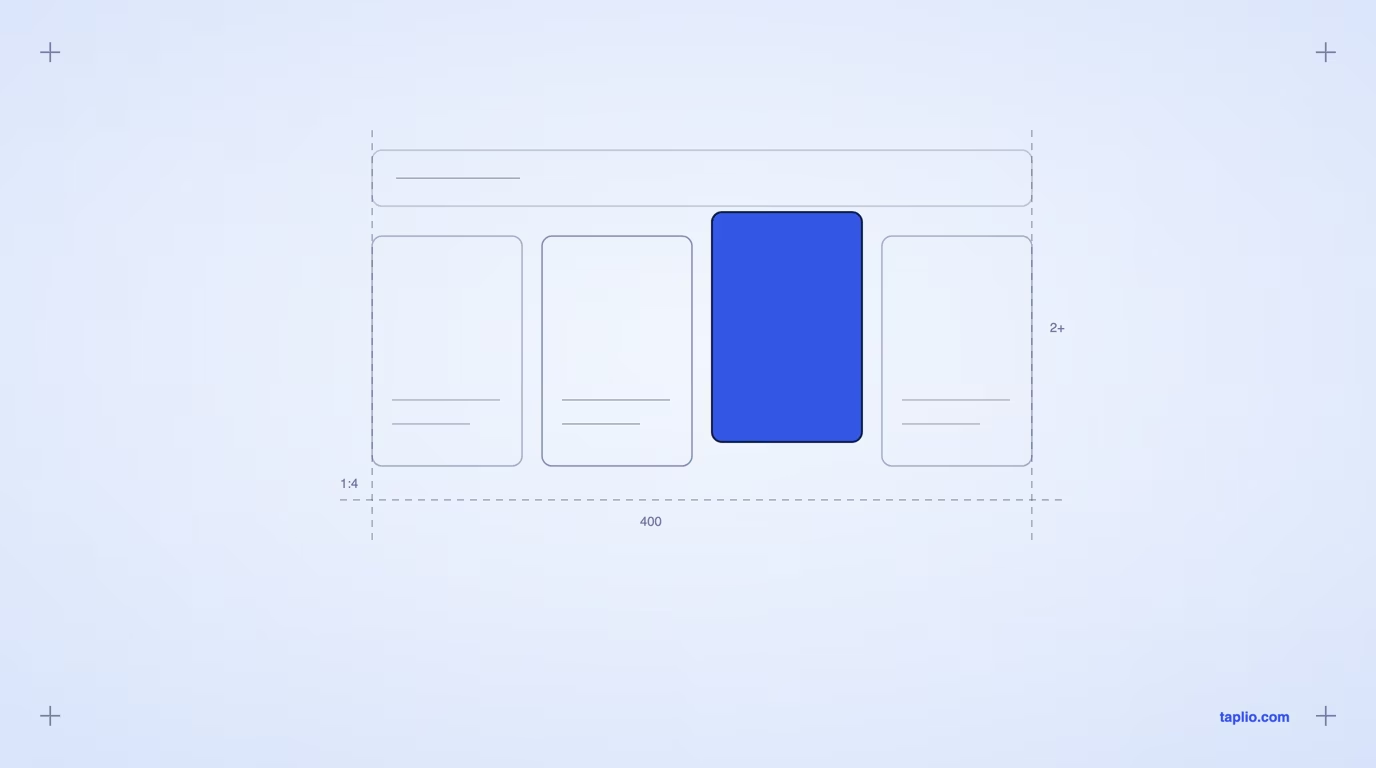
- What the LinkedIn featured section is: The LinkedIn featured section is the profile block where you pin your own posts, articles, external links and uploaded media. It displays up to 400 items, stays hidden when empty and is visible only to logged-in LinkedIn members.
- How to add it: On desktop, click Add profile section, open the Recommended dropdown, choose Add featured, click the Add icon, pick a sample type and click Save or Done. On mobile, tap Add section instead. Recommendations can be pinned only on Premium Business, Sales Navigator and Recruiter plans.
- The limit that decides your file format: LinkedIn Help caps uploaded files at 100 MB and 300 pages, and documents cannot be uploaded from mobile devices.
- What to check before you pin: Every item should serve your main goal, every link should open without a login, every post should be visible to non-connections and the total should stay at 3 or 4 items.
- Which item goes first: Lead with a booking link if you sell services, a portfolio if you want a job, a demo video if you are a founder and your top post if you want followers.
The LinkedIn featured section is the block on your profile where you pin work samples: posts, articles, links and uploaded files. To add it, open your profile, click Add profile section, choose Recommended, then Add featured, and click the Add icon. Lead with your offer or your best proof, then add two or three supporting items. The exact path on desktop and mobile, four layouts to copy, the limits and a five-minute audit follow.
What the LinkedIn featured section is and who sees it
The featured section lets you showcase the work samples you are proudest of to anyone who views your profile, according to LinkedIn Help. It sits near the top of the profile, above Activity, which lists everything you posted, commented on or liked in the past 45 days.
The difference is control. Activity fills itself with whatever you did recently, while Featured shows only what you choose to pin, for as long as you choose.
Three rules shape how you use it. Viewers must be logged in to LinkedIn, the content is not discoverable through search, and your profile visibility settings apply to every item. If you feature nothing, the section stays hidden. These rules come from LinkedIn's Featured section FAQ.
Taplio's guide to LinkedIn profile optimization treats it as step 5 of the visitor journey: banner and headline first, Featured next, then the About section. Visitors who arrive from a post read your profile in that order, so the featured items must match the reason they clicked.
How to add a featured section on LinkedIn
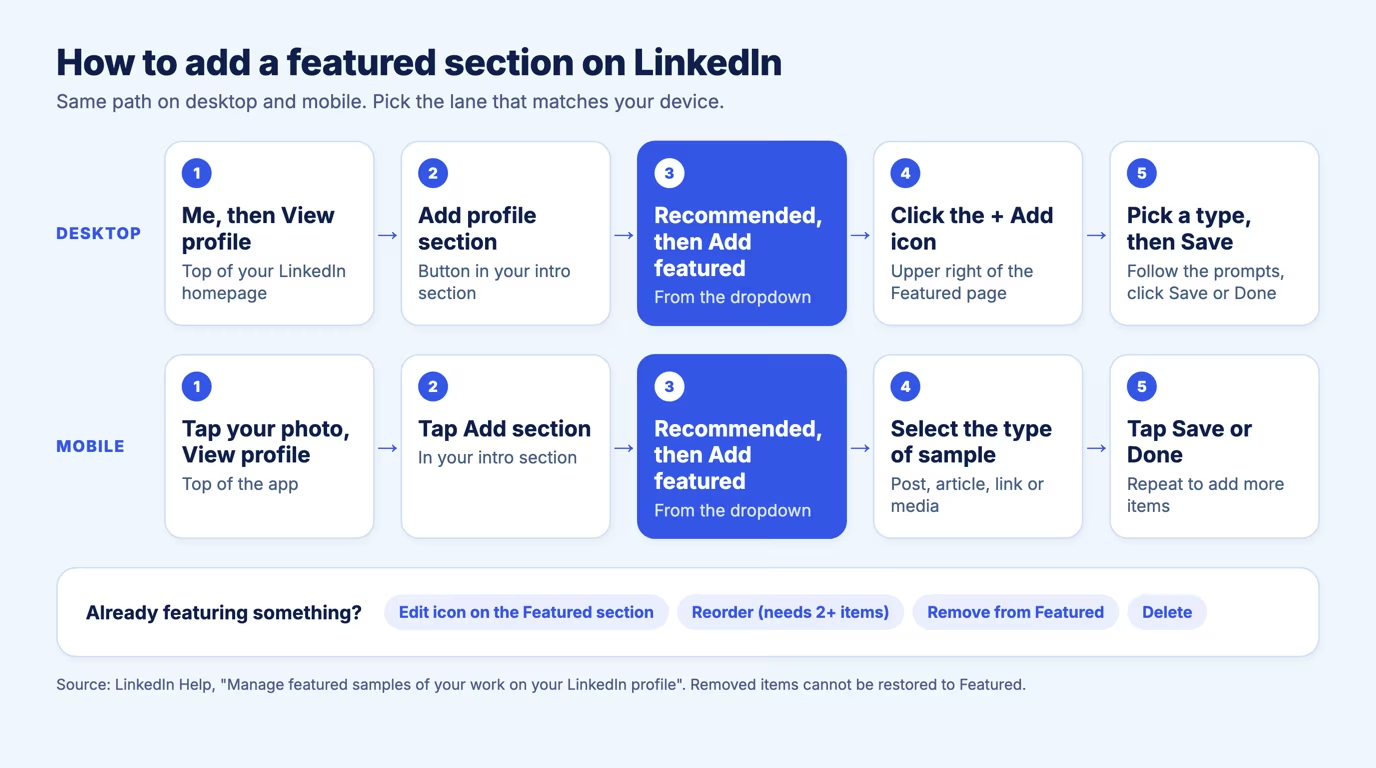
Open your profile, click Add profile section, open the Recommended dropdown, choose Add featured, then click the Add icon and pick a sample type. LinkedIn documents the same flow for desktop and mobile in its featured samples guide.
- Click the Me icon at the top of your LinkedIn homepage, then View profile.
- Click Add profile section in your intro section.
- Open the Recommended dropdown and click Add featured.
- Click the Add icon in the upper right of the Featured page.
- Select the type of work sample to feature and follow the prompts.
- Click Save or Done, then repeat for each item.
You must already have authored and published a post or article on LinkedIn before you can feature one. To feature a post as you publish it, use the More icon at the top right of the post. LinkedIn does not pin new content for you automatically.
To change what you pinned later, click the Edit icon on the Featured section. From there you can reorder, edit a title, remove an item from Featured or delete it. Plan the first version carefully, because a removed item cannot be restored to the section.
What to put in your LinkedIn featured section
Put in the three or four samples that move a visitor toward your goal: a link to your offer, a document that proves your work and a post that shows how you think. LinkedIn accepts four kinds of sample.
| Type | What LinkedIn allows | Best used for |
|---|---|---|
| Posts | Posts you authored or re-shared, but not posts from Events or Groups | Showing how you think |
| Articles | Articles you published on LinkedIn | Long-form expertise |
| Links | External websites, such as a blog or portfolio | The action you want, a booking page or a newsletter |
| Media | Images, documents, presentations and videos you upload | Proof of work, such as a case study PDF |
The supported file formats are PDF, PowerPoint, Word, JPG, PNG and GIF, per LinkedIn's supported media file types page. A GIF does not animate: LinkedIn keeps only its first frame. If you build a carousel, the PDF is what you upload, and the LinkedIn carousel generator exports one.
A received recommendation is the odd one out. It is not one of the standard sample types. LinkedIn lists Recommendations among the profile sections that Premium Business, Sales Navigator and Recruiter subscribers can pin, per its guide to pinning profile content. On those plans, click the Add icon on the Featured section, select Add content from profile, pick the section and click Feature. Without one of those plans, publish a post that quotes the recommendation and feature the post. The guide to LinkedIn recommendations covers how to collect them.
LinkedIn featured section examples by goal
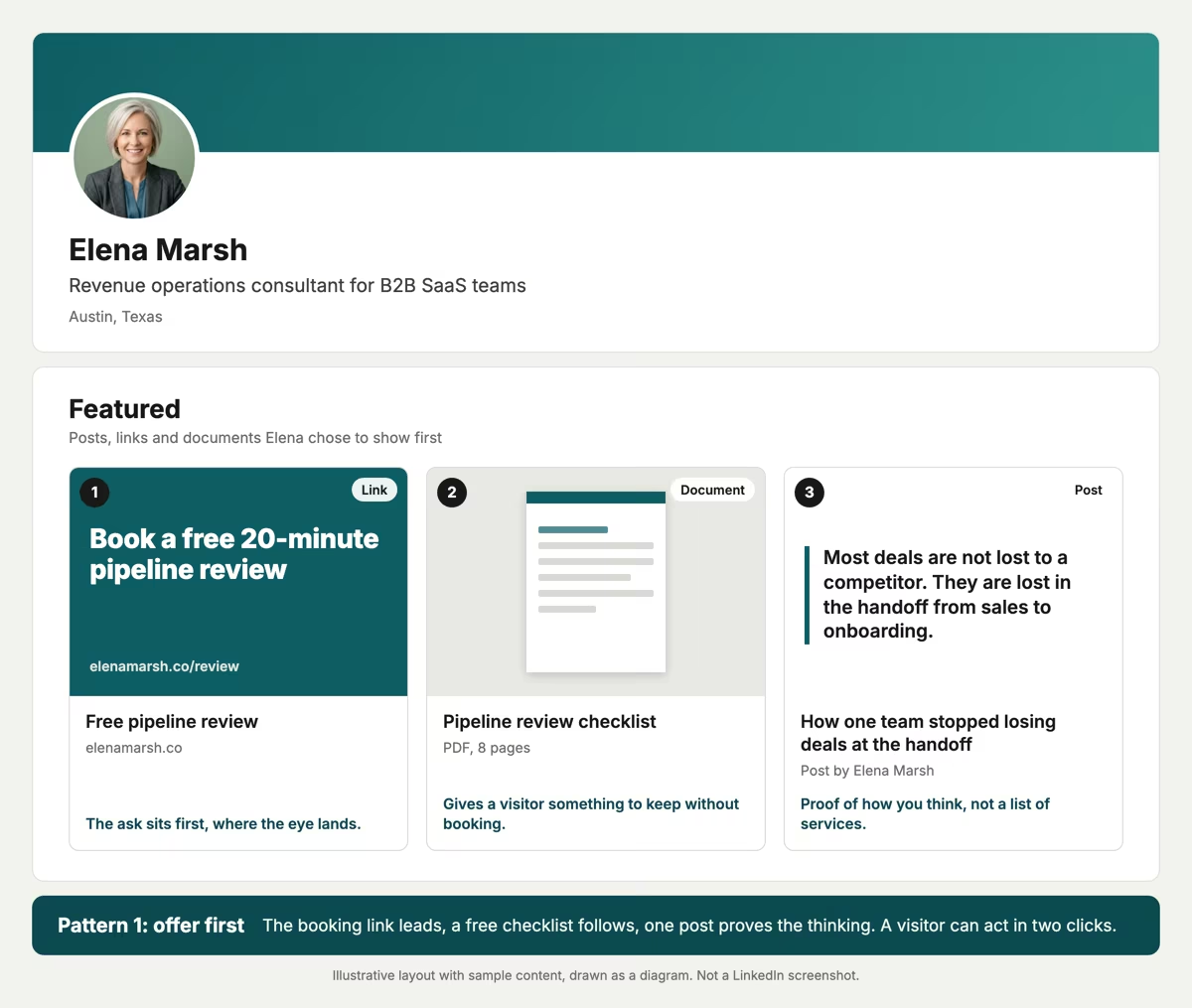
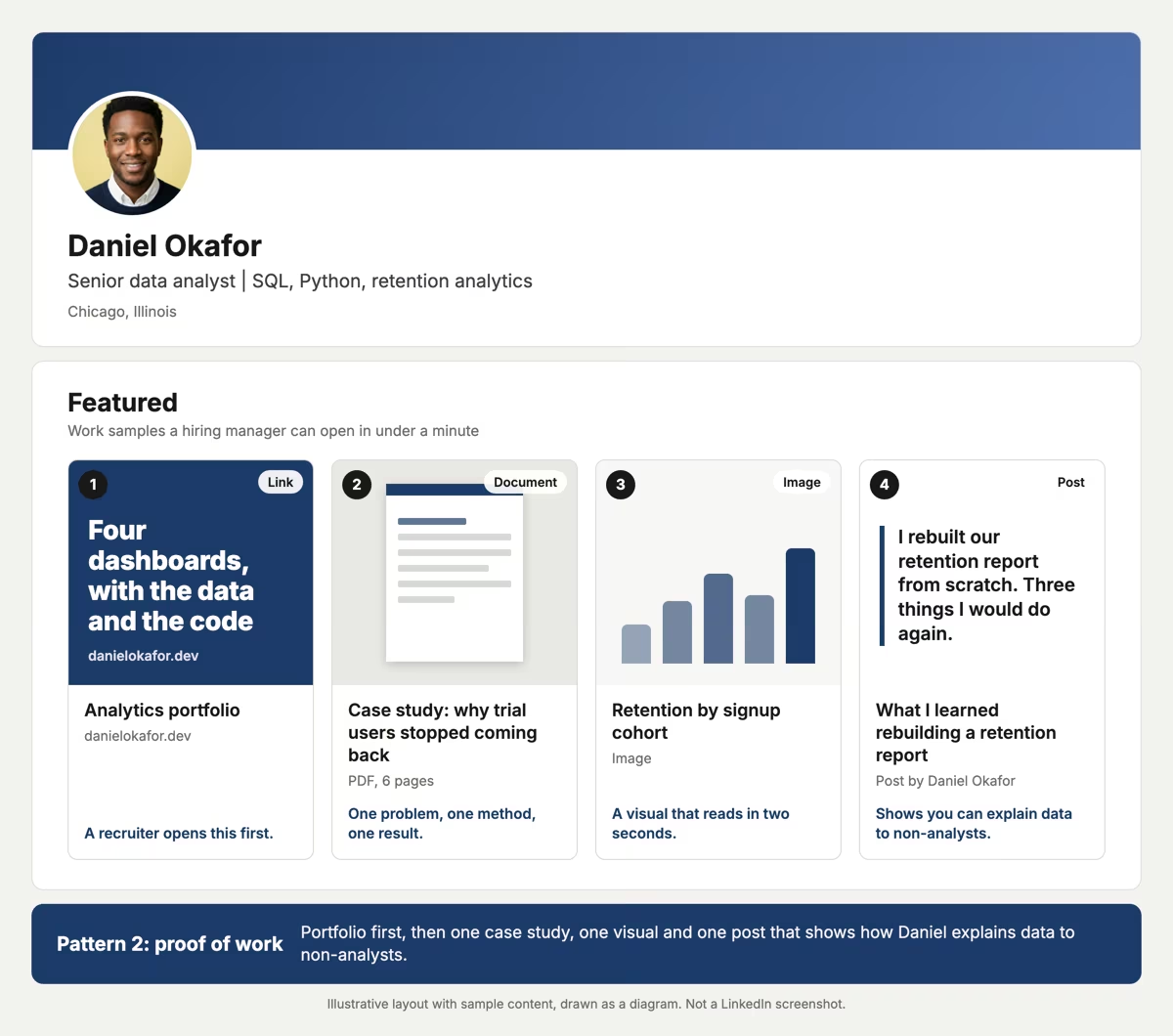
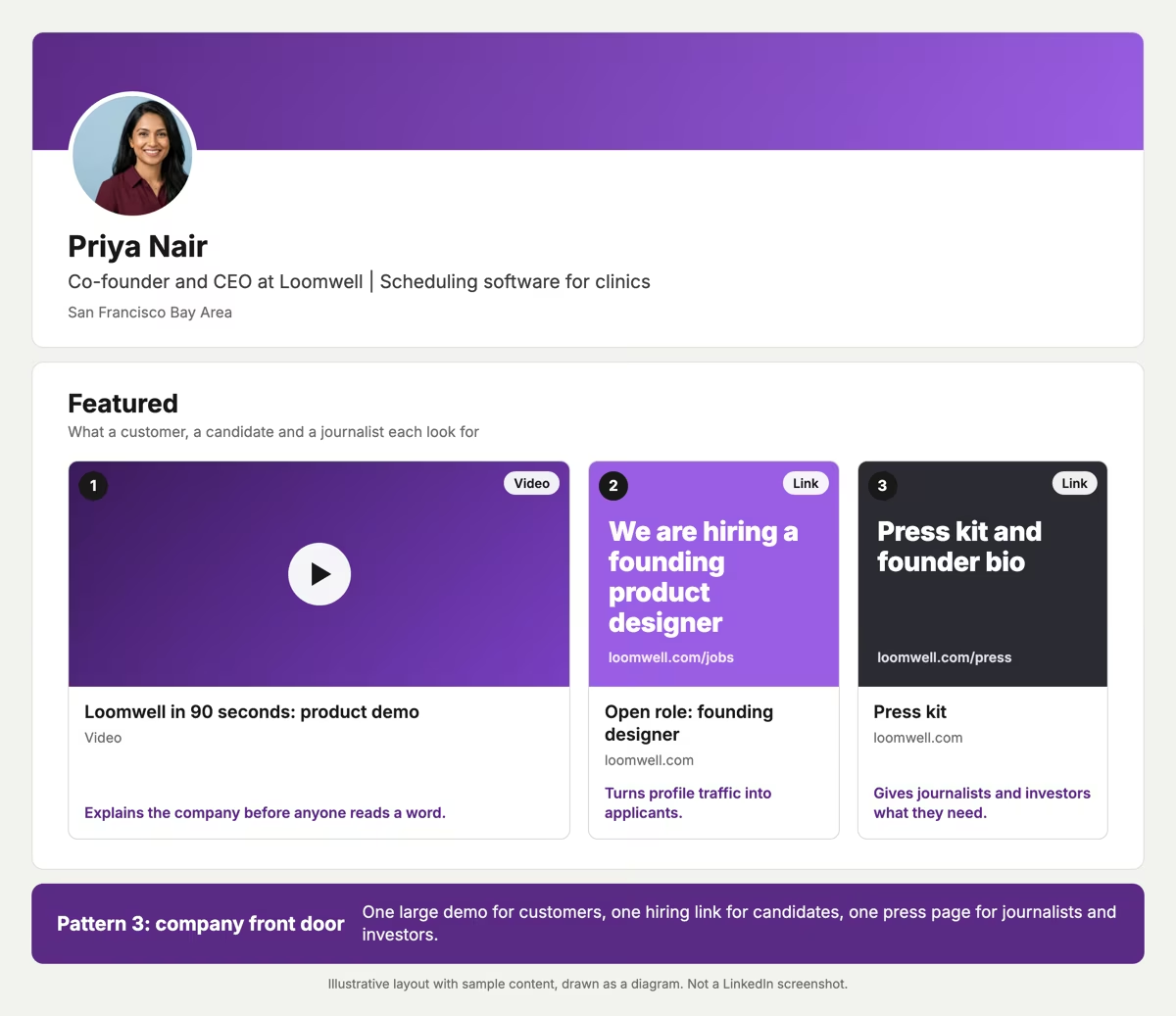
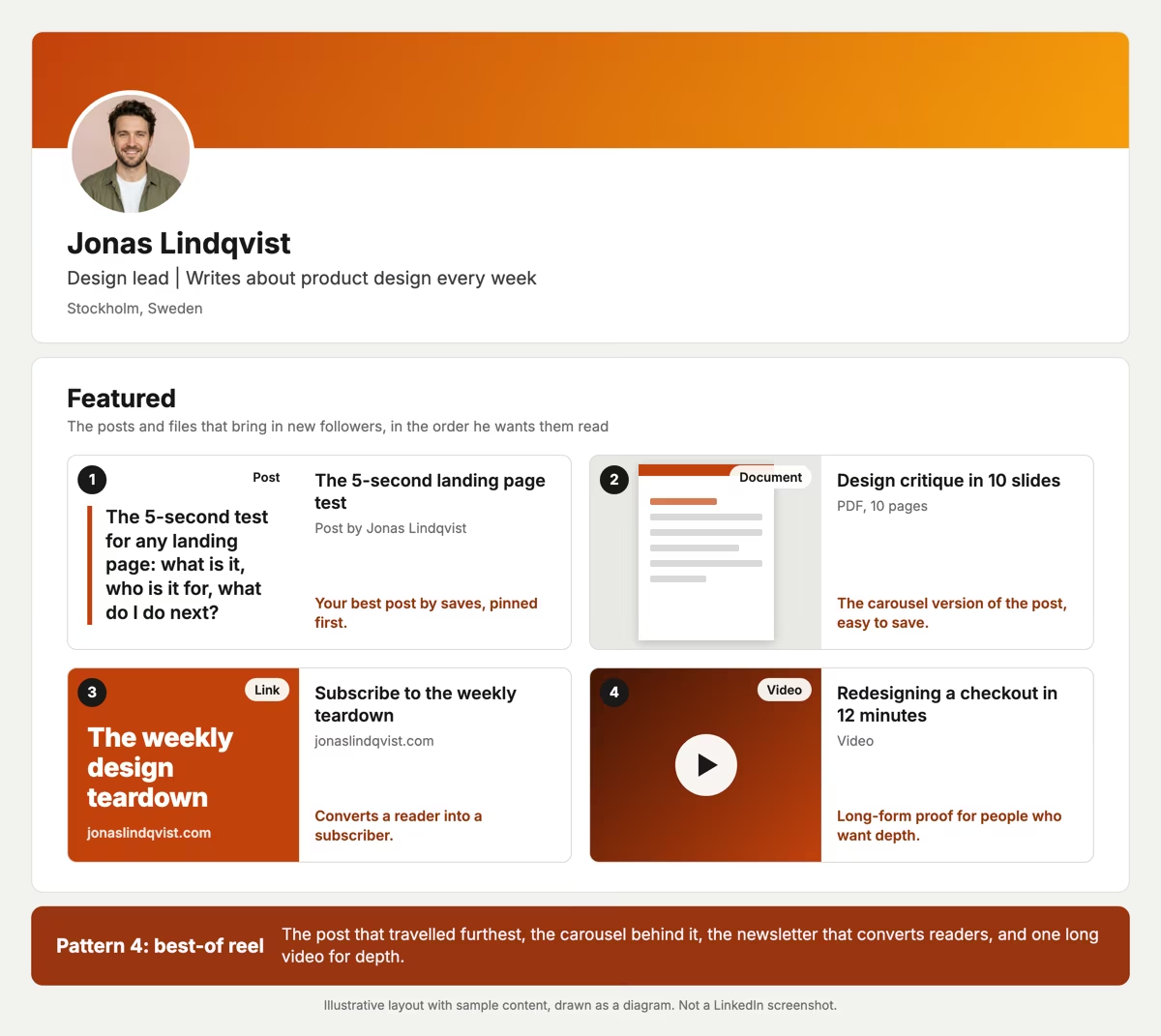
Four goals call for four different layouts: a consultant leads with an offer, a job seeker with proof of work, a founder with a company front door and a creator with a best-of reel. Each layout below is a diagram with sample names and copy, and each one demonstrates a single pattern.
Pattern 1: offer first
A consultant's visitors are usually deciding whether to book a call. The booking link takes slot 1, a free checklist takes slot 2 and one post proves the thinking. The cost is that the section reads as a sales page, so keep the post practical.
Pattern 2: proof of work
A job seeker needs a hiring manager to confirm skills in under a minute. A portfolio link, one case study, one visual and one explanatory post cover the screening questions. The trade-off is effort, because each item must be finished work, not a draft.
Pattern 3: company front door
A founder's profile is read by customers, candidates and journalists at once. One large demo video serves customers, a hiring link serves candidates and a press page serves everyone else. Keep each link pointed at one page, not a homepage.
Pattern 4: best-of reel
A creator uses the section to turn a reader into a follower or subscriber. The post that travelled furthest goes first, the carousel behind it second and the newsletter link third. Update it whenever a newer post outperforms the pinned one.
Use the table to match your own goal to a layout before you pick the items. Then make your LinkedIn headline name the same goal, so the headline and the first card tell one story.
| Your goal | Slot 1 | Supporting items |
|---|---|---|
| Win clients | Booking or offer link | Checklist PDF, one proof post |
| Get hired | Portfolio link | Case study PDF, one visual, one post |
| Raise or recruit | Product demo video | Hiring link, press kit |
| Grow followers | Top post by reach | Carousel PDF, newsletter link |
How many items to feature and in what order
Feature three or four items. LinkedIn allows unlimited items but displays only 400, so the cap never limits you. Your own attention does, because a visitor scans the first cards and moves on.
Order matters more than count. LinkedIn shows newly featured content first by default, which means every item you add pushes your offer one slot to the right. After each addition, click the Edit icon on the section, then Reorder, and put the item that serves your main goal back in front. Reordering needs at least two featured items.
What not to put in your featured section
Skip anything a visitor cannot open, cannot trust or cannot finish. Five items fail most often:
- A post limited to your connections, because LinkedIn applies your visibility settings and everyone else sees nothing.
- Posts from Events you attend or Groups you belong to, which LinkedIn blocks to protect other members' privacy.
- A link to a page that needs a login or has been deleted.
- Two items that make the same point, because the second one wastes a slot.
- Items older than your current positioning, such as an offer you no longer sell.
Removing an item has two forms. Remove from Featured unpins it and keeps it in your Activity section. Delete removes it from your profile completely, and a removed sample cannot be restored to Featured, per the LinkedIn Help page.
How to write titles and descriptions for featured items
Name each item for what the visitor gets, because LinkedIn lets you edit the title and description of a featured work sample. To change them, click the Edit icon on the Featured section, then the Edit option under the item.
A vague title forces a visitor to guess, and a guess costs a click. State the outcome and the size of the file or the length of the call.
| Vague title | Specific title |
|---|---|
| My portfolio | Four retention dashboards, with the data and the code |
| Free resource | Pipeline review checklist, 8 pages |
| Website | Book a free 20-minute pipeline review |
LinkedIn featured section limits and file specs
LinkedIn displays up to 400 featured items and accepts uploaded files of up to 100 MB. The diagram sums up what goes in, what stays out and the numbers that matter.
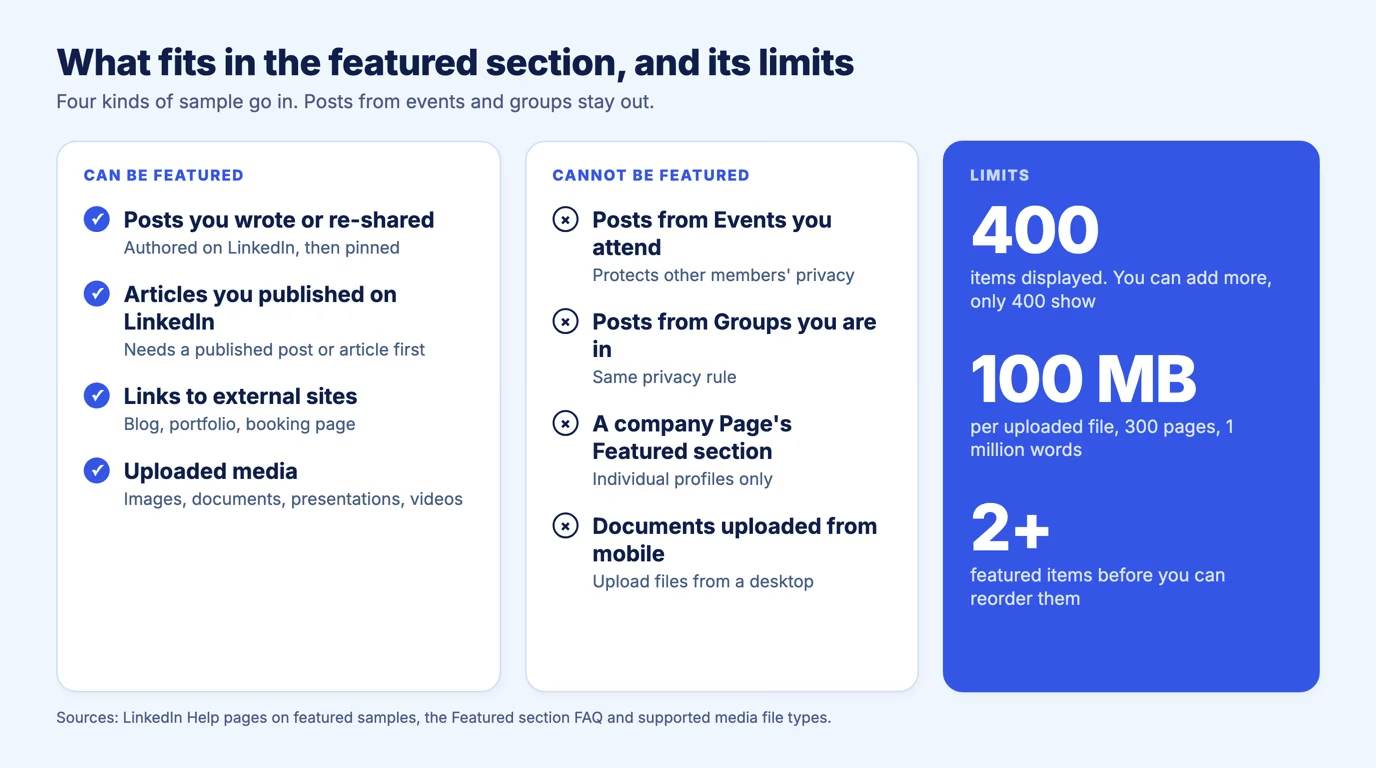
| Spec | Limit |
|---|---|
| Items displayed | 400, with unlimited items allowed |
| Uploaded file size | 100 MB |
| Document length | 300 pages and 1 million words |
| Image resolution | 120 megapixels maximum |
| Document upload | Not possible from mobile devices |
| Reordering | Needs at least 2 featured items |
A five-minute featured section audit
Run this audit once a quarter, or each time you change your headline. It takes five minutes and catches the problems that cost clicks.
| Check | Pass | Fix |
|---|---|---|
| Slot 1 | Serves your main goal today | Reorder with the Reorder icon |
| Every link | Opens a live page, no login wall | Replace or remove the item |
| Visibility | Visible from an account you are not connected to | Feature a public post instead |
| Freshness | No item describes an old offer | Remove from Featured |
| Count | 3 or 4 items | Cut the weakest |
Choose the items with data, not memory. Taplio's analytics track core metrics for your posts, so you can pin the post with the most reach and turn it into the PDF sample. After the featured section, tune the next thing a visitor reads: your LinkedIn summary. Taplio has no free plan: paid plans start at $39 per month with a 7-day free trial.
Frequently asked questions
How to make a featured section on LinkedIn?
Open your profile, click Add profile section in the intro, open the Recommended dropdown and choose Add featured. Then click the Add icon on the Featured page, pick the type of sample, follow the prompts and click Save or Done. You must already have published a post or article on LinkedIn to feature one.
How many items can you add to the LinkedIn featured section?
LinkedIn lets you add an unlimited number of items, but only 400 are displayed. Keep it to 3 or 4 in practice, so each item gets attention.
Who can see your LinkedIn featured section?
Viewers must have a LinkedIn account and be logged in, and the section is not discoverable through search. LinkedIn applies your visibility settings, so a post limited to your connections stays hidden from everyone else.
Can you add a recommendation to the LinkedIn featured section?
Only on Premium Business, Sales Navigator and Recruiter plans. Those subscribers can pin Recommendations through the Add icon on the Featured section, then Add content from profile. On other accounts the standard flow accepts posts, articles, links and uploaded media, so feature a post that quotes the recommendation instead.
Can a company page have a featured section?
No. LinkedIn offers the Featured section on individual profiles only. A founder can still use a personal profile to feature company work, and a company uses its Page to publish updates.
Can you add a featured section on LinkedIn mobile?
Yes. Tap your profile photo, then View profile, tap Add section, tap Recommended and select Add featured, then choose the type of sample and tap Save or Done. Documents cannot be uploaded from mobile devices, so upload a PDF from a desktop.


Keep reading
All articlesRelated Articles

Your Linkedin AI coach is waiting for you
Join 12,000+ creators who let their coach turn the blank page into a plan and watch their audience compound.
7-day free trial · Cancel anytime