
Pricing


AI writer

Taplio
MCP V2
New: Engage tools
Taplio MCP V2 now available, try it out
Your AI can now comment and reply for you. It finds the posts worth engaging, drafts in your voice and queues them on your Taplio account. Nothing posts until you confirm.

How to change your LinkedIn profile picture on desktop and mobile


11
min read

 Open in ChatGPT
 Open in Claude
 Open in Perplexity

Key Takeaways
- How to change a LinkedIn profile picture: On desktop it takes 6 steps: click Me, View profile, your photo and Add photo, adjust the crop, then click Save photo. In the LinkedIn app it also takes 6 steps: tap your profile photo, your Profile card, your photo again, View or edit profile photo, Add photo, then Save.
- Mobile browser route: Tap your profile photo twice, tap Edit, tap CHANGE PHOTO, pick an image from your Photo Library, then tap SAVE in the upper-right corner. The camera icon only shows when you have no photo yet.
- Upload limit that decides: LinkedIn accepts a PNG or JPG from 400 x 400 up to 7680 x 4320 pixels and 8MB maximum, and it does not support GIFs, per LinkedIn Help.
- What to check before you save: The photo must be a likeness of you, not a logo, emoji, landscape, animal, flag or words alone, its visibility is one of 4 options with Anyone as the default, and the old file is worth keeping because LinkedIn cannot restore a replaced photo.
- Decision rule: Use Edit to re-crop the photo you have and Add photo to replace it, and if an upload fails, check file type, 8MB and pixel size in that order, then try a different browser.
To change your LinkedIn profile picture on desktop, click Me, then View profile, click your photo, choose Add photo, pick a new file and click Save photo. On the mobile app, tap your profile photo, open your Profile card, tap your photo again, choose View or edit profile photo, then Add photo and Save.
This guide gives the exact path for desktop, the app and a mobile browser, taken from LinkedIn Help. It also covers who sees the change, the upload limits and what to do when a photo is rejected.
How to change your LinkedIn profile picture on desktop
You change your photo on desktop from your own profile page, in six steps. Open LinkedIn in a browser and follow the path in order.
- Click the Me icon at the top of your LinkedIn homepage.
- Click View profile.
- Click your profile photo in the introduction section.
- In the Profile photo pop-up, click Add photo and follow the prompts to take a new photo with your camera or upload a file from your computer.
- Crop, filter, adjust, reposition, resize or rotate the photo until it sits where you want it.
- Click Save photo.

No photo yet? The route starts differently: click Me, click your Profile card, click the camera icon in your introduction section, then choose Use camera or Upload photo.
Once you have a photo, LinkedIn no longer shows the camera icon. Click the photo itself instead.
LinkedIn says it is gradually testing a new navigation, so labels can vary by device, region and language. On desktop the entry point is the Me icon, as described in the LinkedIn navigation update.
How to change your LinkedIn profile picture on the mobile app and mobile browser
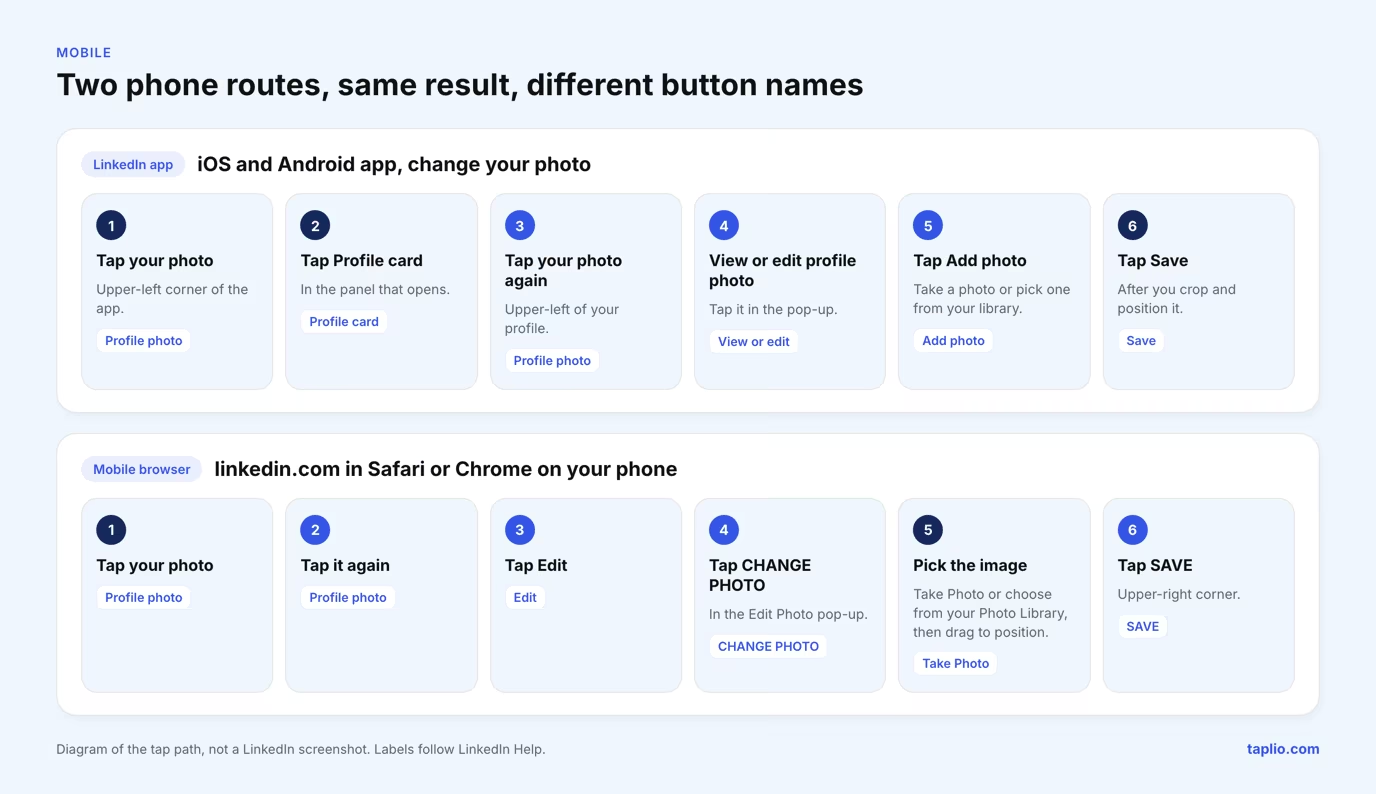
On your phone you change the photo from your profile in the LinkedIn app, or from linkedin.com in a mobile browser, and the two routes use different button names. Use the route that matches where you are signed in.
LinkedIn app on iOS and Android
- Tap your profile photo in the upper-left corner, then tap your Profile card.
- On your profile, tap your profile photo in the upper-left corner.
- Tap View or edit profile photo in the pop-up.
- Tap Add photo and take a photo or choose one from your photo library.
- Crop and position it, then tap Save.
To start from nothing, tap the camera icon at the upper left of your profile instead, then tap Photo. As on desktop, the camera icon is missing once you have a photo.
Mobile browser
- Tap your profile photo, then tap it again, and tap Edit.
- In the Edit Photo pop-up, tap CHANGE PHOTO.
- Tap Take Photo or choose an image from your Photo Library.
- Drag the photo to change its position and size.
- Tap SAVE in the upper-right corner.
| Where you are | Where you start | Button that swaps the photo | Button that saves |
|---|---|---|---|
| Desktop browser | Me, then View profile | Add photo | Save photo |
| LinkedIn app | Your photo, then Profile card | Add photo | Save |
| Mobile browser | Your photo, tapped twice | CHANGE PHOTO | SAVE |
One limit worth knowing: the public profile photo setting, covered later, can only be changed on desktop.
What you can do in the profile photo editor
The Profile photo pop-up has four buttons, Edit, Add photo, Frames and Delete, and every route ends on a save button. Knowing which one does what stops you from uploading a new file when a quick crop would do.
- Edit lets you crop, use filters, adjust, change position and size, rotate, and change the visibility of the photo you already have.
- Add photo replaces the photo with a new one from your device or camera.
- Frames adds a frame to your profile photo.
- Delete removes the photo.
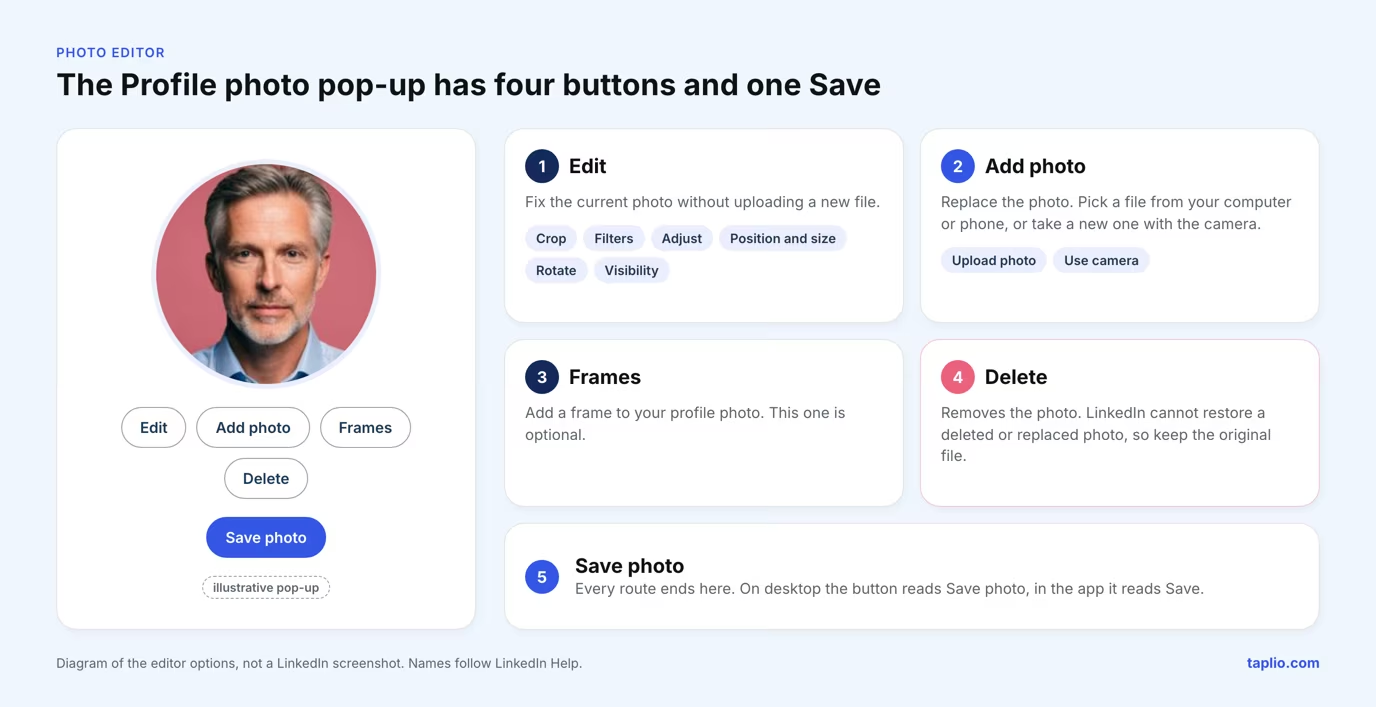
Delete is the one to be careful with. LinkedIn keeps your original photo until you upload a new one, and it cannot restore or retrieve an old photo after you delete it or replace it.
Keep a copy of the current file before you click Save photo, because LinkedIn will not hand it back later.
Start with Edit if your photo is fine and the framing is not, since it covers crop, position, size and rotation without a new upload. The face-size and background rules sit in our LinkedIn profile picture guide.
Who can see your new photo and who gets notified
Your new photo is visible to whoever your photo visibility setting allows, Anyone by default, and LinkedIn does not list a photo change among the updates it shares with your network. Those are two separate settings: visibility of the photo and notifications about profile updates.
Photo visibility
You can choose who sees your photo when you edit it. LinkedIn lists four options: 1st-degree connections only, Your network, All LinkedIn members and Anyone. LinkedIn Help says posting a photo is optional, and that members with one receive up to 2X more profile views and 3X more connection requests, per the profile photo visibility article.
On desktop, click Me, View Profile, then your photo, and click the Visibility icon on the left of the Profile photo pop-up. In the app, open your photo, choose View or edit profile photo and tap the Visibility icon. In a mobile browser, tap Edit, pick from the Visible To dropdown, where the options read Everyone, Connections, Network and All LinkedIn members, then tap Save.
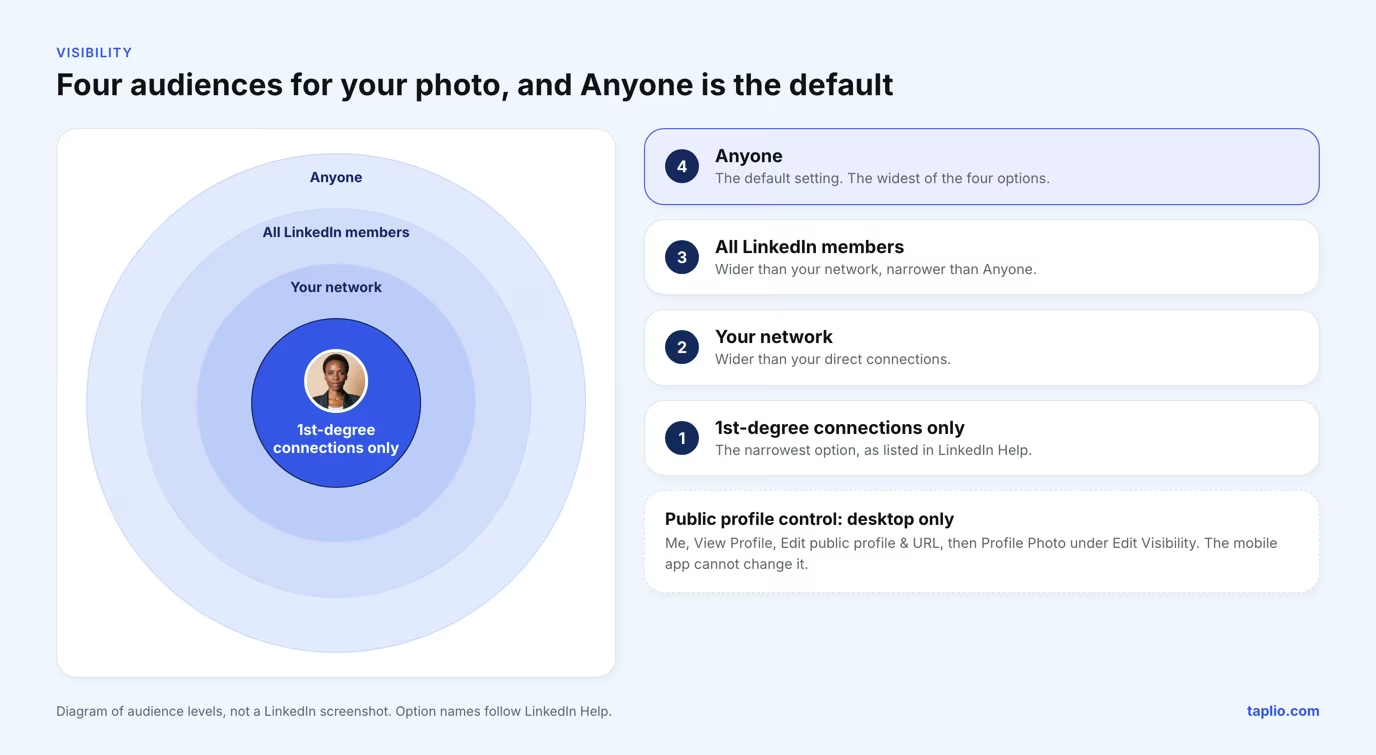
Changing visibility from your profile page also updates your public profile. For the public version that search engines can show, go to Me, View Profile, Edit public profile & URL, and use the Profile Photo section under Edit Visibility. If your public profile is switched off, the photo cannot be set to Public.
Notifications to your network
The Share profile updates toggle is the setting that notifies your network, and it covers job changes, education changes and work anniversaries. A photo is not on that list, and switching the toggle Off stops sharing your profile edits.
To check the toggle, click Me, then Settings & Privacy, then the Visibility tab, and open Share profile updates under Visibility of your LinkedIn activity. In the app, tap your photo, then Settings & Privacy, then Visibility. Anyone who views your profile sees your edits as soon as you save them, with or without a notification, per the Share profile updates article.
Which files LinkedIn accepts and which photos it removes
A LinkedIn profile photo must be a PNG or JPG between 400 x 400 and 7680 x 4320 pixels and no larger than 8MB, and it has to be a likeness of you. LinkedIn does not support GIFs.
| Requirement | LinkedIn limit |
|---|---|
| File type | PNG or JPG, no GIFs |
| Maximum file size | 8MB |
| Profile photo pixel size | 400 x 400 up to 7680 x 4320 |
These limits come from the LinkedIn Help article Photo won't upload to your profile. LinkedIn recommends a photo that will not need much cropping, and you can adjust it after upload.
The likeness rule matters as much as the size. LinkedIn may remove a profile photo that consists solely of a company logo, emoji, landscape, animal, words or phrases, flag, childhood or baby photo, or someone else's likeness such as stock imagery, a celebrity or a fictional character.
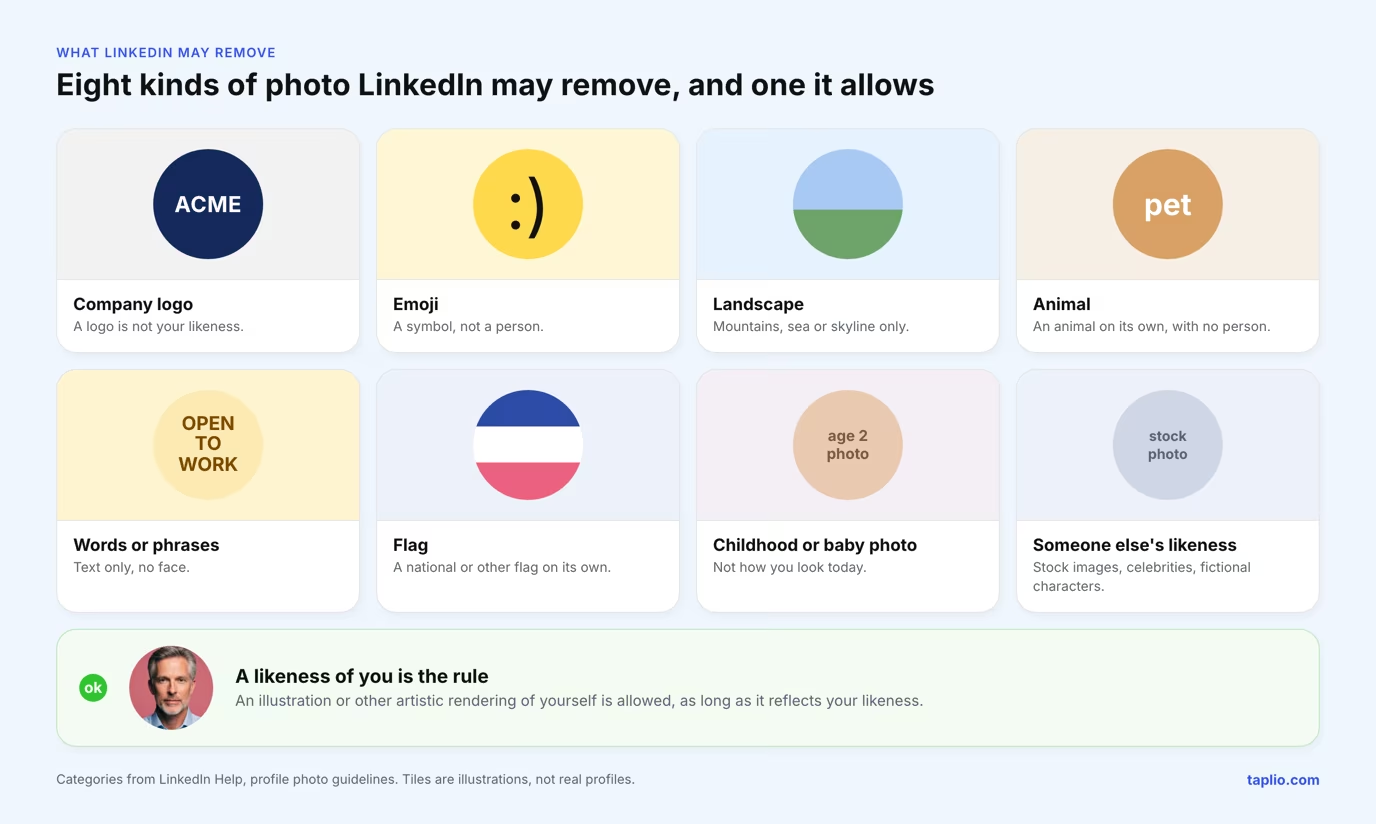
An illustration, caricature or other artistic rendering of yourself is allowed, as long as it reflects your likeness. If LinkedIn removes your photo, you can upload a different one in its place.
For framing, face size and background choices, use our guide to LinkedIn profile picture size and specs. If you do not have a usable photo yet, our roundup of LinkedIn AI headshot generators covers ways to make one.
Why your LinkedIn photo will not upload
When a photo will not upload, LinkedIn Help points to the file first: it must be a PNG or JPG, 8MB or smaller and inside the pixel range, and the photo must follow the guidelines. Work through the checks in this order.
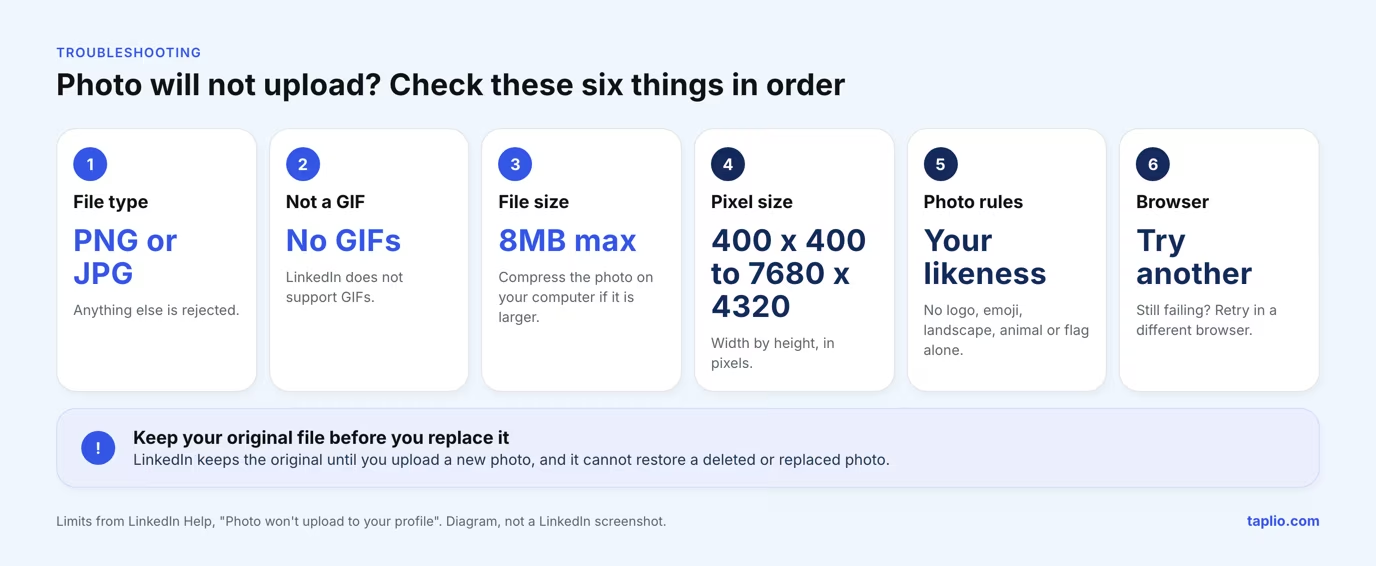
| Check | What LinkedIn requires | Fix |
|---|---|---|
| File type | PNG or JPG, GIFs are not supported | Export the photo again as a PNG or JPG |
| File size | 8MB maximum | Compress the photo on your computer, then upload it |
| Pixel size | 400 x 400 up to 7680 x 4320 | Resize it inside that range |
| Photo guidelines | A likeness of you, not a logo or an animal alone | Upload a different photo that shows you |
| Browser | LinkedIn's next step once the file meets the specs | Try a different browser, then compress the photo if it still fails |
LinkedIn's own advice runs in this order: check the file specifications, try a different browser, then compress the photo. It also asks you to confirm the photo complies with the profile photo guidelines.
On a phone, also try the other route, app or mobile browser. If the same file uploads there, the file is not the problem.
What to do after you save your new photo
After you save, open your profile, check the new photo at a small size and update what sits around it. LinkedIn notes that a photo lets people see who you are when you send an invitation, so your face has to stay recognizable when small.
- Look at it small. Check that your face is still easy to recognize.
- Match your banner. Your cover image appears behind your profile photo, so check that the two do not clash. Our LinkedIn banner guide covers sizes and layout.
- Refresh the headline and About section. Check that they still describe what you do today. Taplio's LinkedIn profile optimization guide covers the banner, headline and About section.
- Keep the file. Store the original and a cropped version, so you can reuse them when you update again.
If the framing looks off, reopen the photo and use Edit to re-crop it without a new upload.
Frequently asked questions
Do I need a photo on LinkedIn?
No, a photo is optional. LinkedIn Help says members with a profile photo receive up to 2X more profile views and 3X more connection requests. If you send invitations, a photo also lets people see who you are.
How to save a LinkedIn photo?
To save a new or edited profile photo, click Save photo on desktop, tap Save in the app or tap SAVE in a mobile browser. LinkedIn Help does not describe a download button for your current photo, so keep the original file on your computer or phone before you replace it. LinkedIn says it cannot restore a deleted or replaced photo.
Can I change my profile picture without notifying everyone on LinkedIn?
Yes. The Share profile updates toggle covers job changes, education changes and work anniversaries, and a photo is not on that list. To be safe, switch the toggle Off before you edit, which stops sharing your profile edits. Anyone who opens your profile still sees the new photo as soon as you save it, within your photo visibility setting.
How do I edit my LinkedIn profile cover photo?
On desktop, click Me, open your Profile card and click the camera icon in the upper-right corner of your introduction section. If you already have a cover image, click Me, View Profile, then the edit icon on the upper-right corner of the cover image. In the app, a first cover starts from your photo, your Profile card and the camera icon. LinkedIn recommends 1584 x 396 pixels for the cover.
How do I change the profile picture on a LinkedIn business page?
A Page super admin changes it, and on a Page it is called the logo. In the super admin view, click Edit Page in the left menu, open the Page info tab, click the edit icon on the current logo, select an image and click Save. Once a Page has a logo, it can only be replaced, not left empty.
Why can't I find the camera icon on my LinkedIn profile?
The camera icon only shows when you have no profile photo yet. LinkedIn Help says that once you have added a photo you will not see it. Click the photo itself instead, then choose Add photo or Edit in the Profile photo pop-up.
Can I get my old LinkedIn photo back?
No. LinkedIn keeps your original photo until you upload a new one, and it cannot restore or retrieve the old photo after you delete it or replace it. Keep the file of any photo you may want again.



Keep reading
All articlesRelated Articles


Your Linkedin AI coach is waiting for you
Join 12,000+ creators who let their coach turn the blank page into a plan and watch their audience compound.
7-day free trial · Cancel anytime