
Pricing


AI writer
Taplio
MCP V2
New: Engage tools
Taplio MCP V2 now available, try it out
Your AI can now comment and reply for you. It finds the posts worth engaging, drafts in your voice and queues them on your Taplio account. Nothing posts until you confirm.

LinkedIn events: how to create and promote one


11
min read

 Open in ChatGPT
 Open in Claude
 Open in Perplexity

Key Takeaways
- Create LinkedIn events from the Events page: On desktop, click the Home icon, then Events, then Create an Event, upload a 16:9 cover, fill in the form and click Post, because LinkedIn does not create the event until that final click.
- LinkedIn event cover image size: LinkedIn requires a 16:9 cover with a minimum width of 480 pixels, names 480 x 270 and 1280 x 720 as working sizes, and accepts uploads from your device only.
- The number that decides invitations: LinkedIn Help allows 1000 invitations per week to 1st-degree connections, and the limit applies across all the events you organize.
- What to check before clicking Next: The organizer, event type and event format cannot change after posting, speakers must be your connections, and the cover, name, time and description should be ready because LinkedIn cannot save a draft.
- Which setup to choose: Choose LinkedIn Live if your profile or Page has more than 150 followers or connections, is at least 30 days old and has a streaming tool, and choose an External event link otherwise. Taplio, from $39 per month with a 7-day free trial and no free plan, schedules the weekly promotion posts but does not create LinkedIn events.
To create a LinkedIn event, open Events from the Home page, click Create an Event, upload a 16:9 cover image, fill in the organizer, type, format, name, time and description, then click Post. The cover needs a minimum width of 480 pixels, and LinkedIn lists 1280 x 720 as a working size. This guide covers the image specs, the setup steps, what you cannot change afterwards, and a four-week plan to promote the event.
What a LinkedIn event is
A LinkedIn event is a dedicated page for an online, in person or hybrid gathering, created by a member or a Page admin. LinkedIn's Events overview describes the Event Page as the hub for the title, date, time, description, speakers and agenda.
Every event has an organizer and attendees. The organizer is the host, either your profile or a Page you administer, and creates the event, sets the details, invites people and adds speakers.
An attendee is a member who accepted an invitation or joined the event.
LinkedIn recommends creating events within 1 year of the scheduled date. Events created further out may not generate notifications for attendees.
LinkedIn event image size and cover specs
A LinkedIn event cover must be 16:9 with a minimum width of 480 pixels. LinkedIn names 480 x 270 and 1280 x 720 as working sizes, and 1280 x 720 gives you more pixels at the same ratio.
The cover shows in the feed post that LinkedIn creates when you post the event and on the event page itself. That makes it a thumbnail and a banner at once, so it has to carry the name, the date and the host in one glance.
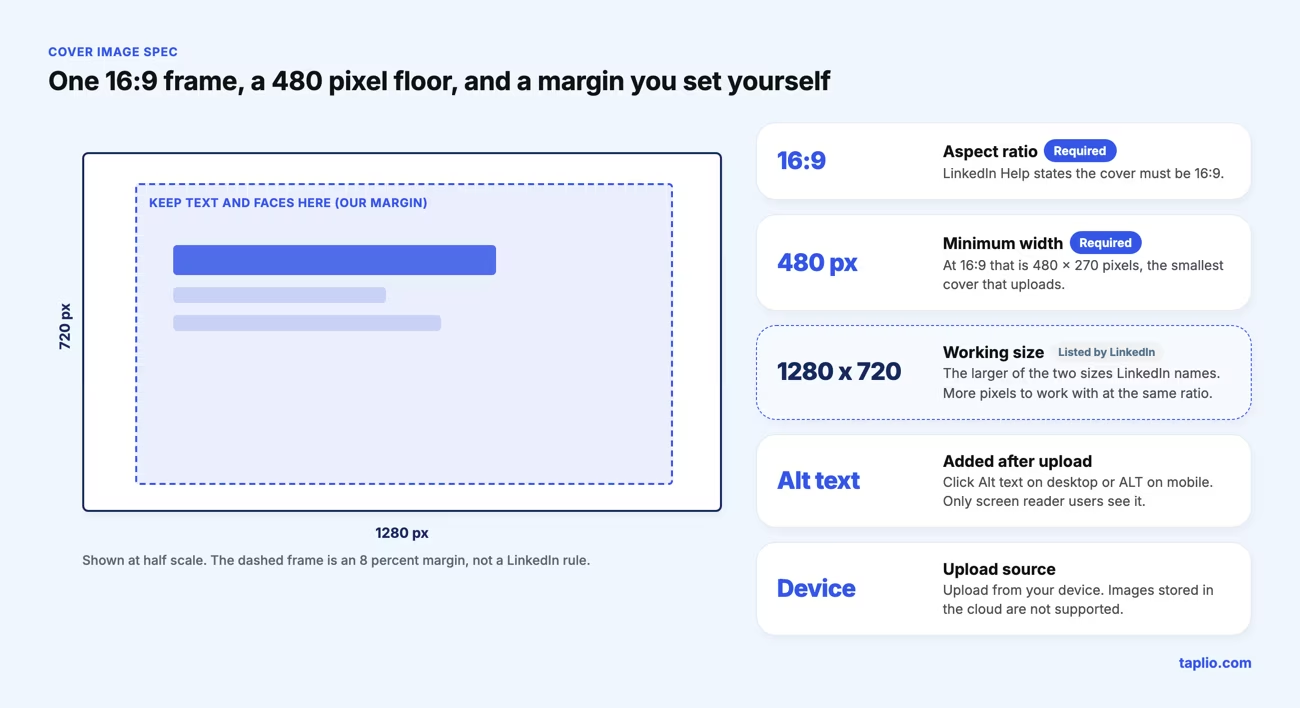
| Spec | Value | Detail |
|---|---|---|
| Aspect ratio | 16:9 | Required by LinkedIn |
| Minimum width | 480 pixels | That is 480 x 270 at 16:9 |
| Working sizes named by LinkedIn | 480 x 270 and 1280 x 720 | Use the larger one |
| Where it appears | Feed post and event page | Both are created when you click Post |
| Alt text | Added after upload | Visible only to members using screen readers |
| Upload source | Your device | Images stored in the cloud are not supported |
| Editable later | Yes, until the event starts | Cover and alt text can both change |
The LinkedIn Help pages on creating events do not state a file size limit or accepted file types, so rely on the upload prompt rather than a number from a third-party blog.
LinkedIn does not publish a safe zone for event covers either. Treat the outer 8 percent of the frame as a margin and keep names, dates and faces inside it, because the cover is shown at different sizes. For other LinkedIn image specs, see our guides to LinkedIn post image sizes and LinkedIn banner sizes.
LinkedIn event cover examples by event type
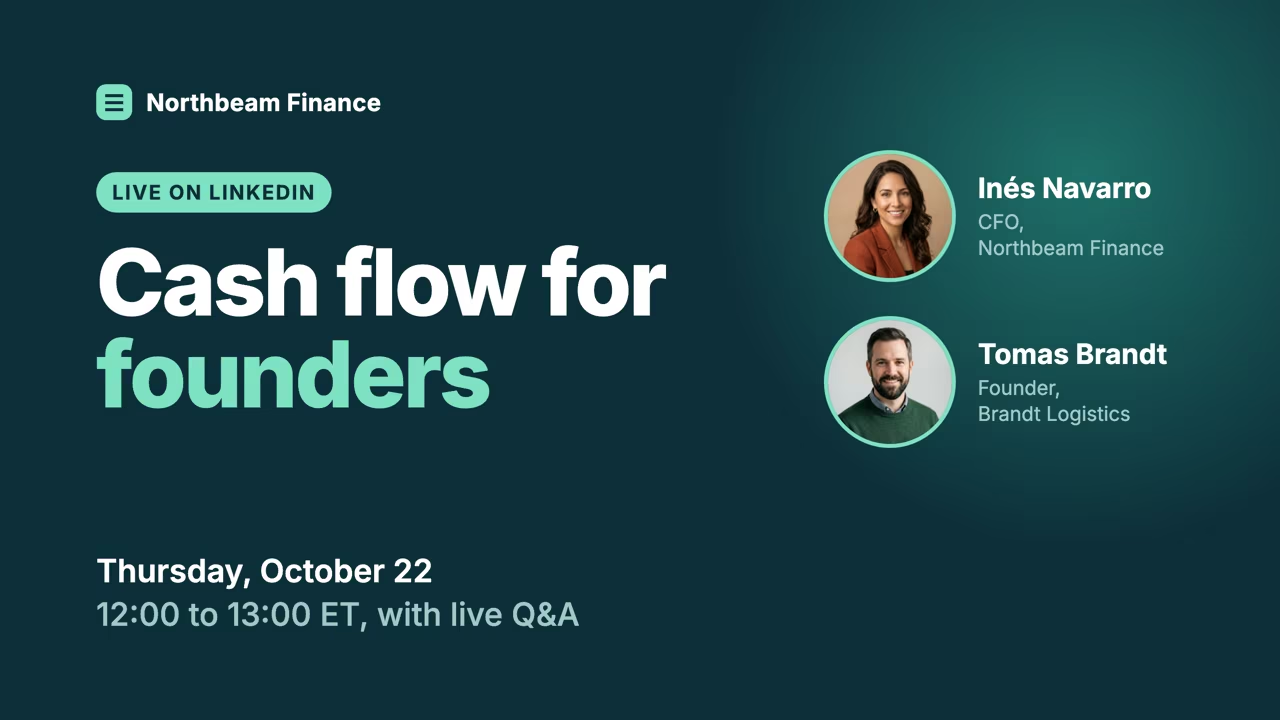
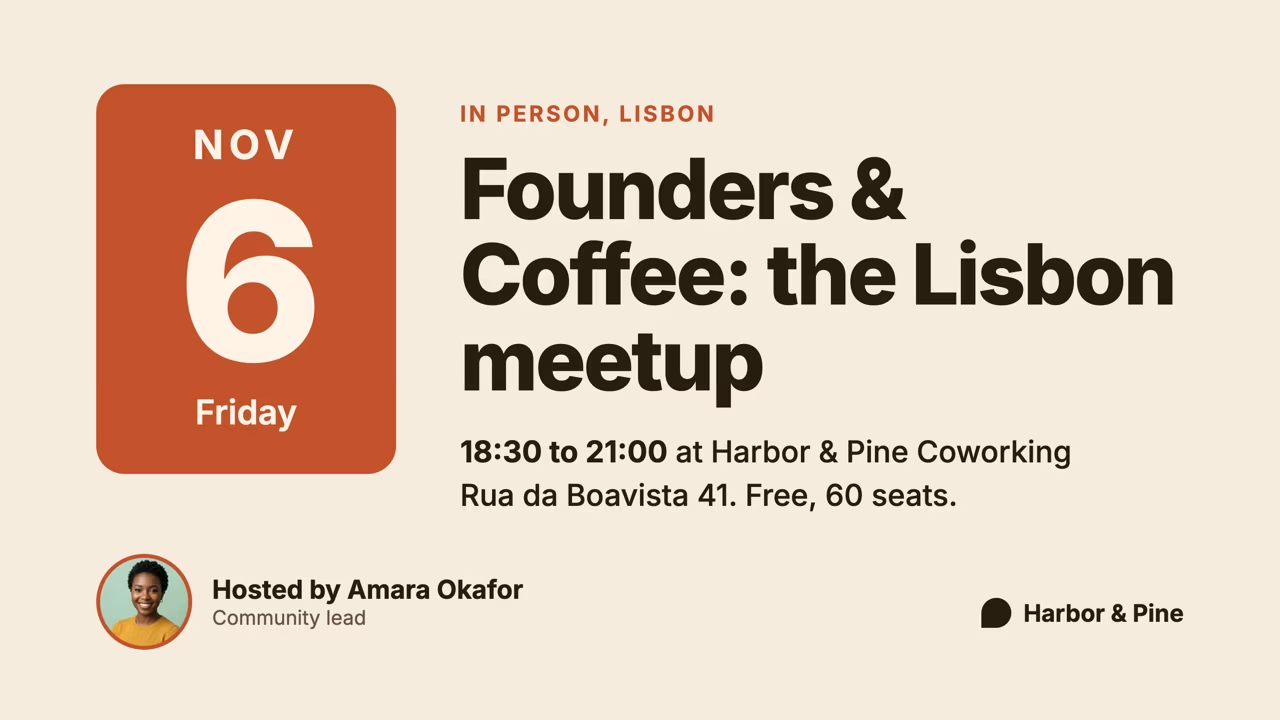
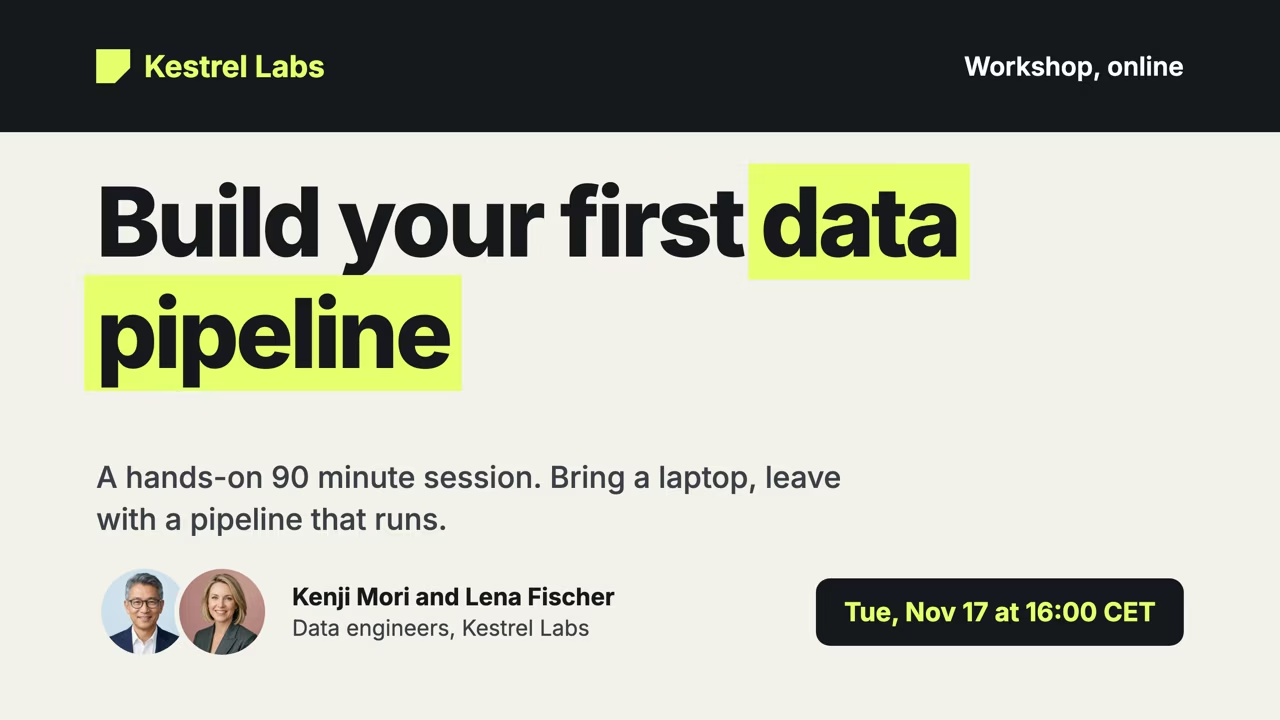
A strong event cover states what the event is, when it happens and who is hosting it within a few seconds. The three covers below are built at 1280 x 720, each with a different pattern for a different type of event.
The first pattern puts the speakers on the cover. It suits a LinkedIn Live webinar where the guest list is the draw, and it costs you space for a longer title.
The second pattern leads with the date. It suits an in person meetup, where the day and the place decide whether someone can come, and it works with one host photo or none.
The third pattern leads with a verb and a promise. It suits a workshop with a clear outcome, and it needs a short title to stay readable when LinkedIn shows the cover small.
How to create a LinkedIn event step by step
You create a LinkedIn event from the Events page on desktop, or from My Network on mobile, and the event does not exist until you click Post at the end. LinkedIn's Create a LinkedIn Event page lists the same steps.
- Click the Home icon, click Events in the left pane, then click Create an Event.
- Upload the cover image from your device and click Alt text to describe it.
- Select the organizer, the event type and the event format.
- Type the event name, pick the time zone, and set the start date and time. Add an end date and time if you want one.
- Write the description and add speakers. Pages can also tick Use a LinkedIn registration form, which requires a link to your privacy policy.
- Click Next, write the post for the feed, choose who to share it with and click Post.
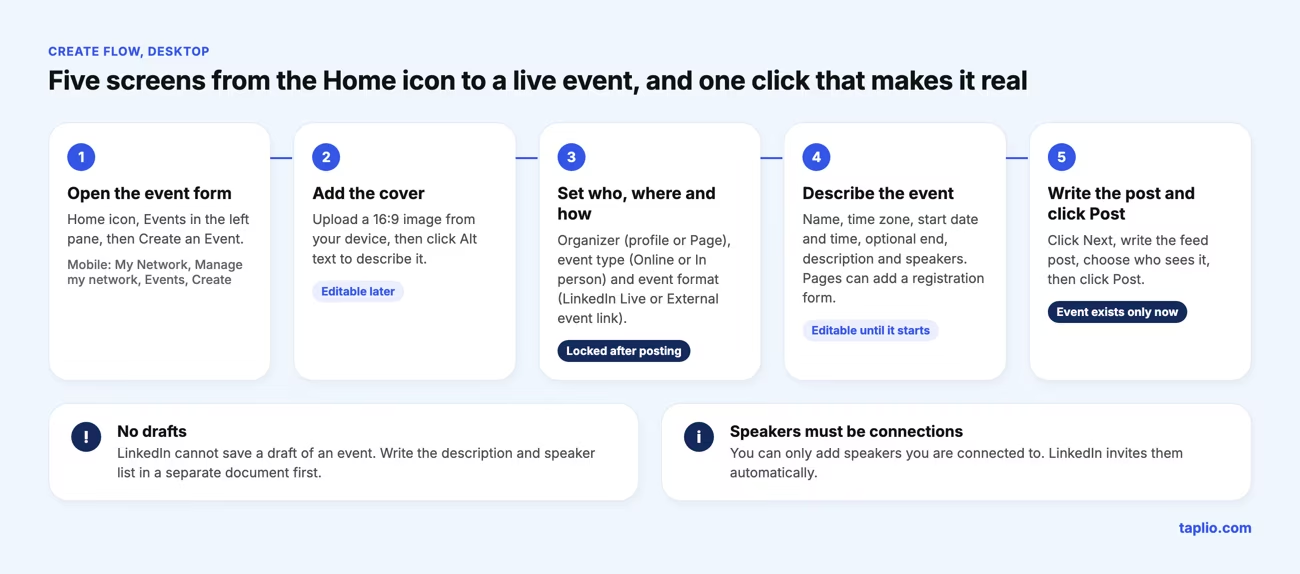
On mobile, tap My Network, then Manage my network, then Events, then Create. The cover upload sits behind the edit icon in the upper-right corner.
LinkedIn cannot save a draft of an event, so write the description and the speaker list in a separate document first. Speakers must be your connections, and LinkedIn invites them automatically.
If the event needs paid tickets, LinkedIn recommends adding the link to an external ticketing site in the External URL field and saying so in the description.
Online, in person or external: choose the type and format
Pick In person for a physical venue, Online with the LinkedIn Live format to stream on LinkedIn, or Online with an External event link to host the session on another platform. You cannot change this choice after posting.
| Choice | What happens | What you need |
|---|---|---|
| In person | Held at a venue and promoted on LinkedIn, not streamed | A venue and location |
| Online, LinkedIn Live | Streamed on LinkedIn with live comments, and a recording stays on your profile or Page | Access to LinkedIn Live and a third-party streaming tool |
| Online, External event link | Held elsewhere, promoted on LinkedIn | The link to the external broadcast location |
LinkedIn recommends LinkedIn Live where possible, because attendees drop off when they switch platforms. The option appears in the Event format list only if you are eligible.
LinkedIn's LinkedIn Live access criteria require more than 150 followers or connections, an account or Page at least 30 days old, and a good standing record. LinkedIn Live is not available to members and Pages based in mainland China, and you cannot stream directly from LinkedIn, so you need a streaming tool.
What you can and cannot change after you post
After posting, you cannot change the organizer, the event type or the event format, but you can edit everything else until the event starts. LinkedIn's Edit a LinkedIn Event page lists the cover, alt text, name, time zone, dates, description, speakers and registration form as editable.
Attendees are notified if you change the location or the time. Once the event starts, nothing can be edited. If you make a significant error in a locked field, you have to delete the event and create a new one.
Check the organizer, the format, the date and the time before you click Next. That one check avoids most rebuilds.
How to promote a LinkedIn event
You promote a LinkedIn event by inviting your first-degree connections, sharing the event in posts and messages, adding speakers, and running event ads if a Page hosts it. LinkedIn also recommends setting the event up 2 to 4 weeks in advance, so there is time to promote it.
- Invite connections. You can invite 1st-degree connections only, up to 1000 invitations per week, and the limit applies across all your events. Filter by location, current company, school or industry. LinkedIn's invitation guide says attendees can invite their own connections too.
- Share the event. Repost it to your feed with your thoughts, send it in a message, or copy the link. Sharing puts it in front of people outside your first-degree network.
- Write the launch post with care. Creating the event publishes a one-time post to the feed and to your profile or Page, so the text matters.
- Add speakers. LinkedIn says speakers can increase interest in the event. Connect with them before you add them.
- Run event ads. Page organizers can promote the event to a target audience from Campaign Manager. LinkedIn's event ads guide lists the objectives as brand awareness, website visits or engagement, and says you can upload a custom ad image to replace the event cover.
Event ads need super admin, content admin or Sponsored Content poster access on the Page, plus creative manager access or higher on the ad account. Registrations attributed to the ads show in Campaign Manager.
A four-week post schedule to fill your event
Set the event up four weeks out and schedule one promotion post per week, plus a reminder on the day, so the one-time launch post is not your only reach. The timeline below separates what LinkedIn does for you from the posts you add. The cadence is our suggestion, not a LinkedIn rule.
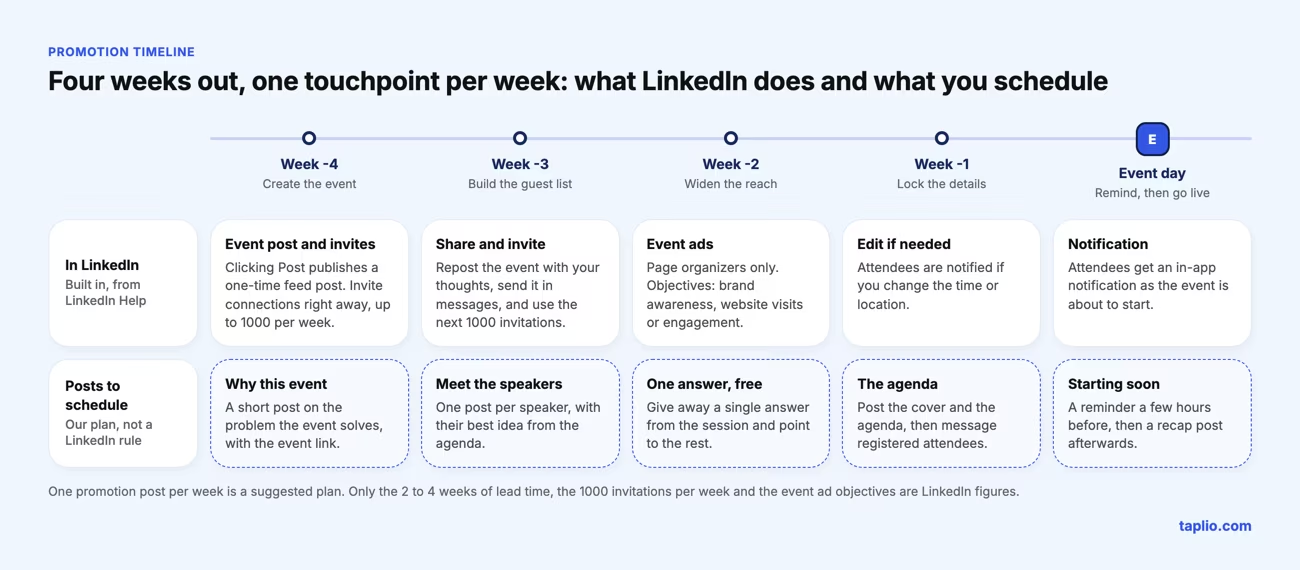
Give each post one job. Week 4 explains the problem the event solves, week 3 introduces a speaker, and week 2 gives away one answer from the session.
Week 1 shows the cover and the agenda, and the last post is a reminder a few hours before the start. For angles that get replies, start from our list of LinkedIn post ideas.
Posting that sequence by hand means opening LinkedIn on five separate days. Taplio's LinkedIn post scheduler queues all five posts at set times, with plans from $39 per month and a 7-day free trial.
Taplio does not create LinkedIn events or send event invitations. Those two steps stay inside LinkedIn.
Follow up with attendees after the event
After the event, use the attendee list on the event page to follow up: message attendees who are your connections, and use InMail for those who are not. LinkedIn's invitation guide describes both routes.
LinkedIn's Events overview lets the organizer post content on the event page before, during and after the event. A recap post within a day, with the one idea attendees asked about most, gives people who missed it a reason to follow you. If you ran event ads, compare registrations per campaign in Campaign Manager to see which audience converted.
Common mistakes when creating a LinkedIn event
- Uploading the cover from cloud storage. LinkedIn does not support it. Save the file to your device first.
- Using the wrong ratio. LinkedIn requires 16:9. Export at 1280 x 720.
- Choosing the wrong format. The organizer, type and format are locked after posting, so pick LinkedIn Live or External event link on purpose.
- Setting up too late. LinkedIn advises 2 to 4 weeks. With less time, you get one or two weekly batches of 1000 invitations instead of four.
- Inviting everyone. You get 1000 invitations per week across all events, so invite connections who care about the topic.
- Creating the event more than a year ahead. Attendees may not receive notifications.
Frequently asked questions
What are LinkedIn events?
LinkedIn events let individuals or organizations create, promote and host professional gatherings on LinkedIn. They can be online, in person or hybrid, and each one has an Event Page with the details, speakers and agenda.
How to see LinkedIn events?
Type a keyword into the LinkedIn search bar, click See all results, then click the Events tab. You can also find recommended events on the Events homepage and the My Network Discover tab, or open the Events tab of a Page you follow.
How do I attend a LinkedIn event?
Accept the invitation, open your Events homepage, click Show all next to Your events, select the event and click Join. For streamed events, click Open link in the pop-up to reach the live stream or the external site hosting it.
What is the 3-2-1 rule on LinkedIn?
It is not a LinkedIn Events feature, and the LinkedIn Help pages on events do not define it. For events, rely on the limits LinkedIn does publish: 1000 invitations per week and 2 to 4 weeks of setup time.
How many people can I invite to a LinkedIn event?
You can invite up to 1000 of your 1st-degree connections per week. The limit applies across all the events you organize and does not increase when you run more than one.
What size should a LinkedIn event cover image be?
Use a 16:9 image with a minimum width of 480 pixels. LinkedIn names 480 x 270 and 1280 x 720 as working sizes, and 1280 x 720 gives you more pixels.


Keep reading
All articlesRelated Articles


Your Linkedin AI coach is waiting for you
Join 12,000+ creators who let their coach turn the blank page into a plan and watch their audience compound.
7-day free trial · Cancel anytime