
Pricing


AI writer
Taplio
MCP V2
New: Engage tools
Taplio MCP V2 now available, try it out
Your AI can now comment and reply for you. It finds the posts worth engaging, drafts in your voice and queues them on your Taplio account. Nothing posts until you confirm.

How to change your LinkedIn banner (desktop and mobile)


11
min read

 Open in ChatGPT
 Open in Claude
 Open in Perplexity

Key Takeaways
- How to change a LinkedIn banner on desktop: click Me, then View profile, click the edit icon in the upper-right corner of the cover image, choose Change photo and click Apply, using a JPG or PNG under 8MB at 1584 x 396 pixels, per LinkedIn Help.
- Changing a banner on mobile: in the LinkedIn app, tap your profile photo, View profile, the cover image, then Edit or Add photo and Save; in a mobile browser, tap the Profile icon, the cover image, Change and Save.
- The limit that blocks uploads: LinkedIn Help caps cover images at 8MB, accepts only JPG and PNG and does not support GIFs, and its fixes for a failed upload are a compliant file, a different browser or a compressed image.
- What to check before you apply: the file size, the 1584 x 396 pixel dimensions, the file type and that no headline or face sits in the lower-left corner, where the profile photo covers the banner on desktop.
- Reposition or replace: adjust the position in the editor on desktop or in the app when the framing is wrong, and upload a new 1584 x 396 file when the banner is blurry or over 8MB.
To change your LinkedIn banner on desktop, click Me, then View profile, click the edit icon in the upper-right corner of your cover image, choose Change photo and click Apply. In the LinkedIn app, open your profile, tap your cover image, choose Edit or Add photo, then tap Save.
LinkedIn Help calls the banner a "cover image" and recommends a JPG or PNG under 8MB at 1584 x 396 pixels. The mobile browser path, repositioning, upload errors and three banner patterns to switch to follow.
How to change your LinkedIn banner on desktop
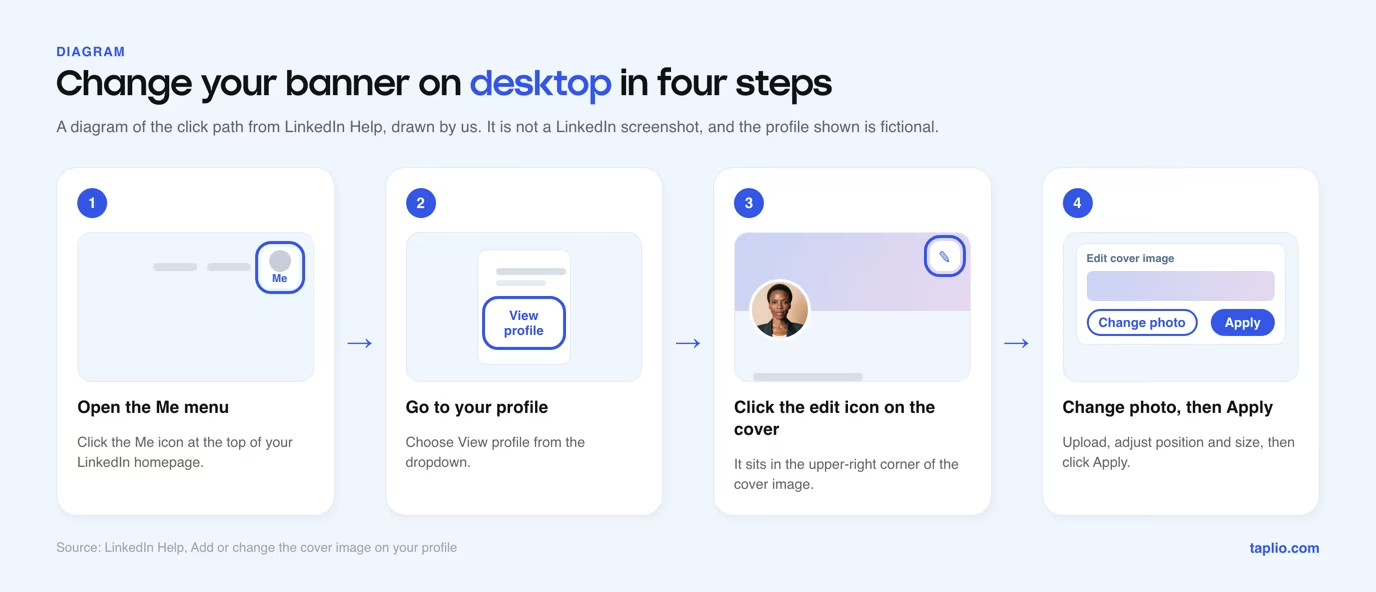
You change a banner on desktop from the edit icon on your cover image. The steps follow the LinkedIn Help page for cover images, checked against the live page on 6 November 2026.
- Click the Me icon at the top of your LinkedIn homepage.
- Click View profile. LinkedIn Help's steps for a first cover image call this entry your Profile card, so click whichever your dropdown shows.
- Click the edit icon in the upper-right corner of the cover image, in your introduction section.
- Click Change photo and follow the prompts to pick the new file.
- Crop, filter, adjust, reposition, resize or rotate the image if it needs it.
- Click Apply. LinkedIn Help says the image uploads automatically.
If you have never set a banner, you click a camera icon in the upper-right corner of your introduction section instead. The pop-up offers to upload a single photo, create a slideshow or choose an image.
How to change your LinkedIn banner on mobile
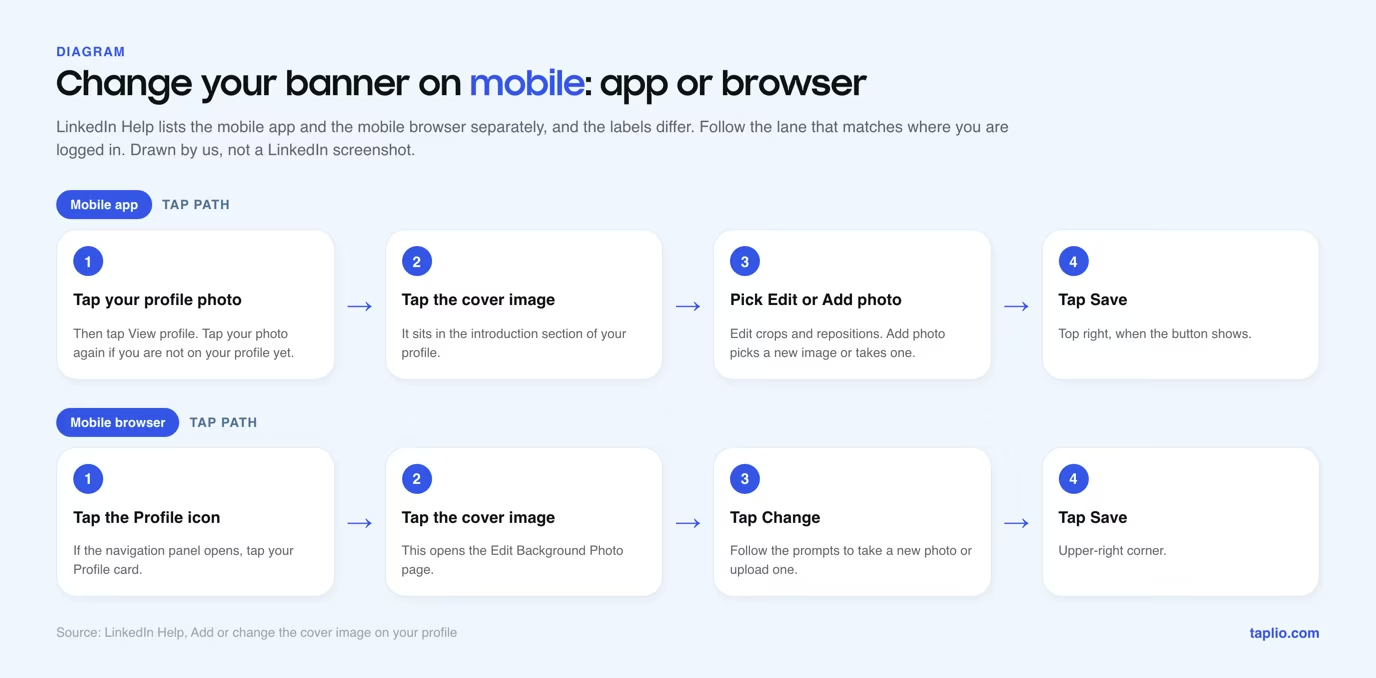
On a phone you change the banner by tapping the cover image on your own profile, and the labels depend on whether you use the app or a mobile browser. LinkedIn Help splits them into a Mobile tab and a Mobile Browser tab, and the steps below treat the Mobile tab as the app.
Mobile app
- Tap your profile photo, then tap View profile. LinkedIn Help adds a second tap on your profile photo to reach your profile, so use it if you are not there yet.
- Tap your cover image in the introduction section.
- Tap Edit to crop, filter, adjust, reposition, resize or rotate the current image. Tap Add photo to select a different image from your photo library or take a new one.
- Tap Save in the upper right, if the button appears.
Mobile browser
- Tap the Profile icon. If the navigation panel opens first, tap your Profile card, a step LinkedIn Help lists when you add a first cover image.
- Tap the cover image. This opens the Edit Background Photo page.
- Tap Change and follow the prompts to take a new photo or upload one.
- Tap Save in the upper-right corner, if the button appears.
Desktop, app and mobile browser at a glance
The three surfaces differ in where you start and what you tap, and each one ends on a confirm button.
| Where you are | How you reach the cover image | Change or edit control | Confirm button |
|---|---|---|---|
| Desktop | Me, then View profile | Edit icon in the upper-right corner of the cover, then Change photo | Apply |
| Mobile app | Profile photo, then View profile | Tap the cover image, then Edit or Add photo | Save |
| Mobile browser | Profile icon | Tap the cover image, then Change | Save |
How to reposition, crop or delete a banner without replacing it
You can fix a badly framed banner without a new file on desktop and in the app, because the control that swaps the image also edits it. On desktop, click the edit icon on the cover image, then Edit cover image to crop, apply filters, adjust, change the position and size, or rotate.
To remove the banner on desktop, click Delete photo and confirm. In the app, tap the cover image, then Edit for the same adjustments or Delete to remove it.
The mobile browser is the exception. Its Edit Background Photo page lists only Change and Delete, and LinkedIn Help mentions dragging to set position and size only in its steps for adding a first photo, so reposition the current image from desktop or the app.
Replace the file instead when the problem is sharpness, file size or message. Moving the image does not fix a low-resolution source.
Prepare the file before you change your LinkedIn banner
A banner that uploads cleanly is a JPG or PNG under 8MB at 1584 x 396 pixels. LinkedIn Help gives those figures for the cover image and repeats the limit and file types on its troubleshooting page.
| Spec | What LinkedIn Help says |
|---|---|
| File type | JPG or PNG. GIFs are not supported. |
| File size | Under 8MB |
| Pixel size | 1584 wide by 396 high, recommended |
| Ratio | Not stated by LinkedIn Help. 1584 x 396 works out to 4:1. |
| Blurry result | Choose an image with a larger file size. Photos look better than images with logos. If it stays blurry, try a compression tool such as ImageOptim on Mac or Trimage on Windows. |
| Content | Must comply with the LinkedIn User Agreement |
Where to keep text and faces when you reposition
Keep every headline, logo and face out of the lower-left corner, because your profile photo sits on top of that corner on desktop. When you change the position in the editor, you are choosing what ends up under the photo.

- Keep the main message above the photo or to its right, and leave the corner to background.
- After you move the image, scan the area next to your profile photo for half-hidden letters.
- Check again at another window width, since LinkedIn Help says the appearance changes with window size and screen resolution.
Taplio's LinkedIn banner guide treats the safe zone as a design rule and includes a five-step build. This page stays on the change itself.
Slideshow banners and company pages
A slideshow is limited to certain paid plans, and a company page cover follows different specs from your personal banner, so the steps on this page do not apply to it. LinkedIn Help lists Create Slideshow for Premium Business, Recruiter Lite, Sales Navigator Core, Premium Pages and LinkedIn Learning.
For a LinkedIn Page, the image specifications for LinkedIn Pages recommend a 1512 x 256 pixel cover, as a PNG or JPEG of 3MB at most. LinkedIn Help's dynamic cover image feature is limited to Premium Company Page admins, on desktop.
Why your LinkedIn banner will not change or upload
LinkedIn Help's fixes for a photo that will not upload are to check the file against the limits, try a different browser, then compress the image. Work through them in this order, then check the two steps after them.
- Check the file size. The maximum is 8MB, so export again at a lower quality setting if the file is over it.
- Check the file type. Only PNG and JPG are accepted. GIFs are not supported, so convert one first.
- Try a different browser. This is the first fix LinkedIn Help names once the file meets the limits.
- Compress the image on your device. If another browser does not help, upload the smaller version.
- Confirm the change. Click Apply on desktop, or tap Save in the upper-right corner on mobile.
- Check you are on the right surface. The app and the mobile browser use different labels, so a missing button may mean you are following the other path.
Three other situations can look like a failed change.
- A live stream replaced your cover. When you start a LinkedIn Live broadcast, the cover image shows the stream and reverts after it ends. LinkedIn Help says there is currently no option to opt out.
- The image gallery is not available to you. The custom cover image gallery is only available to LinkedIn members in the USA.
- Slideshows are not on your plan. LinkedIn Help limits them to the plans listed in the previous section.
If the cover looks blurry after a successful upload, LinkedIn Help's first fix is an image with a larger file size. The upload limits are on its photo upload troubleshooting page.
Three banner swaps worth making when you change yours
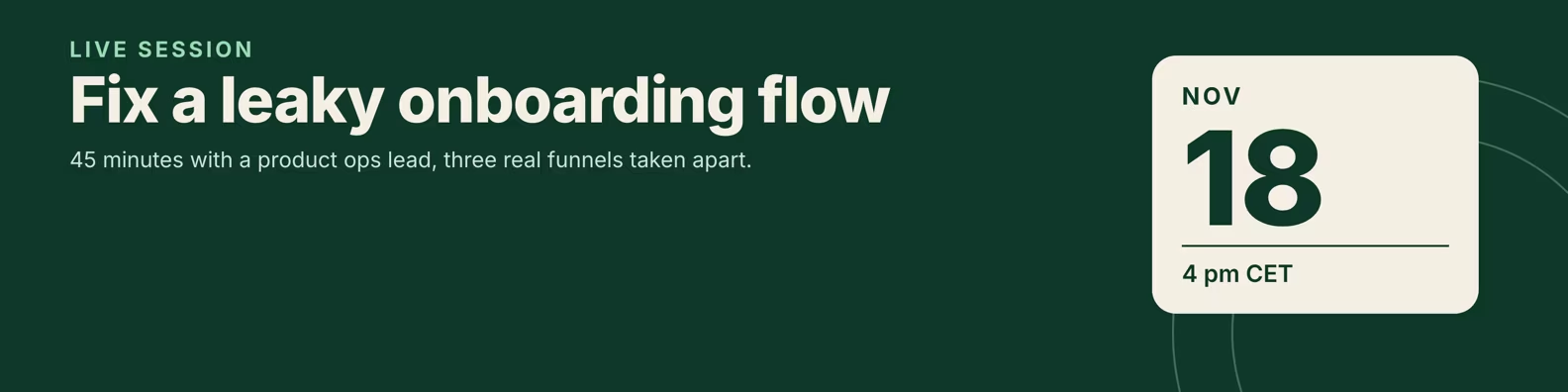
A change is the moment to give the banner one job. These three patterns are not among the nine in Taplio's gallery of LinkedIn banner examples, and each is rendered at 1584 x 396 with the lower-left corner clear. The names, dates and numbers are fictional placeholders.
1. The dated event banner
Use it when one thing is happening on a known date, such as a webinar, a talk or a launch. Keep the date tile to a month, a day and a time, and the promise to one sentence.
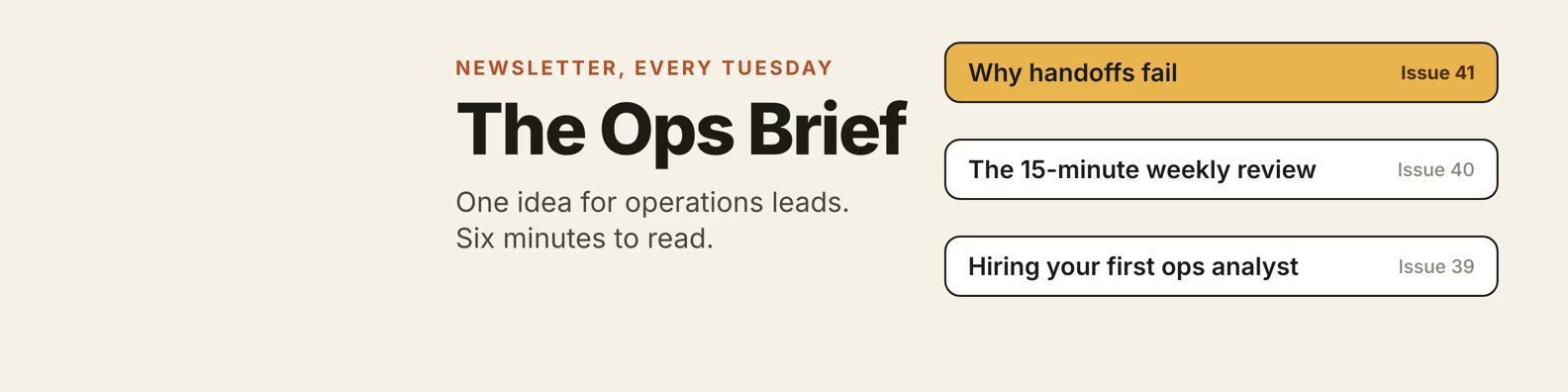
2. The newsletter banner
Use it when your best recurring asset is something people subscribe to. Name the publication, state the cadence in plain words and list three real issue titles as proof that it ships.
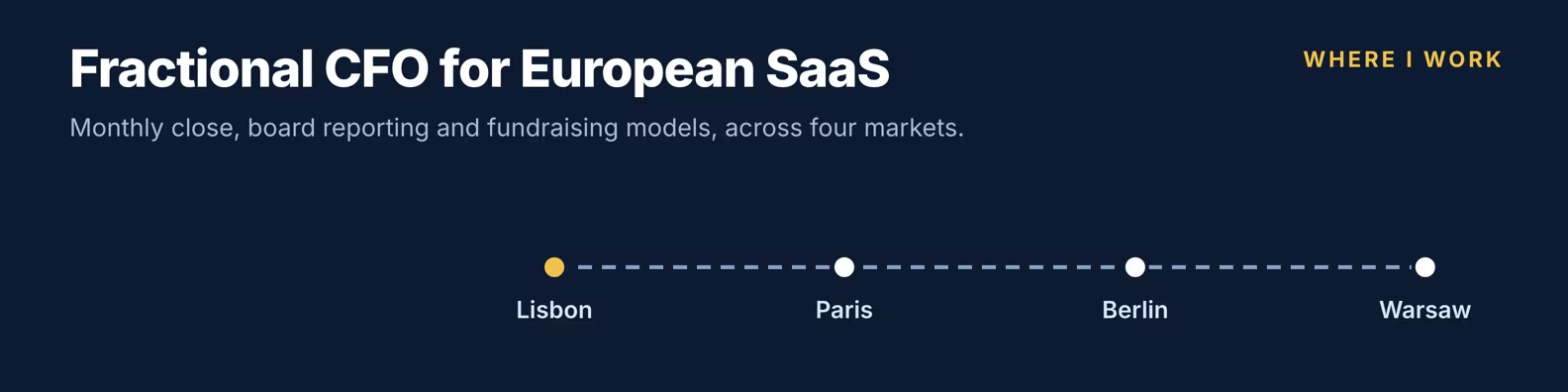
3. The coverage route banner
Use it when where you work is part of the offer, as it is for consultants and fractional operators. List two to five places or markets, and keep the headline to the role and the audience.
For nine more patterns, including statement, quote, stat and before-after banners, open the gallery of best LinkedIn banners. LinkedIn banner ideas by profession goes role by role, and LinkedIn banner templates has six layouts to reuse in a design tool.
Keep a copy of the banner you replace
LinkedIn Help does not describe a way to restore a previous cover image, so save the file you are replacing before you upload the new one. Put the date and the pattern name in the file name, so you can see what you have already used at the next swap.
Check the new banner before you move on
Open your profile in a second window and on your phone after you save, because LinkedIn Help says the appearance changes with window size and screen resolution.
- Is the headline fully visible and clear of your profile photo?
- Is the text readable at phone width?
- Does the image look sharp, or does it need a larger source file?
- Does the banner say the same thing as your headline and About section?
If the rest of the profile needs work too, Taplio's LinkedIn profile optimization page shows how to bring the headline, banner and About section into one message.
Frequently asked questions
How can I create a free LinkedIn banner?
Use any free design tool, such as Canva, that exports a JPG or PNG at 1584 x 396 pixels and under 8MB. LinkedIn does not provide support for third-party tools, so check the size and file type yourself before you upload.
What makes a good LinkedIn cover image?
A good cover image carries one message and keeps the lower-left corner clear of text. LinkedIn Help suggests a photo or quote that captures your personality, a memorable team moment or a career milestone.
What are some good background images for LinkedIn?
Good background images are a photo of you at work, a team moment, a milestone, a short quote or a dated announcement. LinkedIn members in the USA can also pick from LinkedIn's custom image gallery, which requires no repositioning.
Why won't LinkedIn let me change my background photo?
LinkedIn Help's checks start with the file: it must be 8MB or less and a JPG or PNG, and GIFs are not supported. If it still fails, try a different browser, compress the image, and make sure you click Apply on desktop or tap Save on mobile.
How do I change my LinkedIn banner on my phone?
In the app, tap your profile photo, tap View profile, tap the cover image, choose Edit or Add photo, then tap Save. In a mobile browser, tap the Profile icon, tap the cover image, tap Change, then tap Save.


Keep reading
All articlesRelated Articles


Your Linkedin AI coach is waiting for you
Join 12,000+ creators who let their coach turn the blank page into a plan and watch their audience compound.
7-day free trial · Cancel anytime