
Pricing


AI writer

Taplio
MCP V2
New: Engage tools
Taplio MCP V2 now available, try it out
Your AI can now comment and reply for you. It finds the posts worth engaging, drafts in your voice and queues them on your Taplio account. Nothing posts until you confirm.

How to post an article on LinkedIn (and when to write one)


14
min read

 Open in ChatGPT
 Open in Claude
 Open in Perplexity
Key Takeaways
- How to post an article on LinkedIn: On a desktop browser, click Write article in the share box on your LinkedIn homepage, add a 1920 x 1080 cover and a title, write the body, then click Next and Publish. The article tool is not available on the LinkedIn mobile app.
- The exact path in the editor: Choose the author in the dropdown next to your name, upload the cover above the Title field, then open the Manage dropdown to set the article URL, the SEO title and the SEO description, and use the clock icon after Next to schedule it.
- The limit that decides article or post: LinkedIn Help sets a post at 3,000 characters and an article at 125,000, so the idea needs an article only when it outgrows 3,000 characters.
- What to check before you publish: A cover of 1920 x 1080 pixels in JPEG, JPG, PNG or WEBP, an SEO title of 60 characters or fewer, and an SEO description of 140 to 160 characters.
- Article or post decision rule: Write an article if the idea needs more than 3,000 characters, will still be useful in six months and needs one URL to share. Otherwise write a post, and test the idea in the Taplio LinkedIn post generator first.
To post an article on LinkedIn, open LinkedIn on a desktop browser, click Write article in the share box on your homepage, add a cover image and a title, write the body, then click Next and Publish. The article tool is not available on the LinkedIn mobile app.
That is the mechanics. The harder question is whether an article is the right format at all. This guide gives the exact steps, the cover and SEO limits LinkedIn documents, three cover patterns you can copy, and a rule for choosing between an article and a post.
How to post an article on LinkedIn in 6 steps
You post an article on LinkedIn from the publishing tool on desktop, in six steps. LinkedIn documents the full flow on its Write and publish articles help page.
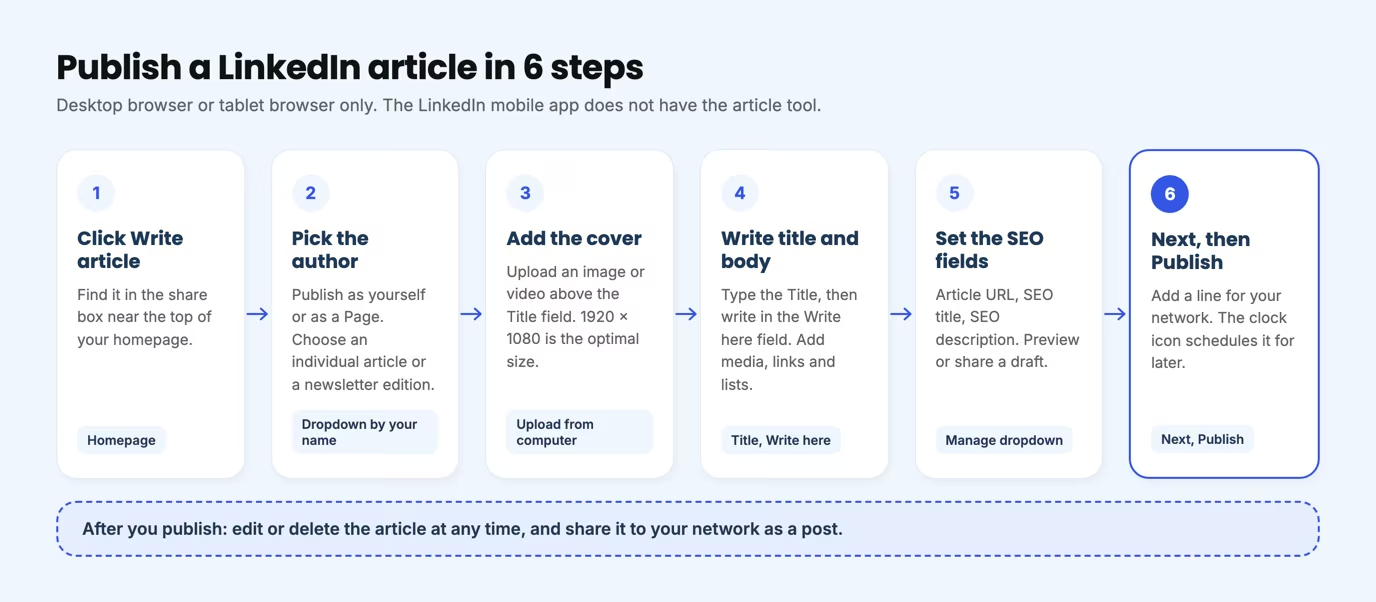
- Open the editor. Log in on desktop and click Write article in the share box near the top of your homepage.
- Choose who publishes. Use the dropdown next to your name to publish as yourself or as a Page you manage. You can also pick an individual article or a new edition of your newsletter.
- Add the cover. Click Upload from computer above the Title field and add an image or a video.
- Write the title and the body. Click into the Title field, then into the Write here field. The toolbar adds images, video, links, code snippets, embeds, lists, blockquotes and dividers.
- Check the settings. Open the Manage dropdown to set the article URL, the SEO title and the SEO description, preview the article, or share a draft.
- Publish. Click Next, add a line in the "Tell your network what your article is about" field, then click Publish.
If the Title field does not respond, a browser extension is the usual cause. LinkedIn names Lazarus and Grammarly as known examples. Disable them and refresh the editor.
Where is the Write article button on LinkedIn?
The Write article button sits in the share box on your LinkedIn homepage, on the desktop website or in a tablet browser. It is not on the mobile app, so a phone is the wrong device for this job.
The route changes slightly depending on who publishes. Personal profiles use the homepage share box. Pages use the Newsletters menu in the admin view. LinkedIn Help describes both paths.
| Publishing as | Where to start | Who can do it |
|---|---|---|
| Your personal profile | Click Write article in the homepage share box | All members |
| A LinkedIn Page, individual article | Page admin view, then Newsletters, then Write article, then pick the Page under your name | Super admins and content admins |
| A newsletter edition | Same editor, then choose the newsletter in the dropdown next to your name | Members or admins who have a newsletter |
Published articles appear in the Activity section of your profile. You can edit or delete an article at any time, and you can disable comments on it.
Should it be an article or a newsletter edition?
Choose a newsletter edition when you plan to publish on a topic on a regular basis. LinkedIn describes newsletters as a way to talk about a professional topic you care about on a schedule, and members can subscribe to be notified when you publish a new article. Choose an individual article for a one-off piece that does not need an audience of subscribers.
The editor is the same for both, so you can decide at step two of the flow. The choice changes who gets notified, not how you write.
Can you schedule or draft a LinkedIn article?
Yes to both. After you click Next, a clock icon next to Publish lets you pick a later date and time. Before that, the Manage dropdown lets you preview the article and click Share draft to send a link to other members. They can open it only while logged in to LinkedIn.
LinkedIn article vs post: which one should you write?
Write a post when the idea fits in 3,000 characters and should reach feeds today. Write an article when the idea needs room, a structure and a title that keeps working in search months from now.
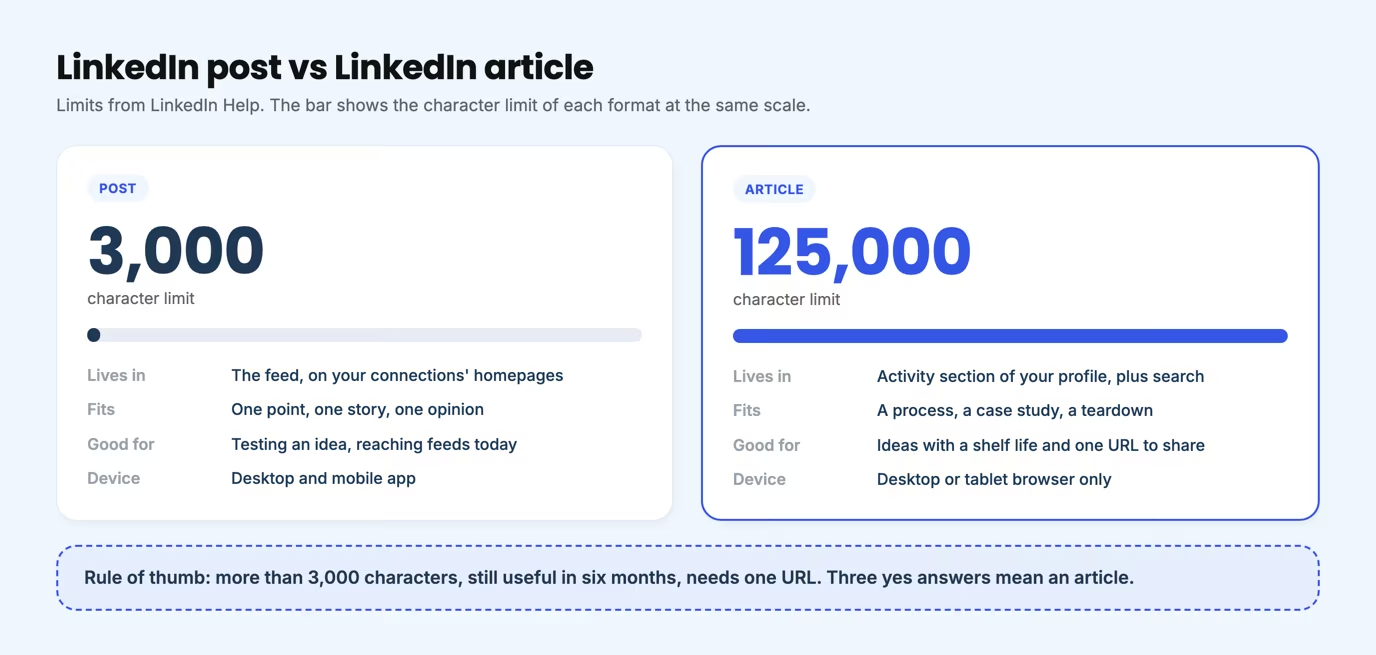
LinkedIn defines the two formats differently. Posts are content shared through the feed, and a post goes out to your connections' feeds on their LinkedIn homepage. Articles are long form, in-depth content that LinkedIn describes as typically consisting of professional insights that help members establish their brands. The Help page on posting updates versus publishing articles gives the limits.
| Question | Post | Article |
|---|---|---|
| Character limit | 3,000 | 125,000 |
| Where it lives | Feed, on your connections' homepages | Activity section of your profile, plus search |
| Tables in the body | Not applicable | Not available in the editor |
| Title and SEO fields | None | Title, article URL, SEO title, SEO description |
| Mobile app | Yes | No, desktop or tablet browser only |
A decision rule you can apply in 30 seconds
Ask three questions before you open the editor. Does the idea need more than 3,000 characters? Will someone still want it in six months? Do you need one URL to point people to? Three yeses mean an article. One or none means a post.
When an article is worth the effort
An article earns its time when the content has a shelf life. A step-by-step process, a case study with numbers, or a teardown of how your team solved something all hold up. A reader who finds it through Google next year gets the same value as a connection who sees it today.
Articles also suit ideas you want to link to from other places. A single URL with a clear title is easier to reference in a proposal, a newsletter or a sales email than a feed post that scrolls away.
When a post is the better call
Post when the idea is one point, one story or one opinion. Posts get shown to your network without a click, while an article asks the reader to leave the feed first. If you are testing whether a topic resonates, a post is the cheaper experiment.
The two formats work best together. Test an idea as a post, then expand the ones that draw comments into an article. The LinkedIn post generator handles the first half of that loop.
LinkedIn article cover image size and specs
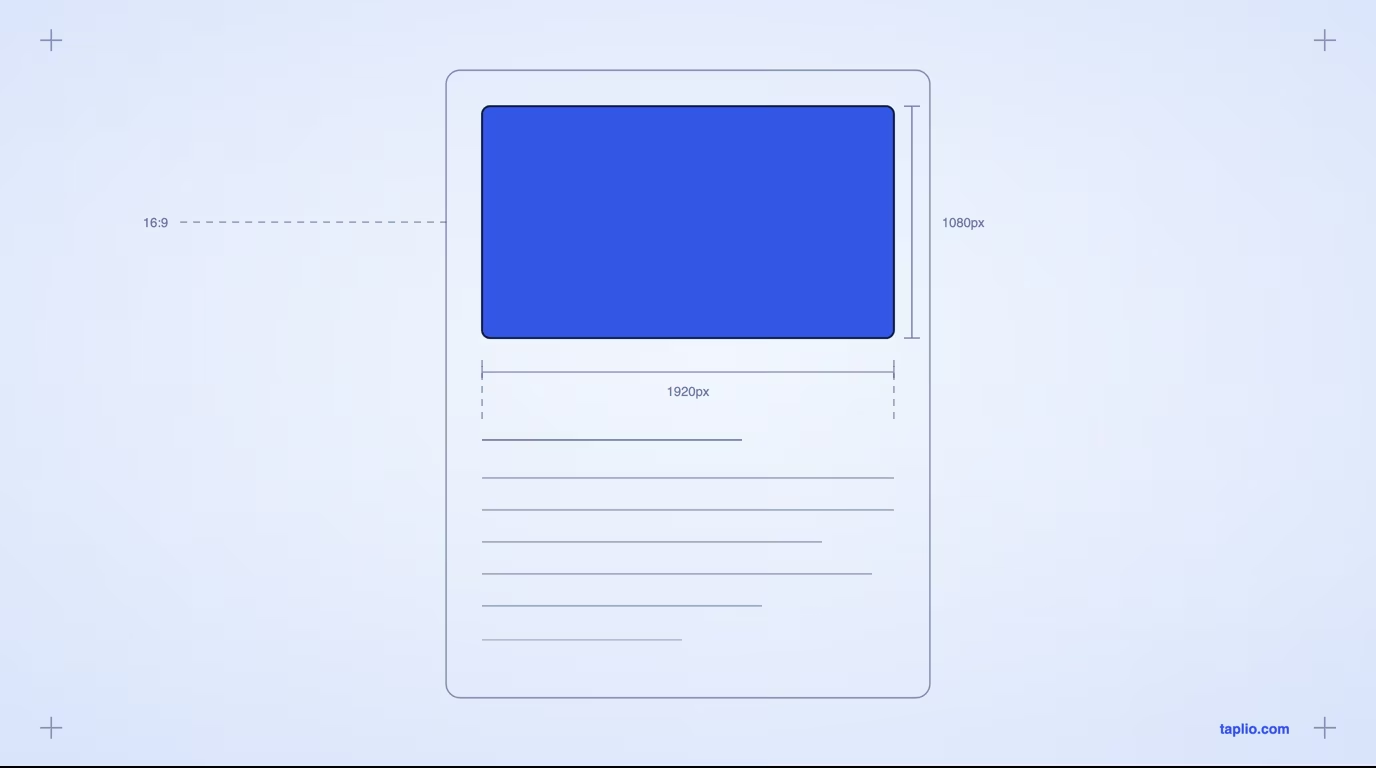
The optimal LinkedIn article cover image is 1920 x 1080 pixels, and LinkedIn crops covers to a 16:9 aspect ratio. Upload the image above the Title field.
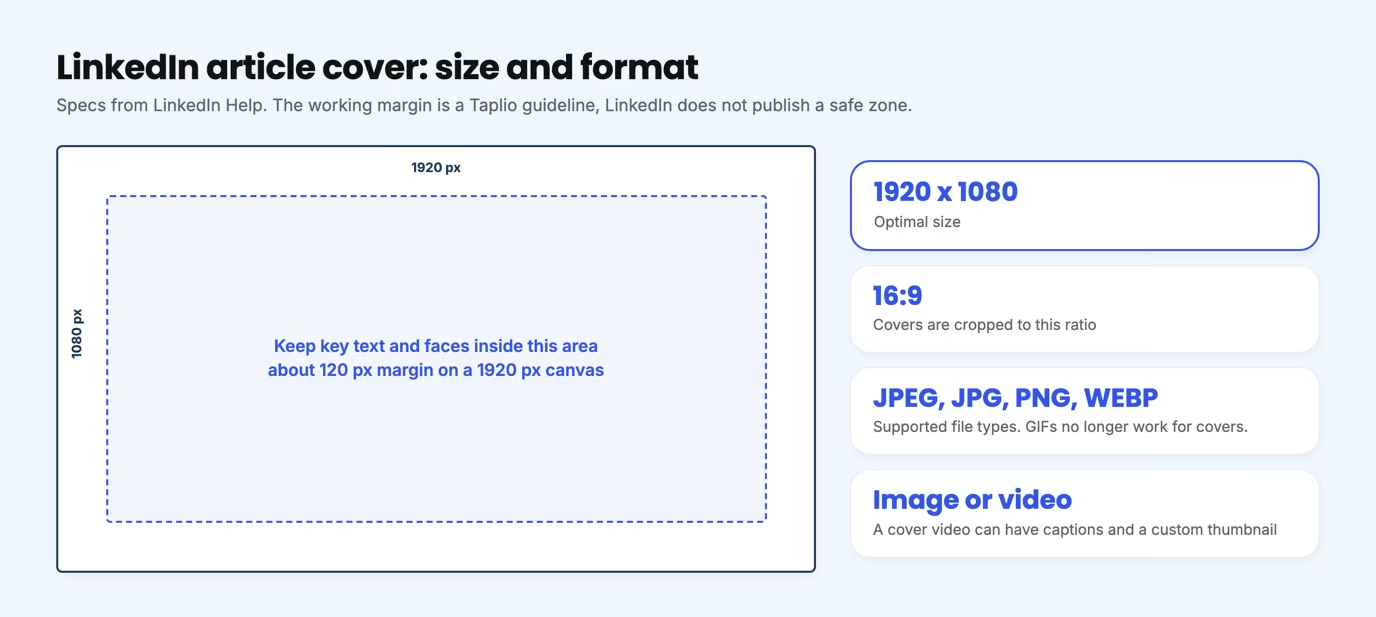
These are the details LinkedIn Help documents for covers on its page about images and rich media in articles:
- Size: 1920 x 1080 pixels is the optimal size.
- Ratio: covers are cropped to 16:9.
- File types: JPEG, JPG, PNG and WEBP. GIFs can no longer be used for cover photos.
- Video: you can upload a cover video instead, add captions, and choose a custom thumbnail.
- Credit: images that are not your own should include a reference to the source.
The cover is a different asset from your profile banner, which is wide and short. If you also need that one, the guide to LinkedIn banner sizes covers it. For images inside feed posts, use the LinkedIn post image size guide.
Where to place text on a 16:9 cover
LinkedIn does not publish a text safe zone for article covers. Treat the middle of the canvas as the safe area and keep any words away from the outer edges, since a crop to 16:9 can trim an image that has a different shape. A margin of roughly 120 pixels on a 1920 pixel canvas is a sensible working rule.
LinkedIn article examples: 3 cover patterns to copy
Strong LinkedIn article covers do one job: they tell the reader what the piece delivers before they read a word of it. These three patterns each use a different device, and each is rendered at the 1920 x 1080 size LinkedIn recommends.
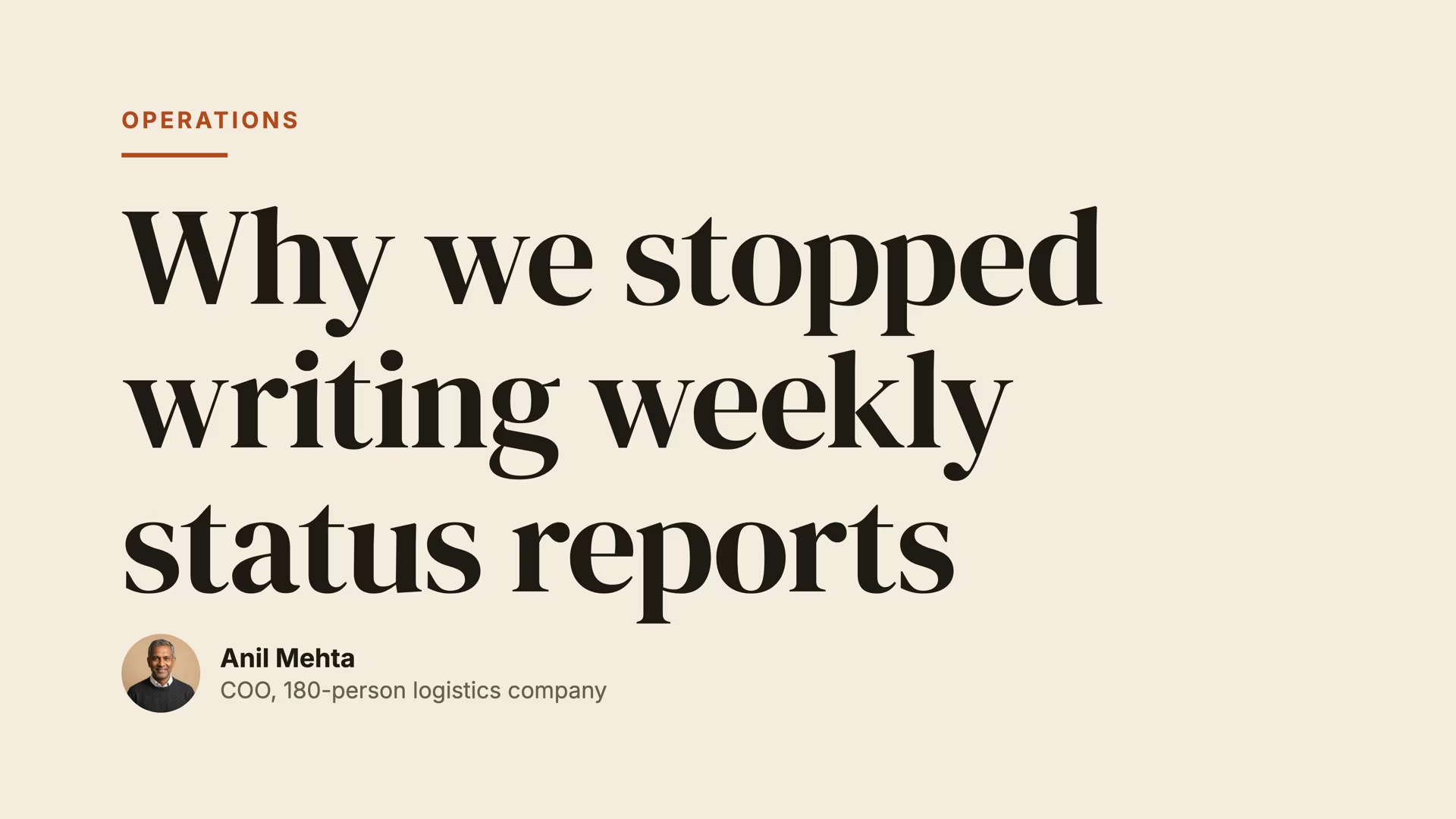
Pattern 1: the headline as the image
When the title is the strongest thing you have, put it on the cover in big type. Pick a single background color, one typeface and a short line. Keep it under about ten words, because the same title also appears in the Title field.
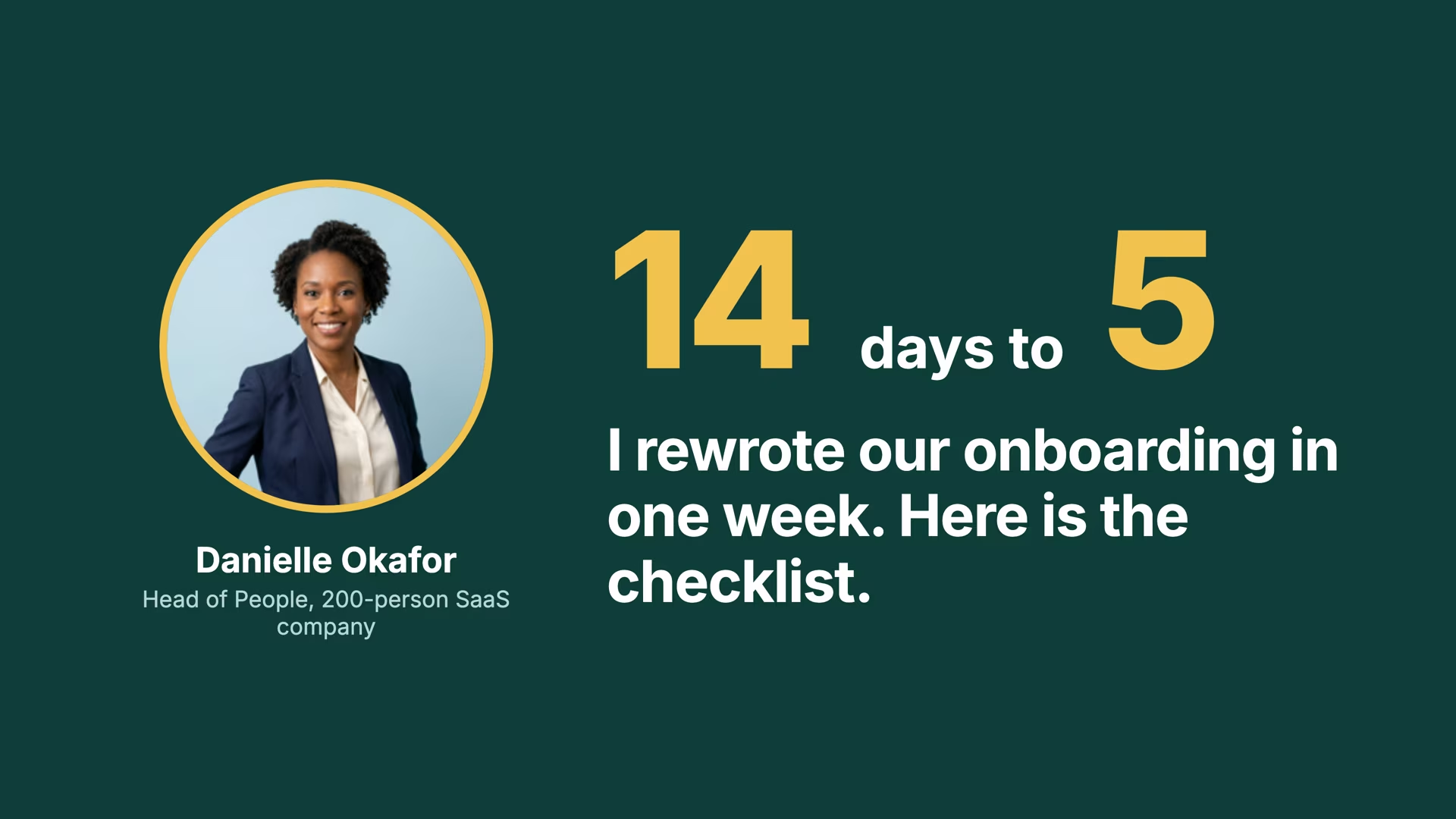
Pattern 2: a face and a promise
A professional headshot plus a stated outcome signals that a real person did the work. Use this pattern for first-person case studies. The number in the headline does the persuading, and the face makes it believable.
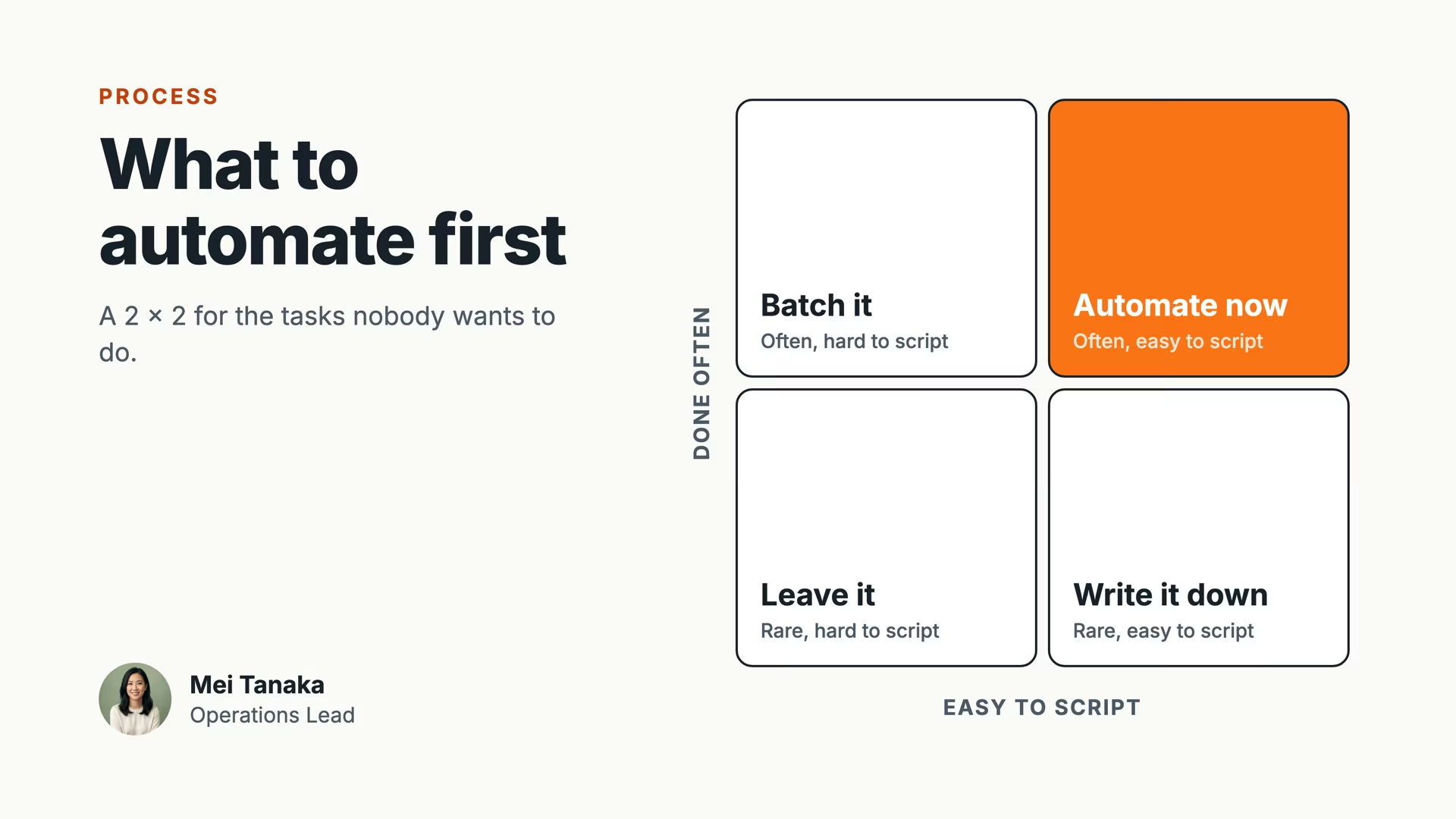
Pattern 3: the framework drawn out
If the article teaches a model, show the model on the cover. A 2 x 2 matrix, a three-step flow or a ladder tells the reader what they will learn in one glance. It also gives the piece a shape that gets reused when you cut it into posts.
Whichever pattern you pick, avoid generic stock photos. A cover that could belong to any article says nothing about yours.
Each of the three covers above costs a similar amount of effort to build, so pick by content, not by effort. A tactical how-to suits pattern 1. A personal story with a result suits pattern 2. A method or model suits pattern 3. If your piece fits none of them, use pattern 1 and write a better headline.
LinkedIn article writing: how to structure a piece people finish
Good LinkedIn article writing starts with a title that names the outcome, an opening that answers the question in two sentences, and subheadings that let a skimmer learn the point without reading everything.
Because the editor has no tables, structure comes from headings, lists, blockquotes and dividers. Use them the way you would on a web page.
- Answer first. State the conclusion in the opening two sentences, then spend the rest of the piece proving it.
- One idea per subheading. Write each subheading as a claim, so a reader who skims only the headings still learns something.
- Short paragraphs. Two or three sentences each. Long blocks of text read poorly on a phone, even though the editor itself is desktop only.
- Proof over adjectives. Use a number, a named tool or a figure from your own work instead of a claim like "huge results".
- One next step. End with a single action, such as a question for the comments or a link to a resource.
How long should a LinkedIn article be?
LinkedIn does not prescribe an ideal length. The hard limit is 125,000 characters, which is far beyond what most pieces need. Write until the question is answered and stop. Padding costs more than brevity does.
LinkedIn article SEO settings: title and description limits
LinkedIn lets you set an SEO title and an SEO description for every article, and these replace the article title and the first lines of the text on search engine result pages. They sit inside the Manage menu, so they are easy to miss.
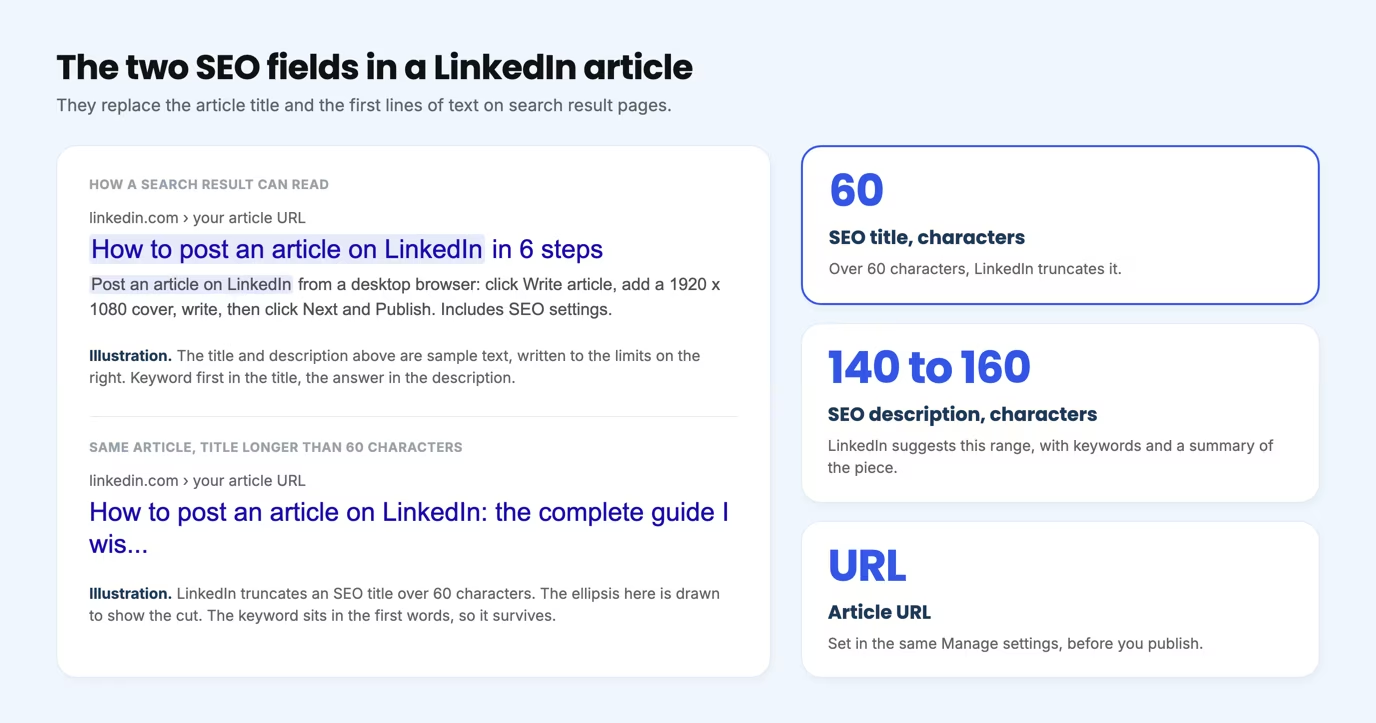
The limits come from LinkedIn's SEO settings help page:
- SEO title: an SEO title over 60 characters is truncated, so keep it at 60 or fewer and put the keyword first.
- SEO description: LinkedIn suggests 140 to 160 characters that use keywords and summarize the piece.
- Article URL: the same settings let you create a custom article URL.
To find them, open the Manage dropdown near the upper right of the editor and select the settings option. Fill all three fields before you publish. A title like "How to post an article on LinkedIn" is clear, and a description that answers the question in one sentence gives a searcher a reason to click.
How to turn one LinkedIn article into five posts
You get the most from an article by cutting it into posts that point back to it. A typical article holds several separate ideas, and each one can run as a post in the feed on a different day. These five cuts work for most pieces.
- The core claim. Turn your opening two sentences into a post with a strong first line.
- The steps. Rewrite the numbered list as a short list post.
- The number. Pull the single strongest figure and build a post around it.
- The mistake. Write the common error from your piece as a story.
- The cover. Reuse the framework from your cover as the image of a post.
Send the link to the article in the first comment or at the end of the post, then track which posts drive readers back. Taplio's LinkedIn analytics tool shows which posts earned the most engagement, and the post generator drafts the five versions from your article text.
What to do after you publish a LinkedIn article
Publishing is half the job, because an article does not spread on its own. Share it, answer every comment you get, and track which angle pulled readers in.
Use the "Tell your network what your article is about" field at publish time to write a hook for the announcement. That field is the first thing connections read, so treat it like the opening line of a post.
You can edit or delete the article at any time, so a typo or an outdated figure is a quick fix. Update the piece when a limit or a menu name changes. LinkedIn's own help pages carry a "last updated" date, which makes them a good check.
Common mistakes when you post an article on LinkedIn
Most weak articles fail on the same five points, and all of them are fixable before you click Publish.
- Burying the answer. A reader decides in two sentences whether to stay. Lead with the conclusion.
- Skipping the SEO fields. Without an SEO title and description, you leave the search listing to chance.
- A cover with tiny text. Tiny type is hard to read once an image is scaled down, so large type and one idea win.
- Wrong format for the idea. A single opinion stretched to 1,500 words should have been a post.
- No distribution plan. An article with no post pointing to it gets few readers. Plan the announcement and the follow-up posts when you draft.
Frequently asked questions
Where do I go to write an article on LinkedIn?
Log in on a desktop browser and click Write article in the share box on your homepage. The article tool is not on the LinkedIn mobile app. Page admins start from the Newsletters menu in the Page admin view.
What is the 4-1-1 rule on LinkedIn?
The 4-1-1 rule is a content-mix guideline: for every one self-promotional post, share four new pieces of content and one re-share. Andrew Davis of Tippingpoint Labs and Joe Pulizzi of the Content Marketing Institute are credited with coining it, as Contently reports. It is a rough ratio, not a LinkedIn requirement.
What are the best articles on LinkedIn?
LinkedIn publishes no official ranking, so the best articles are the ones that fit one of the patterns above. They answer a specific question, carry a title that names the outcome, and back each claim with a number or a named source. Judge a piece by those three tests, not by follower count.
Is it better to post or write an article on LinkedIn?
Post when the idea is a single point that fits in 3,000 characters and should reach feeds today. Write an article when the idea needs up to 125,000 characters of room, a structure and a title that can rank in search. Many creators test the idea as a post first.
Can you post an article on the LinkedIn mobile app?
No. LinkedIn states that the article feature is not available on the mobile app. Use the desktop website or a web browser on a tablet.


Keep reading
All articlesRelated Articles


Your Linkedin AI coach is waiting for you
Join 12,000+ creators who let their coach turn the blank page into a plan and watch their audience compound.
7-day free trial · Cancel anytime